In instances where we want to feature an image or we know the same content may be used in multiple ways, it makes sense to have more structured content. The Post content type we added back in Chapter 4, Content Types, Taxonomy, and Comment Types is a perfect example. Let's perform the following steps to do that:
- Begin by navigating to /admin/content or use the Admin toolbar and click on Manage - Content and then select our Post One page.
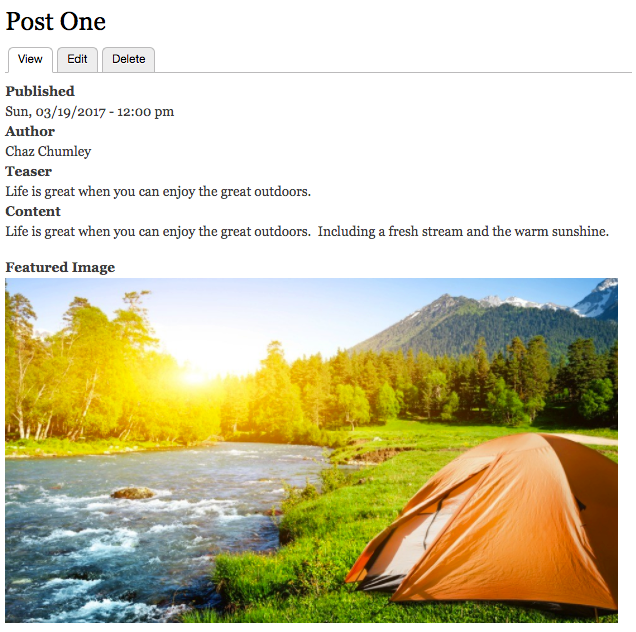
- Currently the default display of our content is presented, exposing all our fields, including their labels. Being able to manage the display on a per content type basis allows us to suppress what fields are shown, re-order how fields appear, and control how labels are displayed. So how do we manage these different displays and their fields within Drupal?
- Open a new tab in the browser and navigate to /admin/structure/types/manage/post/display, or use the Admin toolbar, select Manage -Structure-Content types, and then choose Manage display from the drop-down button next to the Post content type.
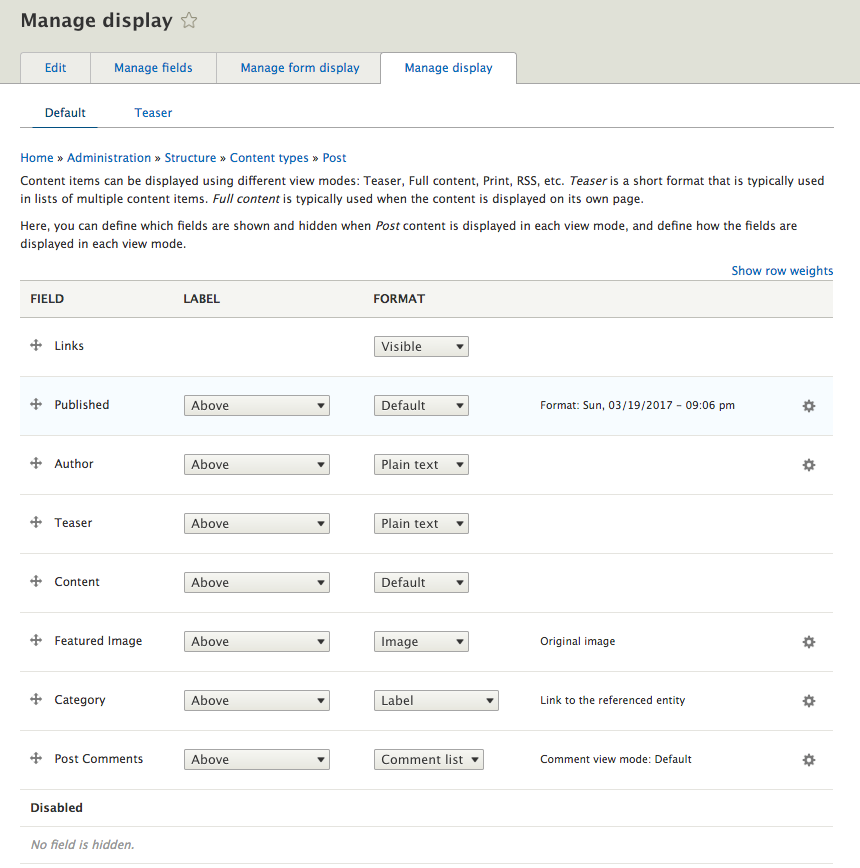
Drupal allows us to control how content is displayed using the Manage display page. Sometimes referred to as View modes or Display modes, all content types have two displays enabled for initial use:
- Default display
- Teaser display
While we can add additional custom display settings, the Default display is explicitly set for us. To demonstrate the flexibility of managing fields, we will start with reordering which fields are shown and the order they are shown in.