In addition to the FormBase class, there are two other built-in types of form: ConfirmFormBase and ConfigFormBase. In order to create a form of these types, you would use Drupal Console to create the form and then change the class to extend the appropriate FormBase class. You would use the ConfirmFormBase class to verify the user intended to perform an action. In Drupal 7, this was handled using the confirm_form function; in Drupal 8, you create your form class and extend the ConfirmFormBase class. When you extend ConfirmFormBase, you will be implementing ConfirmFormInterface, which contains some functions that are not implemented on the base class. At the very least, you need to write the getCancelUrl function, which returns a URL object to navigate to if the user clicks on the Cancel button, and getQuestion, which provides the text shown on the form. A basic form would look like this:
class TestConfirmForm extends ConfirmFormBase {

  /**
   * {@inheritdoc}
   */
  public function getFormId() {
    return 'test_confirm_form';
  }

  /**
   * {@inheritdoc}
   */
  public function getQuestion() {
    return $this->t('Are you sure you want to proceed?');
  }

  /**
   * {@inheritdoc}
   */
  public function getCancelUrl() {
    return new Url('<front>');
  }

  /**
   * {@inheritdoc}
   */
  public function submitForm(array &$form, FormStateInterface $form_state) {
    $form_state->setRedirectUrl($this->getCancelUrl());
  }
}
As with any form, you also need to implement submitForm and getFormId. If you created the form using Drupal Console, it will again add the menu router for the form. Otherwise, you will need to add your own to the mastering_drupal_8.routing.yml file. This should look as follows:
mastering_drupal_8.test_confirm_form:
  path: '/mastering_drupal_8/form/test_confirm'
  defaults:
    _form: '\Drupal\mastering_drupal_8\Form\TestConfirmForm'
    _title: 'TestConfirmForm'
  requirements:
    _access: 'TRUE'
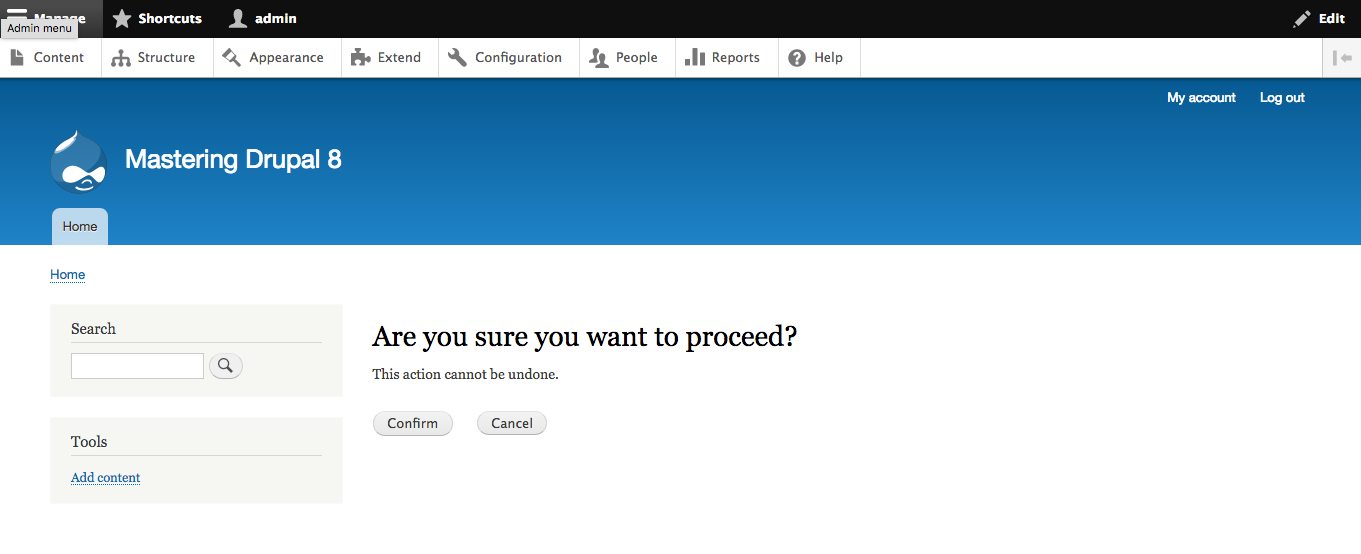
You can now view your form at /mastering_drupal_8/form/test_confirm:
The ConfigFormBase is used to assist in saving configuration settings. It serves as a replacement for the system_settings_form Drupal 7 function that was used to wrap a form in order to save it to the variables table. In Drupal 8, the ConfigFormBase class does a little bit less for you; specifically, it does not handle the saving of the configuration. So, instead of having to manipulate the submitted data in a validate function in Drupal 7, you can alter it within the submitForm function. Once you are ready, you will call $this->config()->set() to set the configuration and save it to the database. The other function that you need to implement is getEditableConfigNames, which returns an array of configuration object names modified by the form in an array. A basic example that allows the user to edit some configuration settings will look like this:
class TestConfigForm extends ConfigFormBase {

  /**
   * {@inheritdoc}
   */
  public function getFormId() {
    return 'test_config_form';
  }

  /**
   * {@inheritdoc}
   */
  protected function getEditableConfigNames() {
    return ['mastering_drupal_8.settings'];
  }

  /**
   * {@inheritdoc}
   */
  public function buildForm(array $form, FormStateInterface $form_state) {
    $config = $this->config('mastering_drupal_8.settings');
    $form['name'] = array(
      '#type' => 'textfield',
      '#title' => $this->t('Name'),
      '#default_value' => $config->get('name'),
    );

    return parent::buildForm($form, $form_state);
  }

  /**
   * {@inheritdoc}
   */
  public function submitForm(array &$form, FormStateInterface $form_state) {
    $this->config('mastering_drupal_8.settings')
      ->set('name', $form_state->getValue('name'))
      ->save();

    parent::submitForm($form, $form_state);
  }
}
If you created the form using Drupal Console, it will again add the menu router to the form. Otherwise, you will need to add your own to the mastering_drupal_8.routing.yml file. This should look like this:
mastering_drupal_8.test_config_form:
  path: '/mastering_drupal_8/form/test_config'
  defaults:
    _form: '\Drupal\mastering_drupal_8\Form\TestConfigForm'
    _title: 'TestConfigForm'
  requirements:
    _access: 'TRUE'
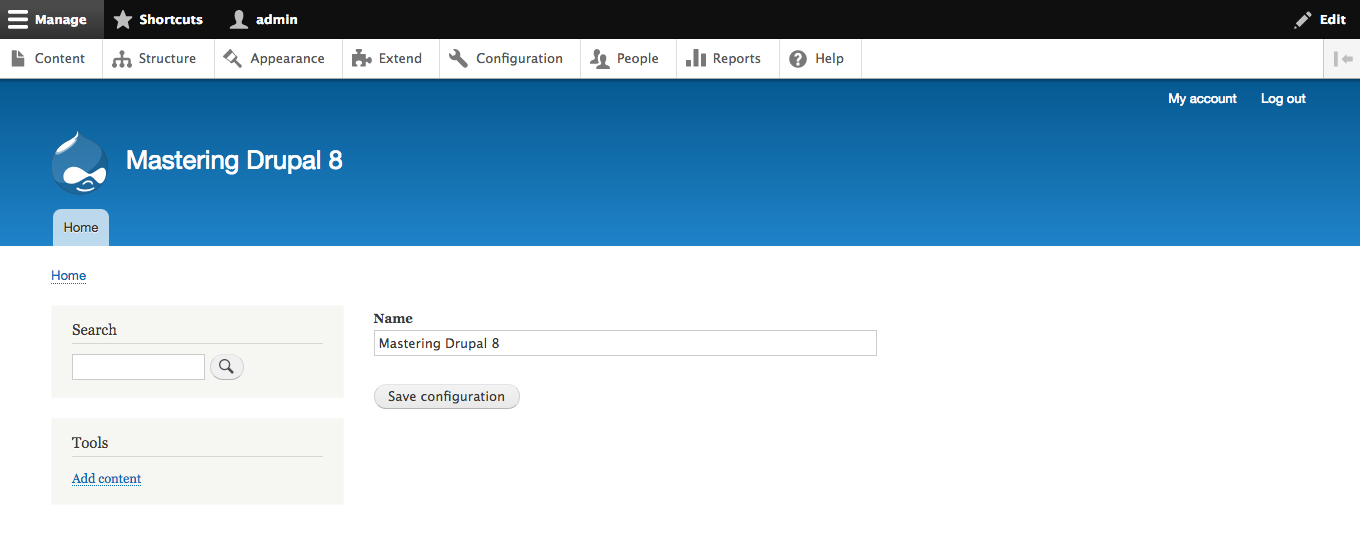
You can now view your form at /mastering_drupal_8/form/test_config:
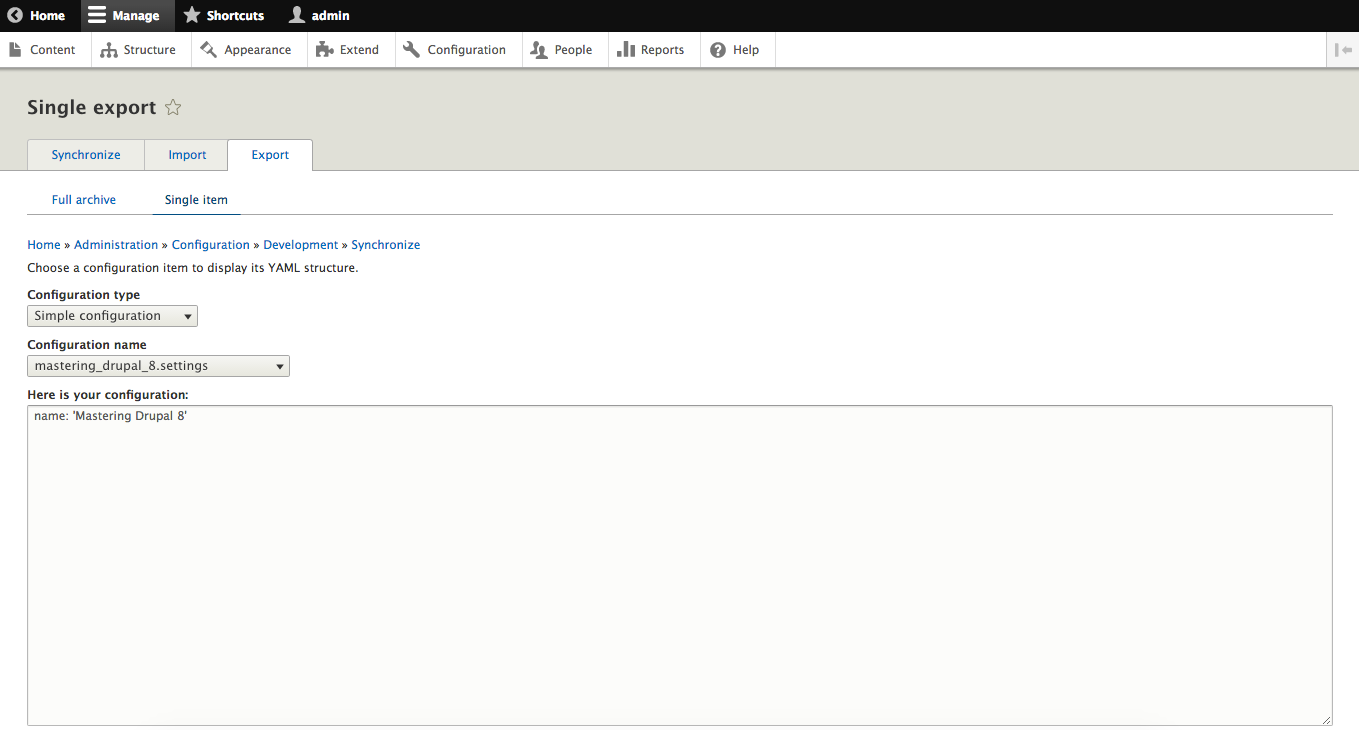
After you click on the Save configuration button, you can go to the Configuration synchronization administrative section and export it to copy to another site: