We can review the pre-configured image styles installed by Drupal by navigating to /admin/config/media/image-styles or by using the Admin toolbar and selecting Manage - Configuration and then Image styles.
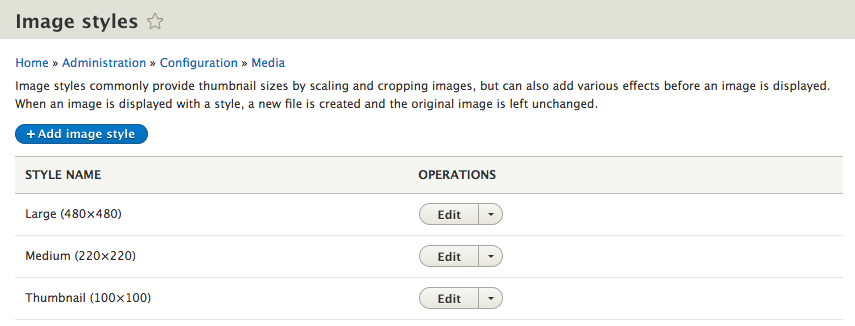
By default, Drupal provides us with Large, Medium, and Thumbnail image styles that will be generated when an image has been uploaded and displayed on a page. If we click on the Edit button next to the Large image style, we will see how it is configured.
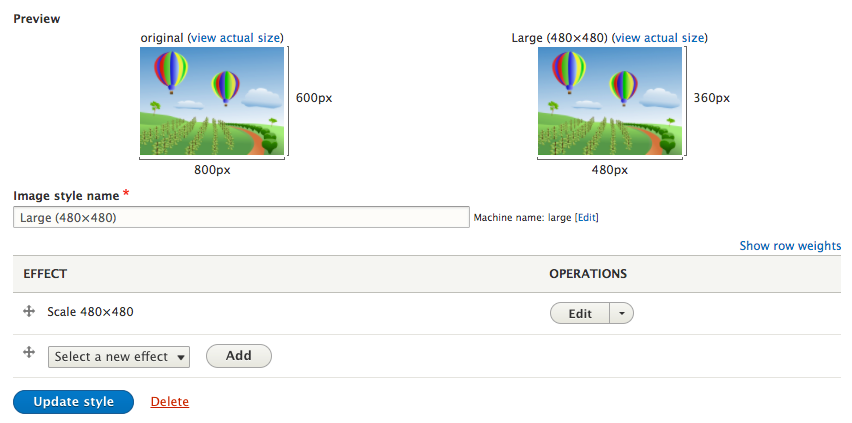
Each image style has a name generally defining the action being performed. In the case of our large image style, it is being scaled to 480 x 480. We can also see what the original image looks like and what the resized image will look like as well. However, there are multiple effects that can be performed on an image:
- Convert: Converts an image between extensions (for example, from PNG to JPEG)
- Crop: Resizes an image to an exact set of dimensions
- Desaturate: Changes an image from color to black and white
- Resize: This is the same as Crop but without the option to choose the cropping point
- Rotate: Rotates an image by selecting the number of degrees
- Scale: Resizes an image while maintaining the original aspect ratio
- Scale and Crop: Resizes an image, maintaining the original aspect ratio, and then crops based on the width and height
It is worth taking the time to play around with each of the settings to determine how you may want to manage images. Additional effects can be added by using contributed modules.