Images play a vital part of any website build and Drupal 8 provides multiple ways of managing them. The first we will look at involves using CKEditor and the WYSIWYG.
When we looked at how text formats were configured you may have noticed the Image button in the Available toolbar. This Image plugin allows for us to easily add images to content as well as control alignment and captions. To demonstrate this, we will create a Basic page by performing the following steps:
- Begin by navigating to /node/add/page or by using the Admin toolbar and clicking on Manage - Content, and then Add content, and finally Basic page.
- From the Create Basic page form, go ahead and enter a Title for Contact Us.
- Next we will add an image to the Body field by selecting the Image button from the WYSIWYG toolbar.
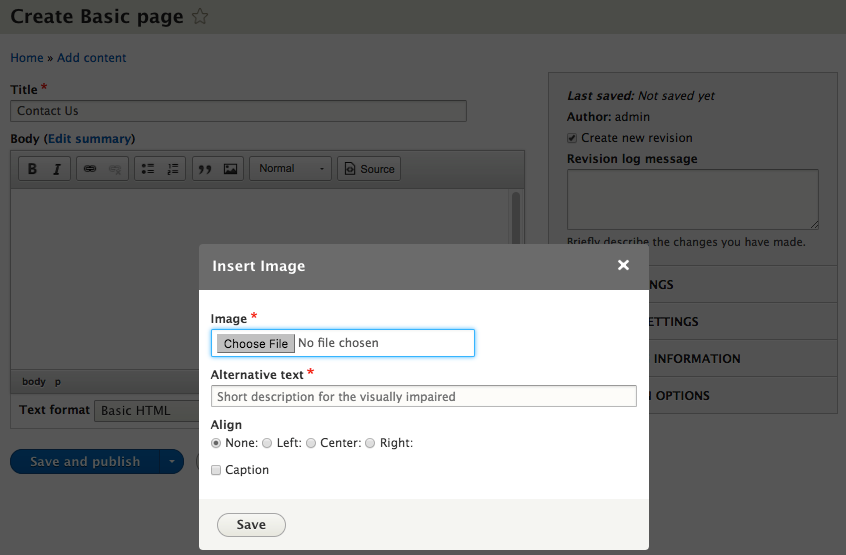
- From the Insert Image dialog, we can select the Choose File button to add an image from our computer.
- Next we can add Alternative text. We will skip the Align and Caption settings for now.
- Select the Save button to complete adding our image.
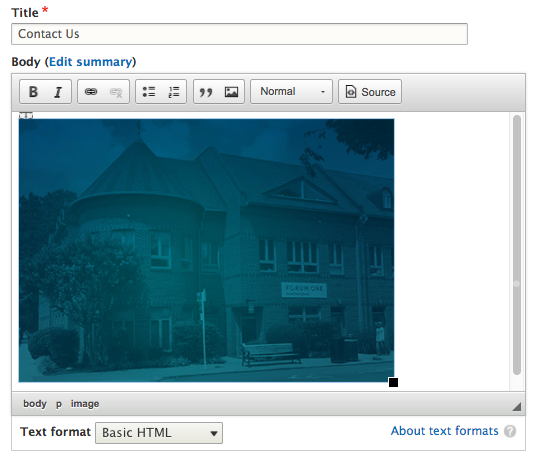
- Click on the Save and publish button to create the page. While the process of adding an image is simple, we generally have additional content that needs to flow around it.