With each iteration of Drupal 8, there is additional functionality being added to the core or added as experimental modules. At the time of writing this, there is a new experimental module that allows the placing of blocks directly on to a page, which reduces some of the need for navigating back and forth to the Block layout page. Interestingly, the new module is titled Place blocks. To demonstrate how this new functionality works, we will need to enable the module.
Extending Drupal will be discussed in more detail in Chapter 10, Extending Drupal but for now, just follow along as we walk through how to quickly enable a module.
Begin by navigating to the Extend page by directly entering /admin/modules, or by using the Admin toolbar and clicking on Extend.
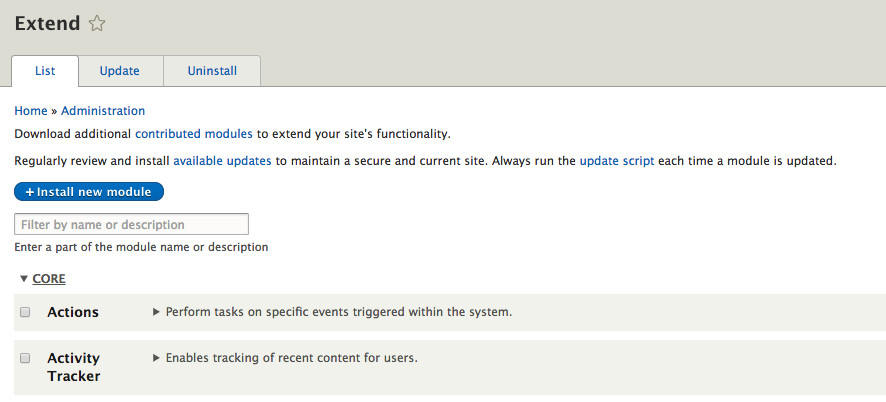
The Extend page lists all the modules that Drupal has access to using. Whether it is a core module or a contributed module, we can easily tell which module(s) are being used by the checkbox next to each module's name.
To enable the Place blocks module, we need to scroll down to the CORE (EXPERIMENTAL) section and click on the checkbox next to the Place Blocks module. Next, we need to click on the Install button and then the Continue button to complete the process.
We can now navigate back to the homepage by clicking on the Back to site link in the Admin toolbar. Once we are back on the homepage or any front-facing page, we will notice a new menu item on the Admin toolbar titled Place block.

If we click on the Place block menu item, the display of our page will expose all the Regions our theme has specified with the addition of a plus icon indicating that a block can be added to that region. We will choose the Header Region, which we can identify by hovering over the plus symbol in each region.
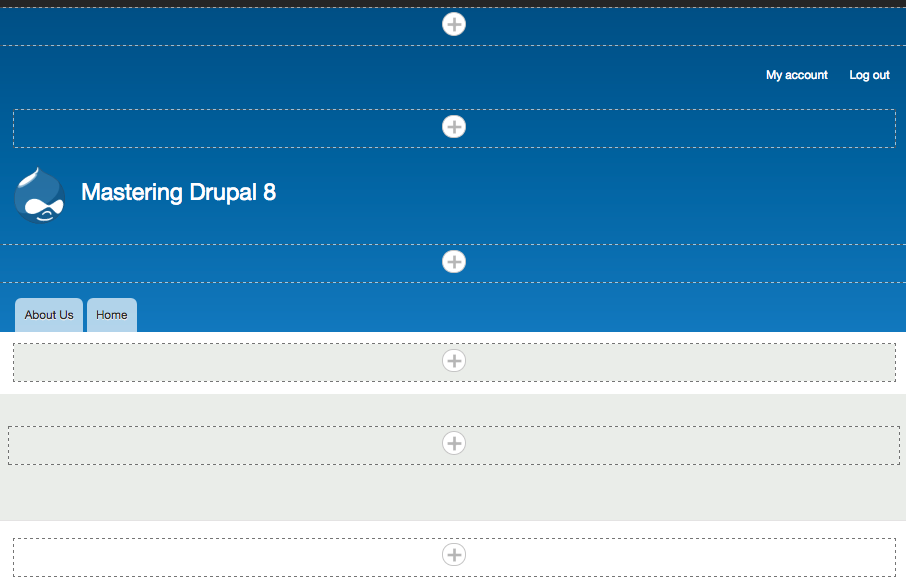
Clicking on the plus icon within any region will open the Place block dialog, which will allow us to add a custom block or choose from a list of existing blocks.
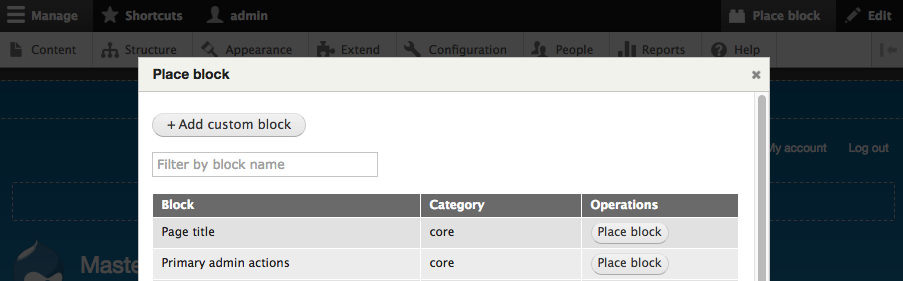
To add a block, simply choose a block from the list and click the Place block button. For demonstration purposes, we will select the Search form block. Once the block has been chosen, we will be presented with the Configure block dialog where we can finish configuring our block.
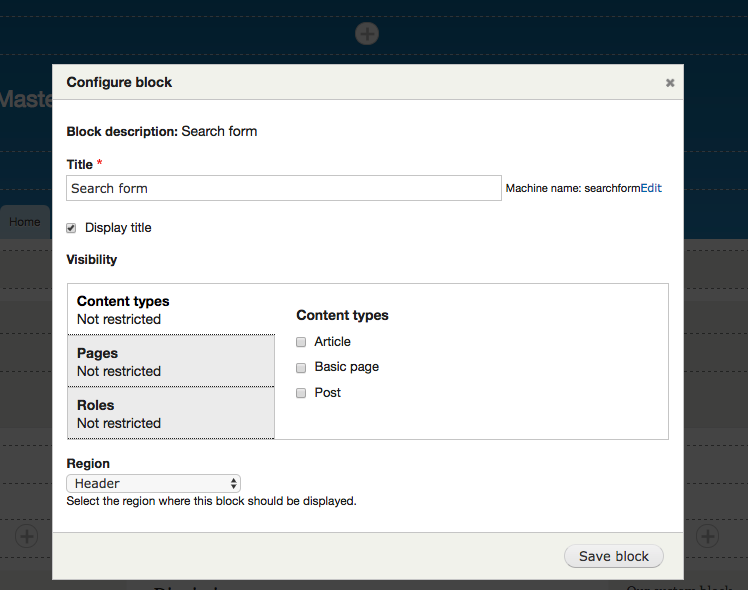
Finally, we can click on the Save block button, which will take us to the Block layout page and display the block added to the region we selected.
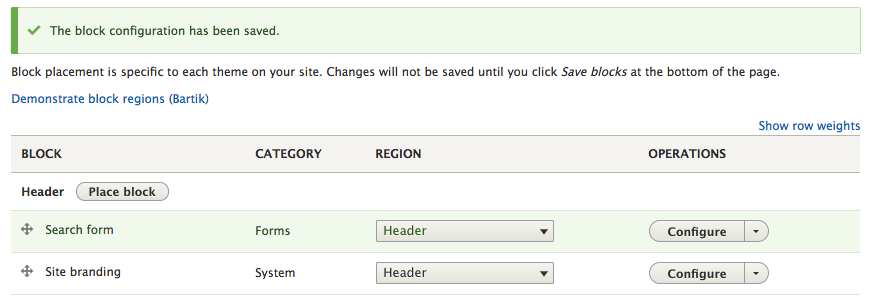
I would have expected that we would have been taken back to the homepage or the page that we initiated the placement from. However, given that the Place blocks module is still experimental, I assume that this workflow will change in the future.
Before closing, let's clean up our page by deleting any of the blocks we added earlier from the Block layout page.