A View filter restricts the entities displayed by the View to only those matching a specified criterion. When we created our initial View, and selected the type of content to view we started with filters for the Content type and publication status.
If we navigate back to our View and click on the Add button next to Add Filter criteria we will be presented with a dialog where we can add additional filters.
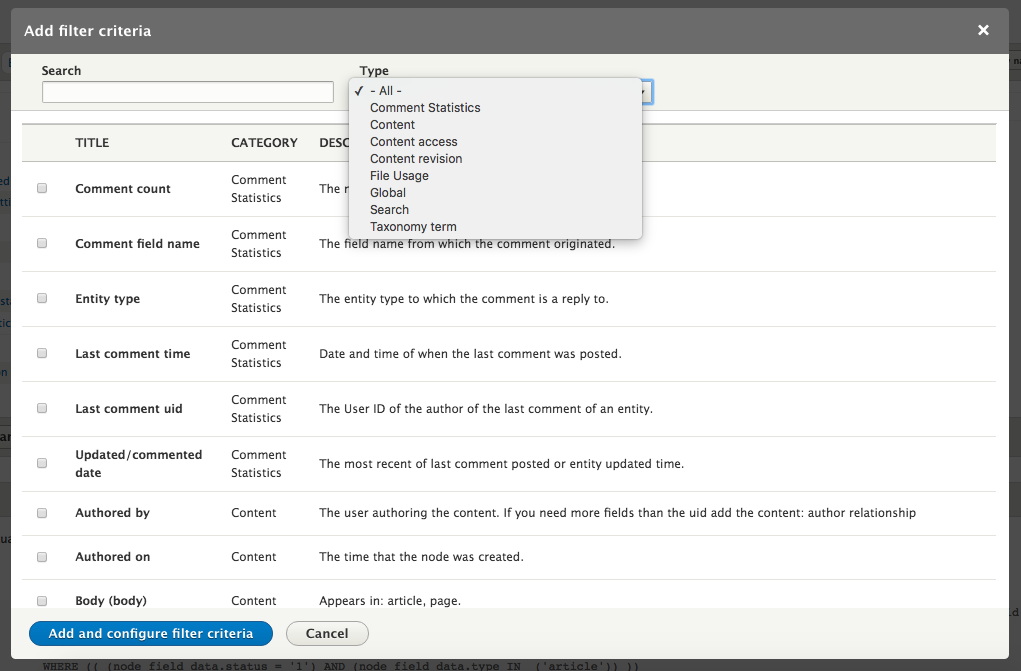
There are a great number of filters that can be applied to content. In Drupal 8 core, we can add filters based on content revisions, access permissions, comments, taxonomies, and any fields or attributes attached to the content itself. Different types of field have different parameters that may be applied to them.
For instance, if we wanted to show a list of Articles that had been created or updated within the last week we would select Changed from the list of options and click Add and configure filter criteria.
Since that field is a date, we can provide several operators to use, as well as the date or date ranges to compare against. To get only the last seven days, we would select Is greater than or equal to as the operator and -7 days for the Value.
Clicking Apply (this display) adds it to the set of filters for the Display.
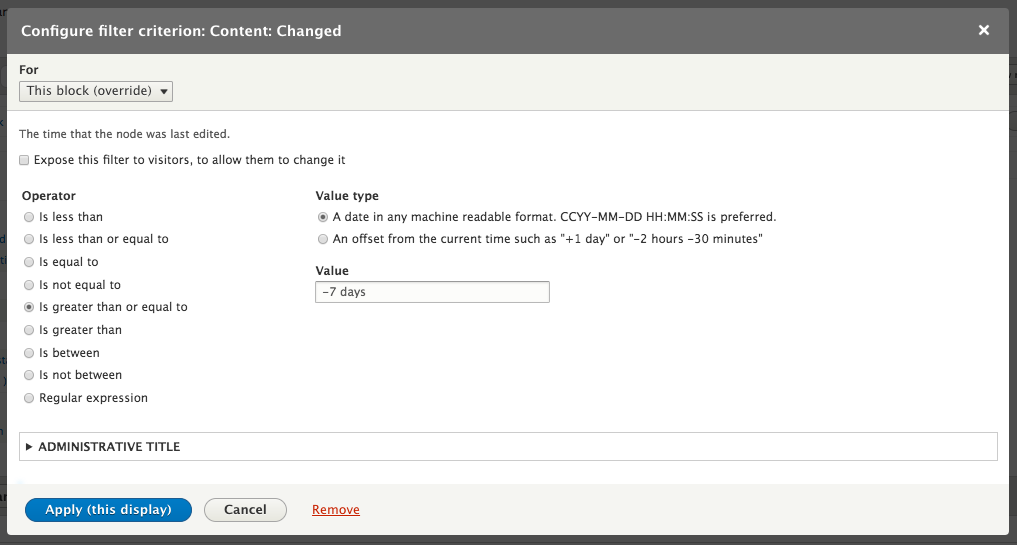
If we are on any Display other than the Master Display, we will see a drop-down box labeled For. This allows us to specify whether this new filter will apply to all Displays or only for the specific display we are altering. If we select that the filter applies to only the current Display, it will not be added to any other Display.
When editing the Master Display, all changes are applied to all Displays that have not been overridden. If we want to remove Display customizations we can open the drop-down next to Filter criteria and select And/Or Rearrange. This will open a dialog where we can alter the order in which the filters are applied, apply the filters in groups, as well as revert the Display to the default values. Selecting Revert to default from the For drop-down will change the button title to Revert to default. Clicking this will discard any customizations specific to the current Display and set it to match the Master Display.