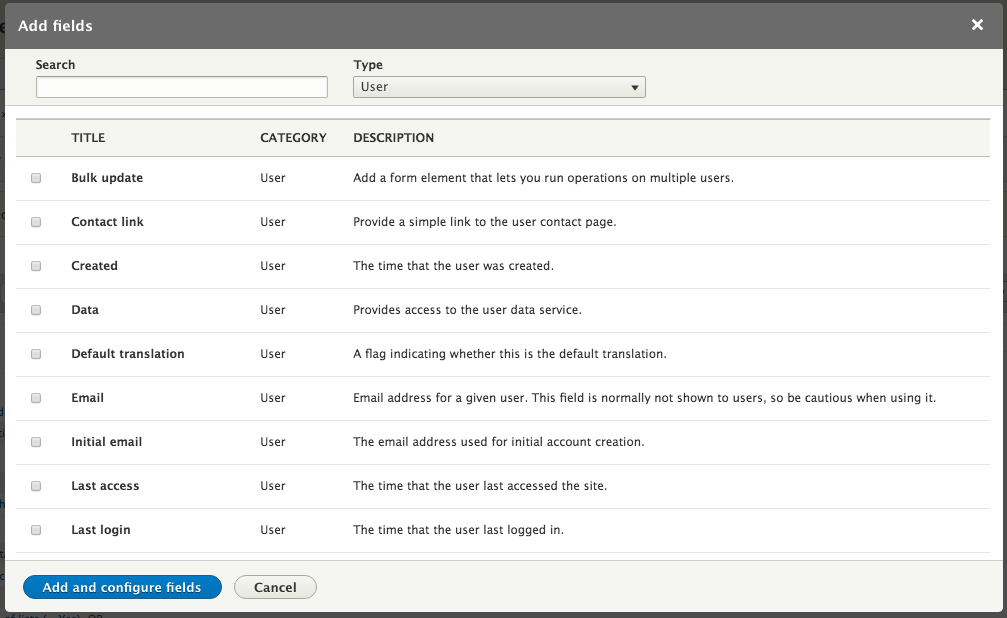
A relationship is a way for a View to traverse a connection to another type of entity. For example, in the list of articles with the content revision author, we were able to get the username of the author, but no other information. There are a number of fields like this that allow some small amount of information from each node, but not all of it. In order to get more information about the content revision author, or the taxonomy terms that have been applied to a node, or information about nodes that are referenced from or reference that node, you need to create a relationship.
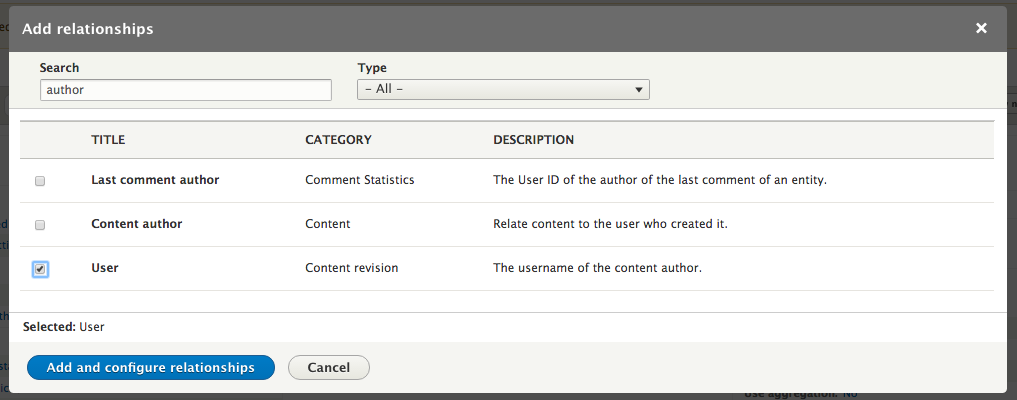
With the view of articles from earlier let us add some more information about the author. First, we need to add a relationship to the content revision author. Click the Add button next to the section title for Relationships. Enter author in the search field and select User for Content revision and click the Add and configure relationships button.
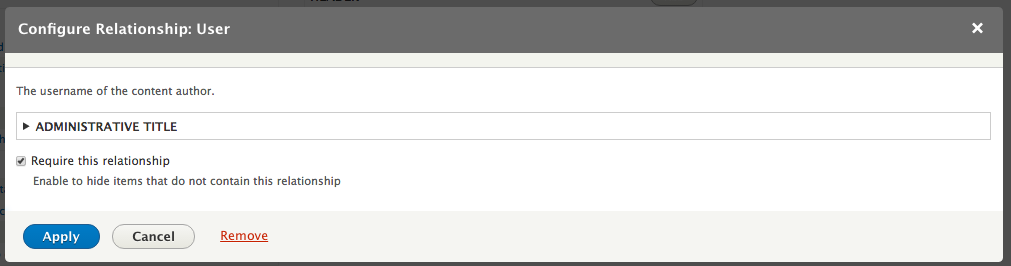
On the following screen, there is a checkbox labeled Require this relationship. This filters out all nodes that do not have the relationship so that it functions as an INNER JOIN rather than an OUTER JOIN. Selecting this will generally make the query more performant and, since each content revision always has a user, it is better to require it for this purpose.
Now that we have added the relationship to the user we can output, filter, or sort by any field on that user. If you create multiple relationships to the same category of field, a dropdown will appear on the configuration screen to select which relationship it is from.