Each field output by the View can be customized in a number of ways. You can also define whether and how a label is shown and whether to display the field at all:
- Formatter: Each field in the View can have a formatter selected and customized. These formatters vary depending on the type of field. For instance, a field that references another type of entity can be displayed as the rendered entity, the entity ID, the entity label, or the author of the entity. The options are the same as those available when defining the formatter for a field in the entity display settings.
- Style settings: The STYLE SETTINGS section allows you customize the label and wrapper around the field value. You can wrap the value in a specified HTML element and add CSS classes to it, as well as add a label and customize the HTML element and add CSS classes. By default, the value and label are wrapped in a <div> with a class based on the name of the field. This can be disabled by unselecting the checkbox labeled Add default classes. You can add additional classes to the value element based on the name and type of the field by selecting the checkbox labeled Use field template.
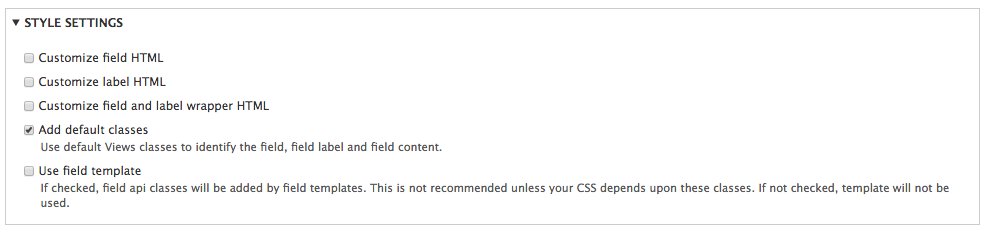
Style settings for field
- Rewrite results: The REWRITE RESULTS section allows you to set rules on how to alter the content of the field before rendering it. This includes replacing it with static text or HTML, wrapping it in a link, removing whitespace or HTML, and converting new lines to line breaks. When rewriting the value of the field, you can use the value from other fields. You can also use Twig syntax when replacing the field value to completely customize it.
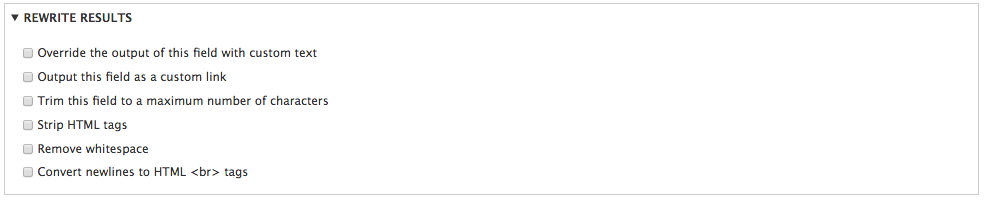
Rewrite results for field
- No results behavior: The NO RESULTS BEHAVIOR section allows you to configure how the field should be rendered when it is empty. You can provide text or HTML, or simply hide the field in its entirety. By default, an empty field disables field rewriting.
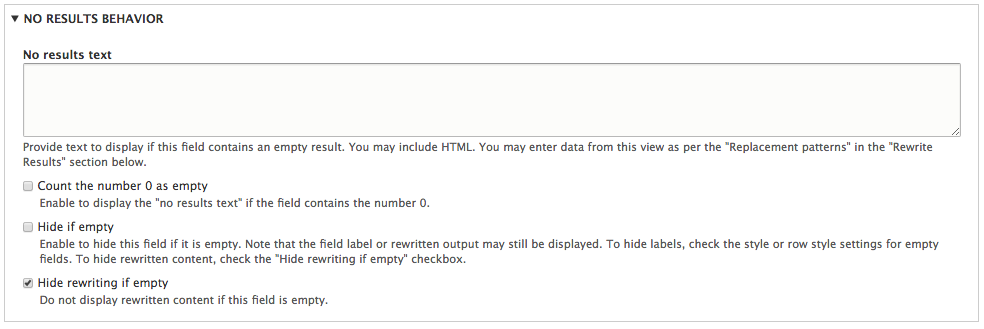
No results behavior for field