Whenever a new custom block is created, Drupal will generate a single default display that can be used for printing the content. We can manage the display by clicking on the Manage display tab.
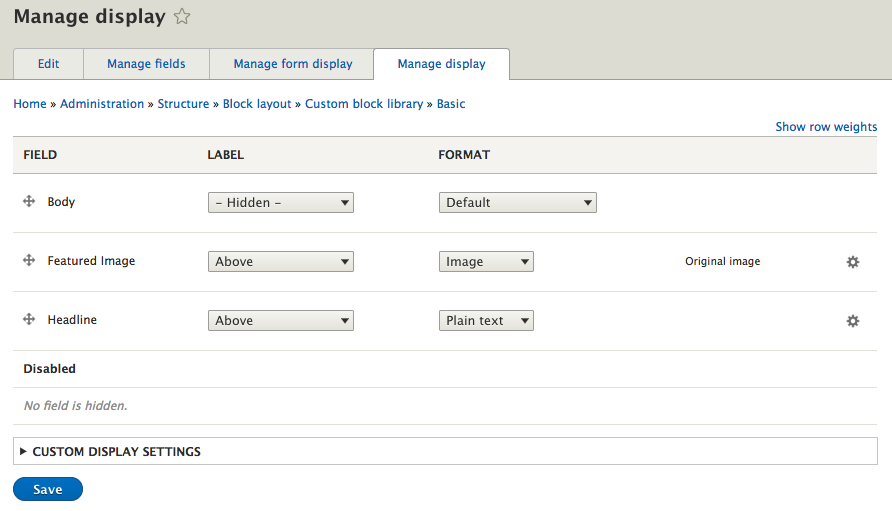
From the Manage display page, we can manage several display options ranging from hiding the label to configuring how the label will display. Each field's value can also be formatted using a Field Formatter. The format options vary based on the field type it is referring to. For example, our Body field can be displayed with the Default value, or can also be changed to display the content trimmed to a specific set of characters.
Currently our custom block's fields will print in the order they appear. In the same way that we reordered the form display, we can reorder our fields to print out the Headline, Featured Image, and Body by using the grab handles next to each field.
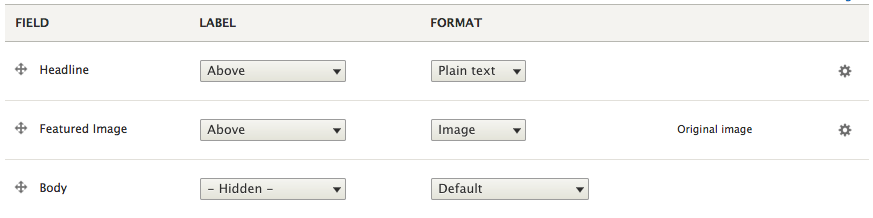
Our fields are now reordered and our changes saved. We can also prevent the labels of each field from being printed by changing the current label from Above to Hidden for the Headline and Featured Image fields.
- Headline
- SelectHidden from the LABEL dropdown
- Featured Image
- SelectHidden from the LABEL dropdown
Make sure to click the Save button these field's labels have been changed. To see our changes, we will need to first edit our custom block and fill in the additional fields, and then preview the changes on the homepage.
We can navigate back to our custom block by directly entering /admin/structure/block/block-content, or by using the Admin toolbar and clicking on Structure | Block layout and then selecting the Custom block library tab. Finally, we can click on the edit link next to our block and add a Headline, Featured Image, and any other modifications.
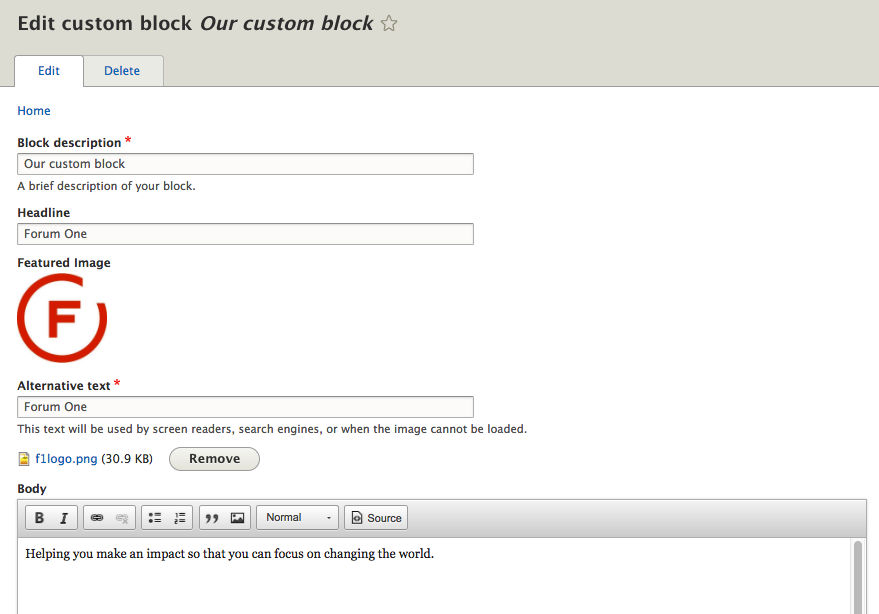
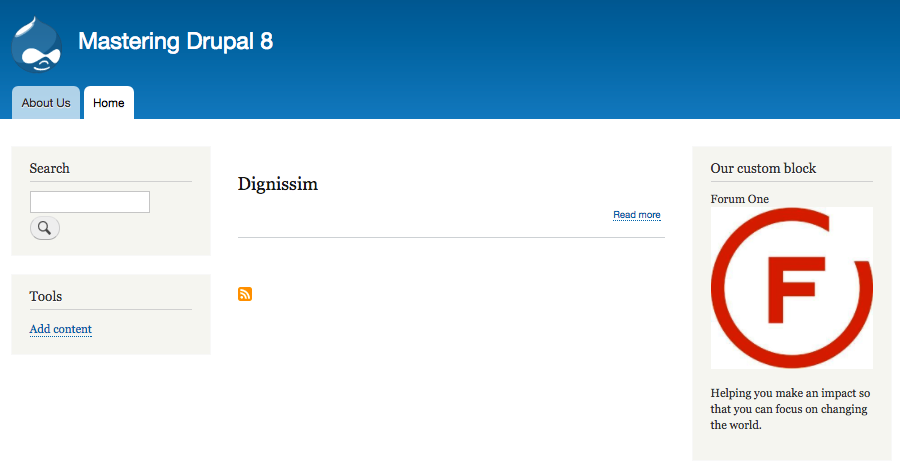
Once we have completed making our modifications, we can click on the Save button and then navigate to the homepage where we will see all our changes.