We can create a new page display by selecting the Add button from the Displays screen and then selecting Page* from the list.
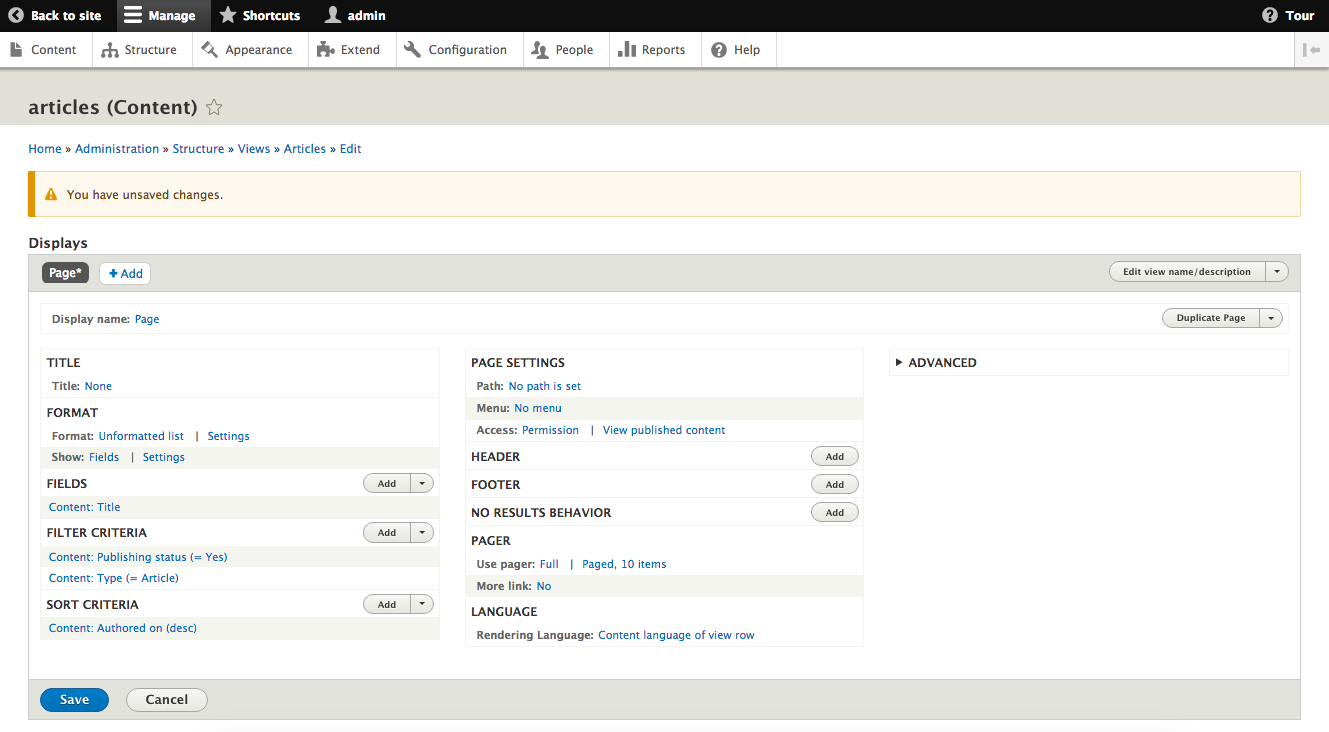
Most settings will be the same as the initial Master Display you initially created. The new configuration is around how a user will be able to get to the View. There will be a new section labeled PAGE SETTINGS where we will see options for Path and Menu.
- Path is the URL that a user can place within their browser to navigate to the View page.
- Menu is where the new path will be attached to., such as the main menu of our site.
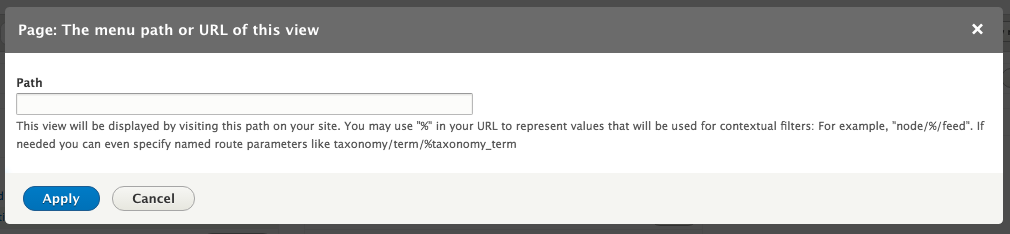
Path is required, so we will need to click on the link that reads No path is set and enter a new path in the dialog that opens. The path should be entered without a leading slash, for example it should be like articles and not /articles.
You can optionally add a menu link to our page. Clicking on the link that reads No menu entry will bring up a dialog where we can add one of a few different types of menu links:
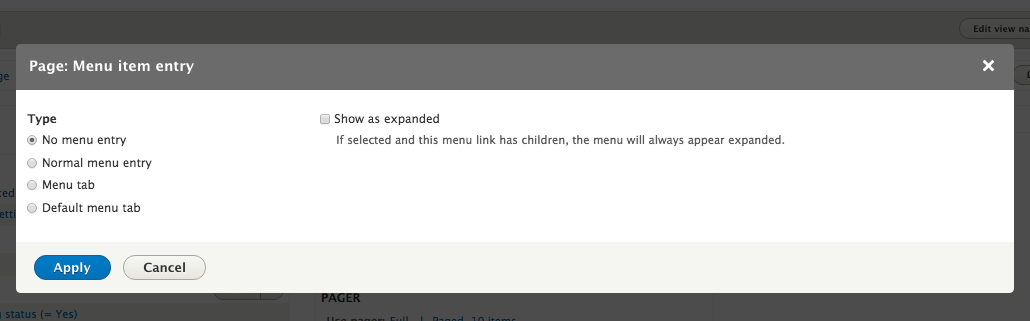
- Normal menu entry: The most common selection is Normal menu entry which adds a link within the selected menu tree. This allows us to place the View page within a menu structure, have it highlight the menu items that are the ancestors in the tree, as well as provide the correct Breadcrumbs.
- Menu tab: This shows as a tab on another page like how the View, Edit, and Delete tabs show on a node detail page.
- Default menu tab: If the View is intended to be the initial option selected when the user visits the page, like how the View tab is the default option when the user visits the node page, we would select Default menu tab.
For our example, we will select Normal menu entry and then give it a Menu link title of Articles. Click Apply and then Save for the View.
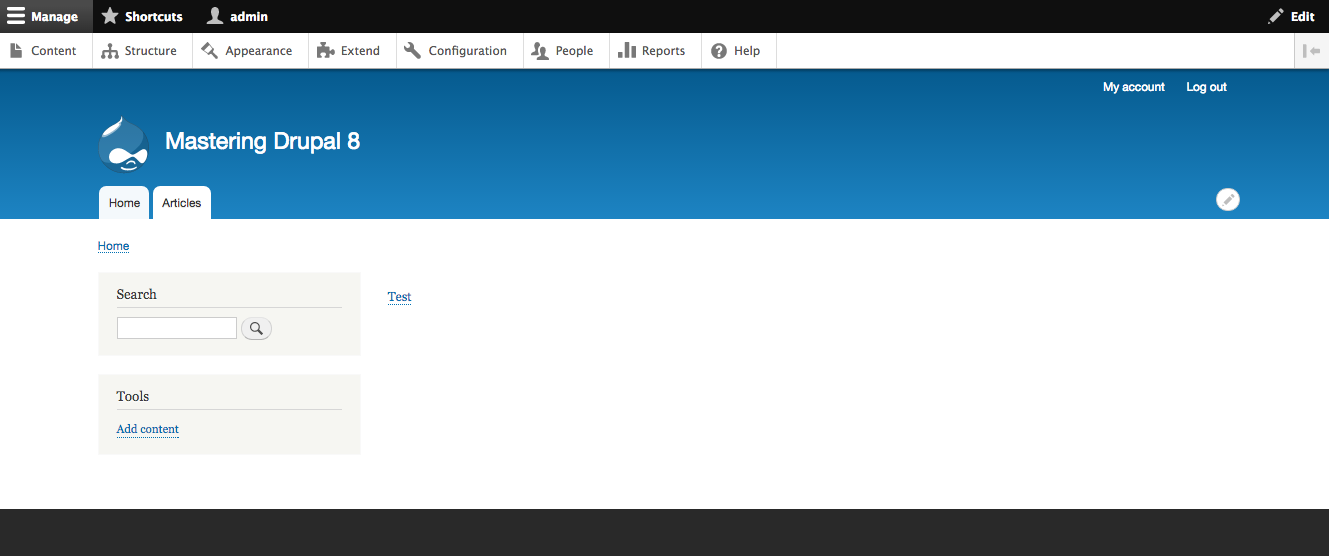
If we then navigate to the home page we will see a new link within the primary navigation for Articles that will display our View.
If you wanted to create a View that can be displayed on an existing page, the home page for example, you would create a new block display.