One of the wonderful things about Drupal is how easy it makes it to add new functionality to the platform. In Drupal 7, you would implement an info hook to define your new component and then another one or more hooks to handle the actual functionality. For example, to create a new block you would implement hook_block_info to return an array of blocks defined by your module, and then hook_block_view, hook_block_configure, and so on, to handle the individual interactions with each block. In Drupal 8, these additions are handled as plugins. There are a number of plugin types defined by Drupal 8 core, including:
- Blocks: Pieces of content and functionality that are shown around the main page content
- Entities: Different types of content, for example nodes, taxonomy terms, and so on
- Fields, widgets, and display formatters: Different ways of capturing information and then displaying it
- Image effects: Ways to transform images before they are shown
- Rules plugins: Conditionally executed actions and custom events
- Views plugins: Adding new ways of displaying content from Drupal
- Search page plugins: Alternate methods of searching content
Contributed modules that need a similar ability to discover and use different functionality can define their own plugin types. This is the expected pattern for any modules that expose a similar API. For example, the Salesforce Suite, Search API, and context modules all provide one or more plugin types.
Let's go ahead and create a simple block plugin to test what that looks like. So, the first thing you want to do is scaffold out the block plugin file by running drupal generate:plugin:block. Answer the questions and it will create the necessary file and directory structure:
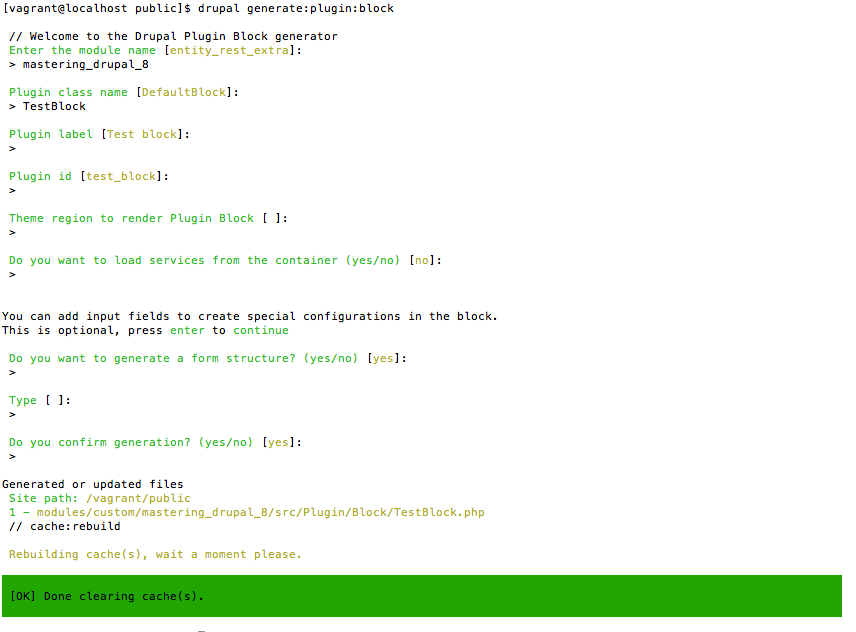
This creates the TestBlock.php file in the /modules/custom/mastering_drupal_8/src/Plugins/Block directory. This path, src/Plugins/{Type} is where you'll place all plugins for a module. Now you can navigate to localhost/admin/structure/block, click the Place block button next to Content, find your Test block, and click the Place block button.
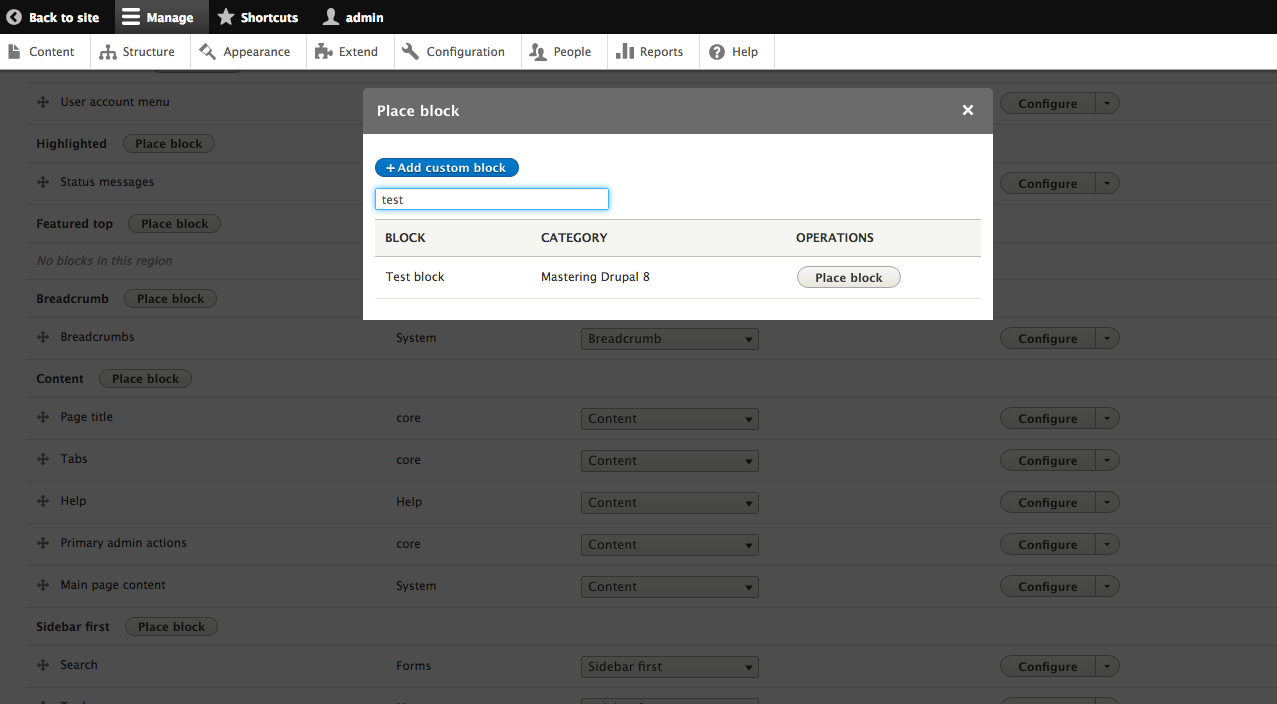
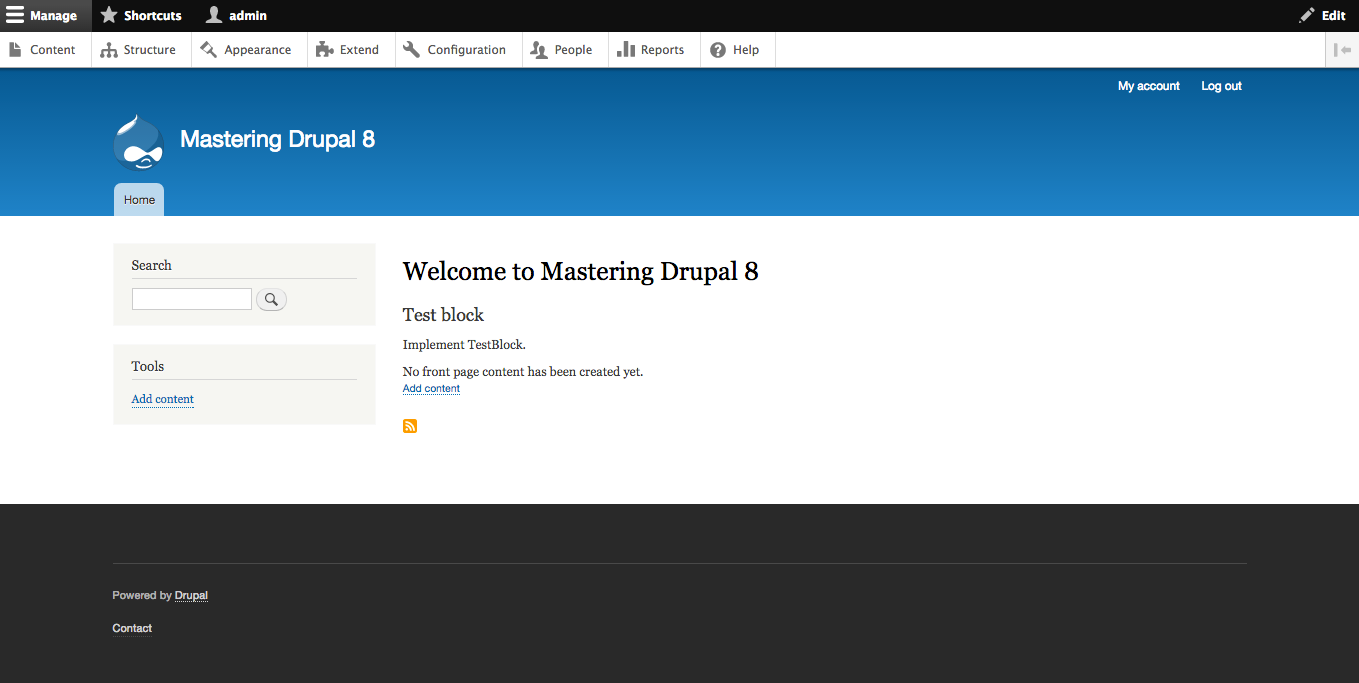
Now click the Save blocks button and go back to the home page: you'll see the Test block showing the text Implement TestBlock.