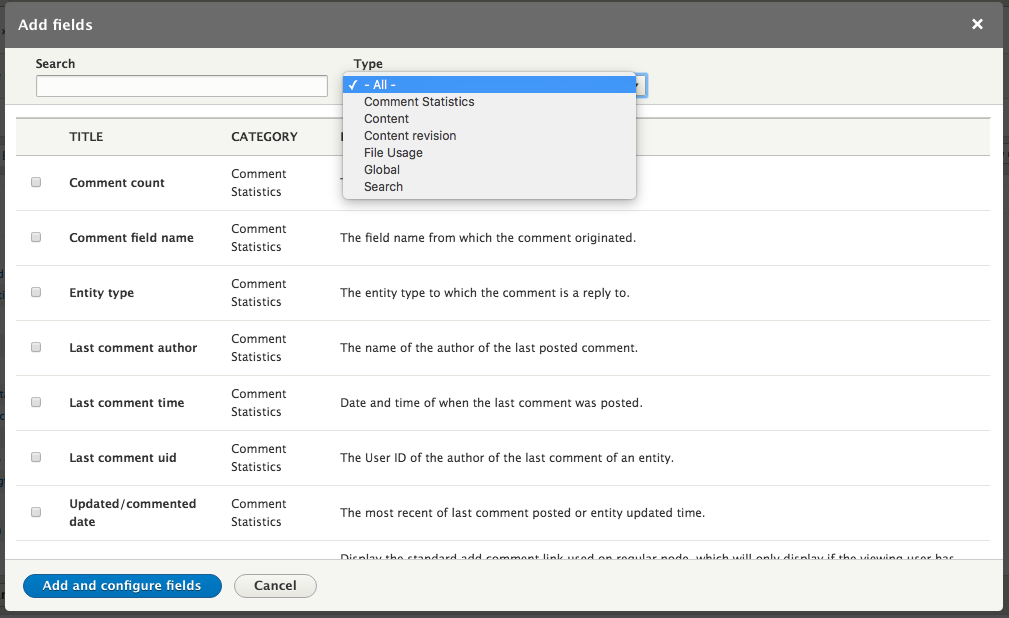
The initial row styling from the View wizard is to display fields. These fields are either fields on the entity or aggregates or meta-fields defined by different modules. A View created by the wizard starts with the field for Content: Title. Additional fields can be added by clicking on the link for Add next to the section title for Fields. Many of the options are the same as shown in the dialog for filtering a View:
Imagine that, for our current list of articles, we want to display the author of the node as well. We can enter the term author in the search screen to find appropriate fields. There are a number of fields that show up. In this case we'll select the username of the author of the current node revision.
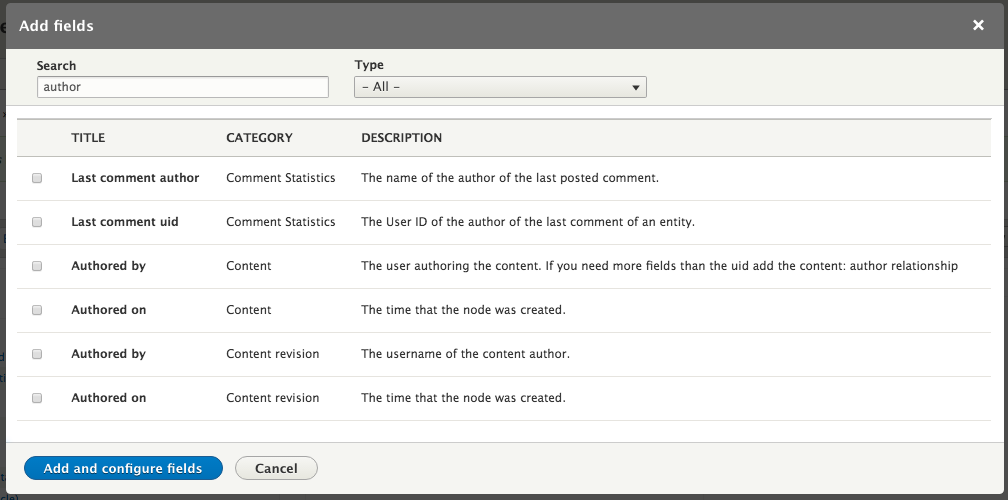
Clicking the button to Add and configure fields and then the button for Apply will add that field to our current display. Now, below the title of the article found by the view, the name of the user that created or last edited it appears.
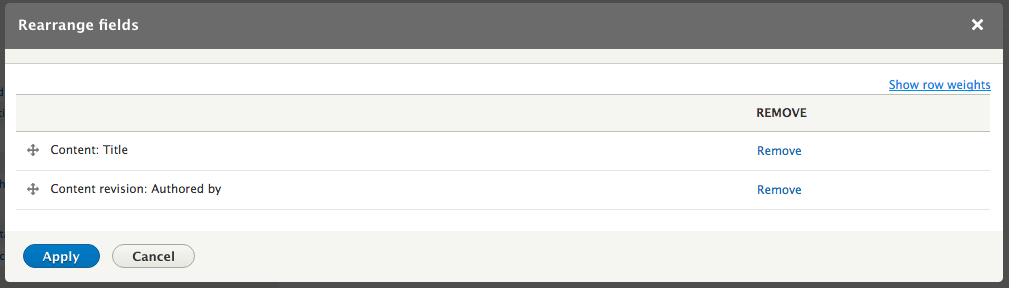
The order that the fields are listed in the View configuration determines the order they are output and adding a new field will place it at the end of the list. To change the order, open the drop-down next to the Fields and click Rearrange. From the dialog that appears we can drag the fields into the desired order. This dialog also allows us to remove fields from the display by clicking the Remove link next to the field: