Hiding unneeded fields will also improve the user experience when entering Post content. We can take advantage of the Disabled section located under the Manage form display page to remove fields by simply dragging them into the Disabled area.
Begin by navigating back to /admin/structure/types/manage/post/form-display and then drag the following fields into the Disabled section:

Now that we have prevented any unnecessary fields from being displayed, we can navigate back to our Create Post form and verify that the two fields are no longer displayed.
Let's create our first Post by completing the fields on our form. Feel free to enter whatever values are needed to complete the form, ensuring that you include an image and tag the post with a category:
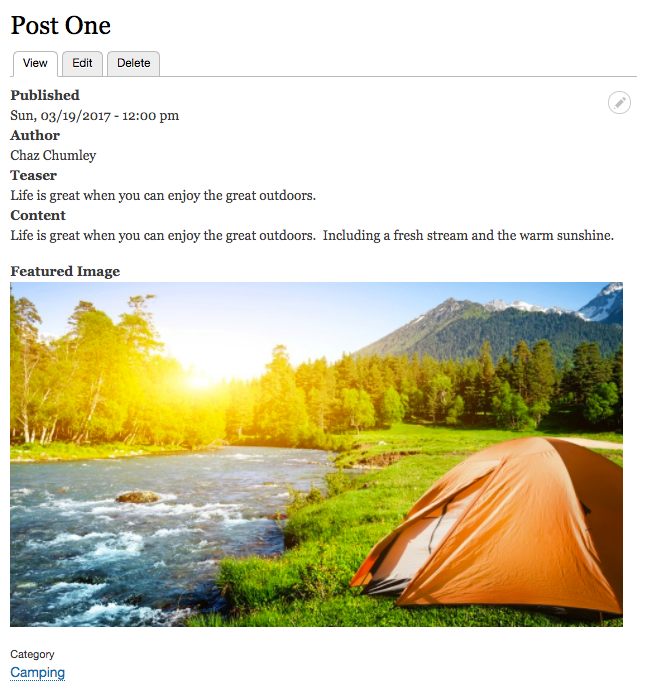
Now that we have created a Post, we can view our content as an end user would. There are a couple of items that may seem strange at first. We are displaying labels above each field, and also, we are displaying both the Teaser and Content fields on the Default display. We will address all of this in Chapter 6, Content Authoring, HTML5, and Media.
Before we move on to the next chapter, there is one last thing to cover.