
To configure GitHub, follow these steps:
- First head into the browser and go to github.com.
- Here log into your existing account or create a new one. If you need a new one, sign up for GitHub. If you have an existing one, go ahead and sign into it.
- Once signed in, you should see the following screen. This is your GitHub dashboard:
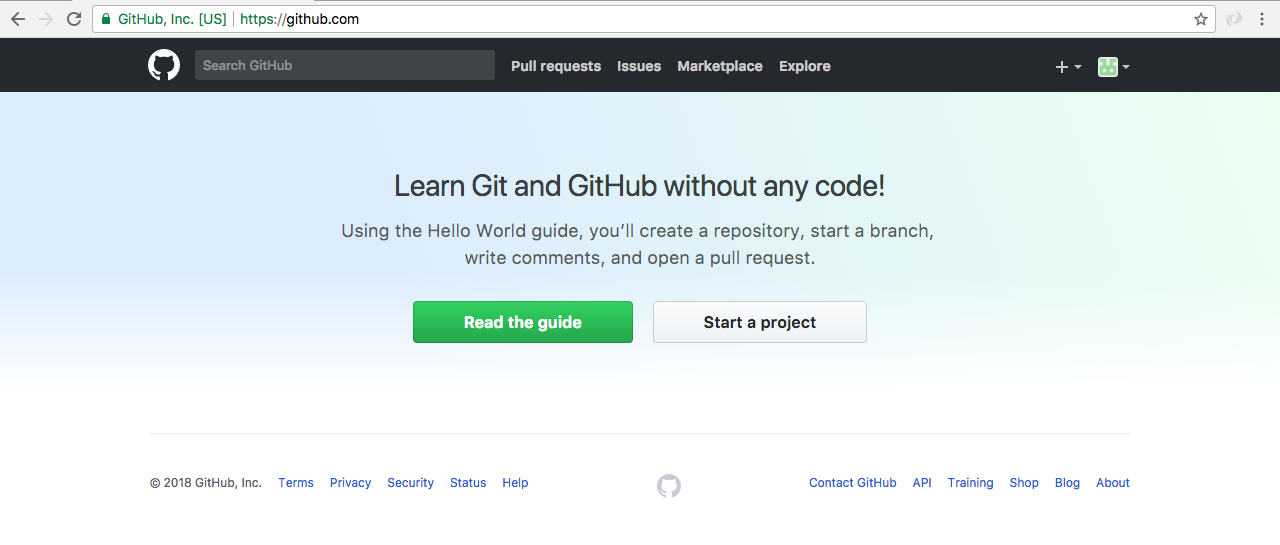
- From here, navigate to Settings, present at the top-left hand side, by the profile picture. Go to Settings | SSH and GPG keys | SSH keys:
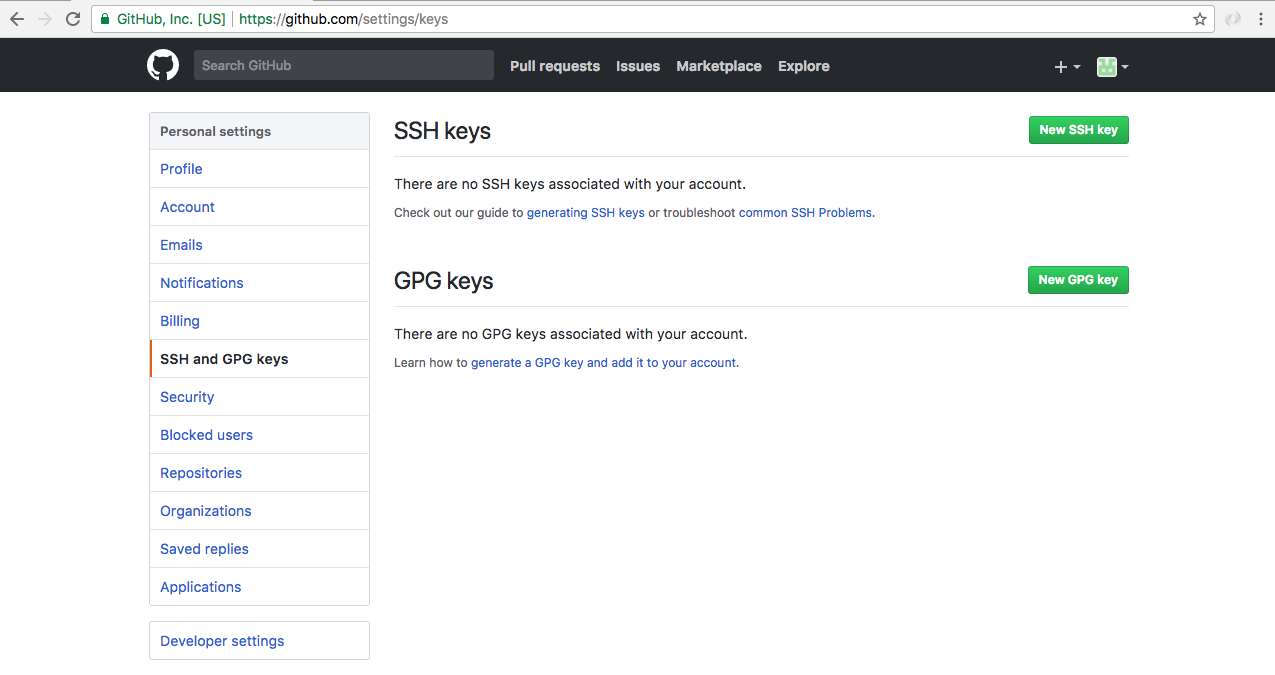
- From here we can add the public key, letting GitHub know that we want to communicate using SSH.
- Add the new SSH key:
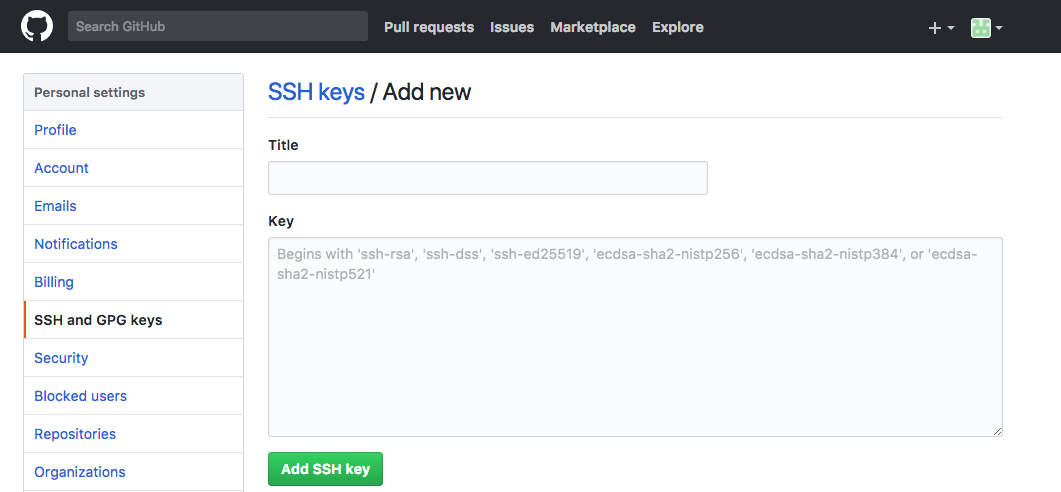
Here, you need to do two things: give it a name, and add the key.
First add the name. The name can be anything you like. For example, I usually use one that uniquely identifies my computer since I have a couple. I'll use MacBook Pro, just like this.

Next up, add the key.
To add the key, we need to grab the contents of the id_rsa.pub file, we generated in the previous sub-section. That file contains the information that GitHub needs in order to securely communicate between our machine and their machines. There are different methods to grab the key. In the browser, we have the Adding a new SSH key to your GitHub account article for our reference.
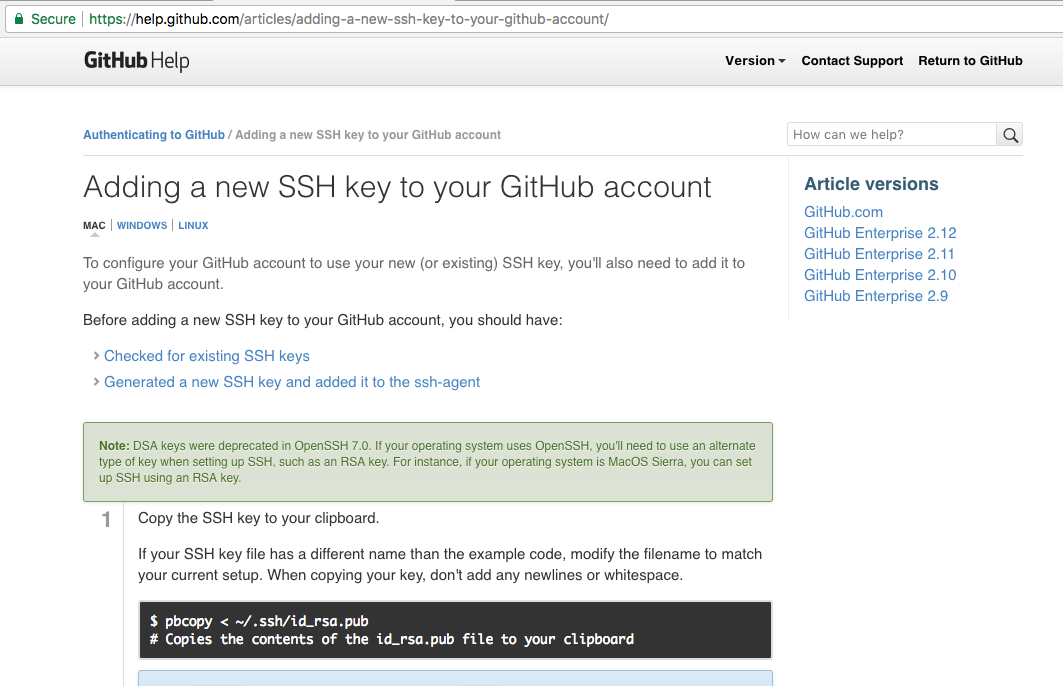
- This contains a command you can use to copy the contents of that file to your clipboard from right inside the Terminal. Now obviously it is different for the operating systems, macOS, Windows, and Linux, so run the command for your operating system.
- Use the pbcopy command which is available for macOS.
Then, move into the Terminal and run it.
pbcopy < ~/.ssh/id_rsa.pub
This copies the contents of the file to the clipboard. You can also open the command up with a regular text editor and copy the contents of the file. We can use any method to copy the file. It doesn't matter how you do it. All that matters is you do.
- Now move back into GitHub, click on the text area and paste it in.
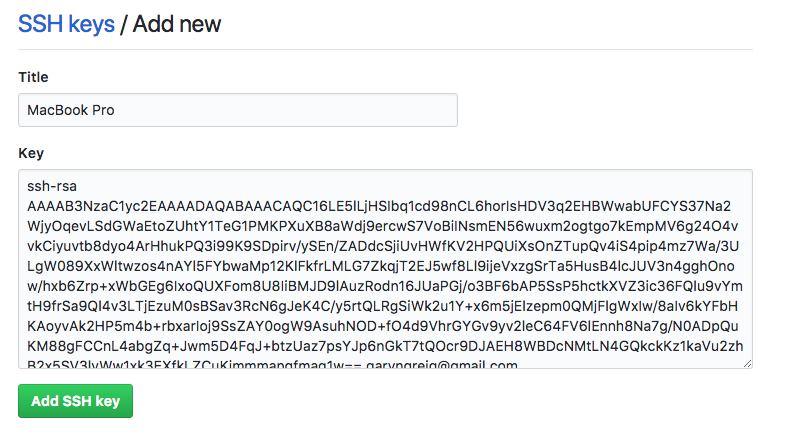
The contents of id_rsa.pub should start with ssh-rsa and it should end with that email you used.
- Once you're done, go ahead and click on Add SSH key.
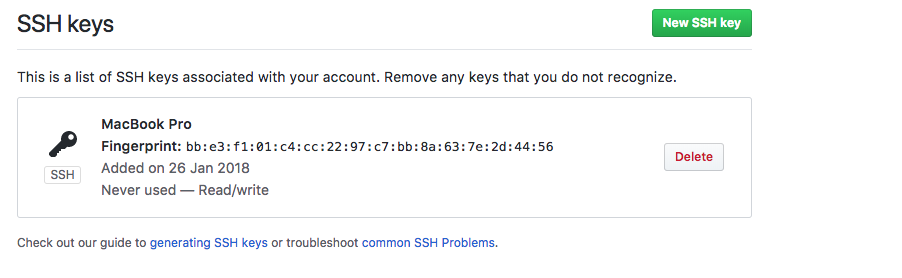
Now we can go ahead and test that things are working by running one command from the Terminal. Once again this command can be executed from anywhere on your machine. You don't need to be in your project folder to do this.