Before we write more test cases, let's see an automatic way to rerun our test suite when we change either our test code or our application code. We'll be doing that with nodemon. Now, previously we used nodemon like this:
nodemon app.js
We would type nodemon and we would pass in a file like app.js. Whenever any code in our app changed, it would rerun the app.js file as a Node application. What we can actually do is specify any command in the world we want to run when our files change. This means we can rerun npm test when the files change.
To do this, we'll use the exec flag. This flag tells nodemon that we'll specify a command to run, and it might not necessarily be a Node file. As shown in the following command, we can specify that command. It'll be 'npm test':
nodemon --exec 'npm test'
With this in place, we can now run the nodemon command. It'll kick off for the first time running our test suite:
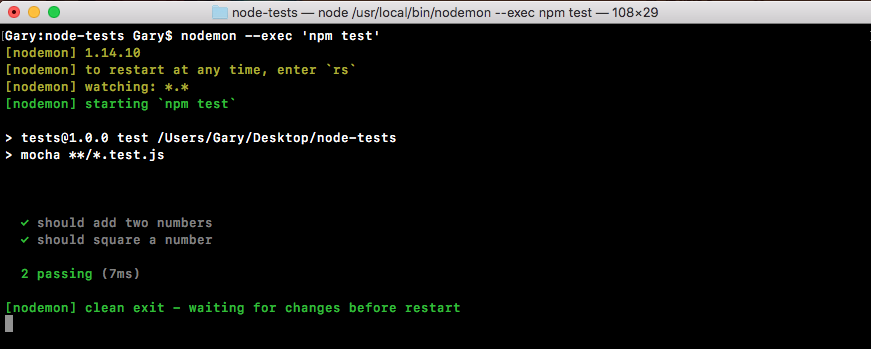
Here we see we have two tests passing. Let's go ahead into the app utils.js and make a change to one of the functions, so it fails. We'll add 3 or 4 onto the result for add:
module.exports.add = (a, b) => a + b + 4;

module.exports.square = (x) => x * x;
It automatically restarts over here:
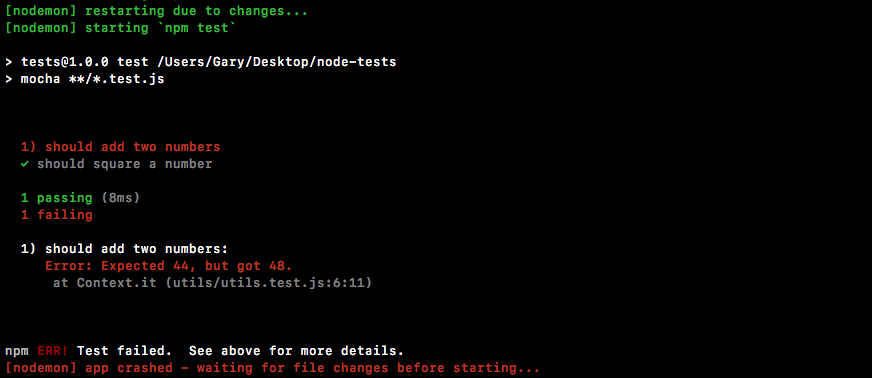
And now we see that we have a test suite where one test passes and one tests fails. I can always go ahead and undo that error we added, save the file, and the test suite will automatically rerun.
This will make testing your application that much easier. You won't have to switch to the Terminal and rerun the npm test command every time we make a change to our application. Now we have a command that we can run, we'll shut down nodemon and use the up arrow key to show it again.
And we can actually move this into a script inside of package.json.
Inside package.json we'll make a new script right after the test script. Now we've used the start script and the test script—these are built-in—we'll create a custom one called test-watch, and we can run the test-watch script to kick things off. Inside of test-watch, we'll have the exact same command we ran from Terminal. That means we'll be rounding nodemon. We'll be using the exec flag and inside of quotes, we'll be running npm test:
"scripts": {
  "test": "mocha **/*.test.js",
  "test-watch": "nodemon --exec 'npm test'"
},
Now that we have this in place, we can run the script from the Terminal as opposed to having to type out this command every single time we want to start up the autotest suite.
"test-watch": "nodemon --exec \"npm test\"".
As you can see here, we're escaping the quotes surrounding npm test and we're using double quotes, which as we know are the only quotes supported by Windows. This script will remove any errors you're seeing, something like npm cannot be found, which you will get if you wrap npm tests in single quotes and run the script on Windows. So use the above script for cross-OS compatibility.
To run a script with a custom name, such as test-watch, in the Terminal all we need to do is run npm run followed by the script name, test-watch, as shown in the following command:
npm run test-watch
If I do this, it will start things off. We'll get our test suite and it's still waiting for changes, as shown here:
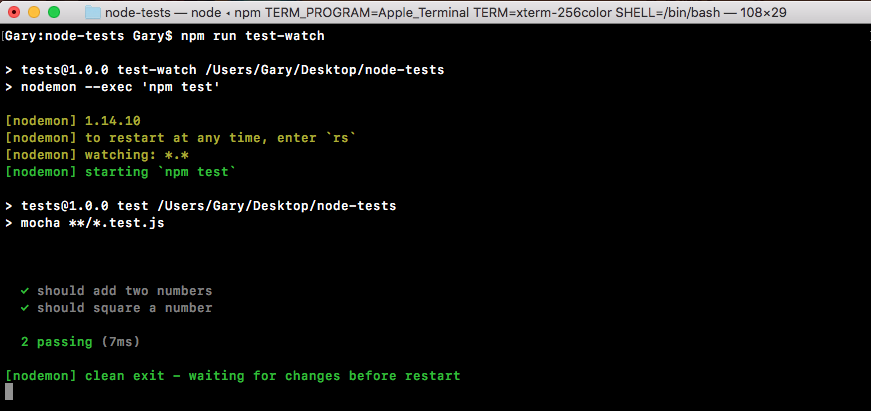
Now, every time you start the test suite you can simply use npm run test-watch. That'll start up the test-watch script, which starts up nodemon. Every time a change happens in your project, it'll rerun npm test, showing the results of the test suite to the screen.
Now that we have a way to automatically restart our test suite, let's go ahead and get back into the specifics of testing in Node.