
In order to get started, inside Atom, we'll add another console.log line right next to the console.log we added for formatted address. We'll use template strings again to add some nice formatting. Let's print the latitude first.
For this, we'll add latitude followed by a colon. Then we can inject our variable using the dollar sign with the curly braces. Then, the variable we want is on the body. Just like the formatted address, it's also in the first results item; results at the index of zero. Next, we'll be going into geometry. From geometry, we'll grab the location property, the latitude, .lat, as shown here:
  console.log(`Address: ${body.results[0].formatted_address}`);
  console.log(`Latitude: ${body.results[0].geometry.location.lat}`);
});
Now that we have this in place, we'll do the exact same thing for longitude. We'll add another console.log statement in the next line of the code. We'll use template strings once again, typing longitude first. After that, we'll put a colon and then inject the value. In this case, the value is on the body; it's in that same results item, the first one. We'll go into geometry location again. Instead of .lat, we'll access .lng. Then we can add a semicolon at the end and save the file. This will look something like the following:
  console.log(`Address: ${body.results[0].formatted_address}`);
  console.log(`Latitude: ${body.results[0].geometry.location.lat}`);
  console.log(`Longitude: ${body.results[0].geometry.location.lng}`);
});
Now we'll test it from the Terminal. We'll rerun the previous command, and as shown in the following screenshot, you can see we have the latitude, 39.94, and the longitude, -75.16 printing to the screen:
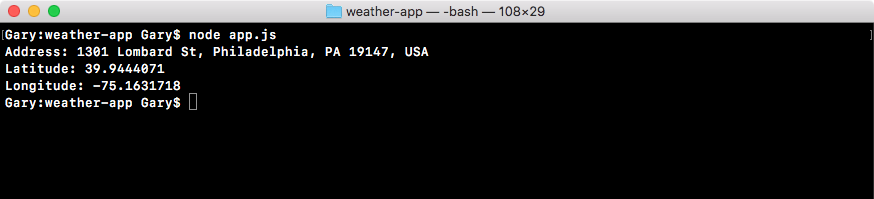
And these are the exact same values we have inside the Chrome browser, 39.94, -75.16. With this in place, we've now successfully pulled off the data we need to make that request to the weather API.