
The requests that we'll be making to that Geolocation API can actually be simulated over in the browser before we ever make the request in Node, and that's exactly what we want to do to get started. So follow along for the URL, https://maps.googleapis.com/maps/api/geocode/json.
Now this is the actual endpoint URL, but we do have to specify the address for which we want the geocode. We'll do that using query strings, which will be provided right after the question mark. Then, we can set up a set of key value pairs and we can add multiples using the ampersand in the URL, for example: https://maps.googleapis.com/maps/api/geocode/json?key=value&keytwo=valuetwo.
In our case, all we need is one query string address, https://maps.googleapis.com/maps/api/geocode/json?address, and for the address query string we'll set it equal to an address. In order to fill out that query address, I'll start typing 1301 lombard street philadelphia.
Notice that we are using spaces in the URL. This is just to illustrate a point: we can use spaces in the browser because it's going to automatically convert those spaces to something else. However, inside Node we'll have to take care of that ourselves, and we'll talk about that a little later in the section. For now if we leave the spaces in, hit enter, and we can see they automatically get converted for us:

Space characters get converted to %20, which is the encoded version of a space. In this page, we have all of the data that comes back:
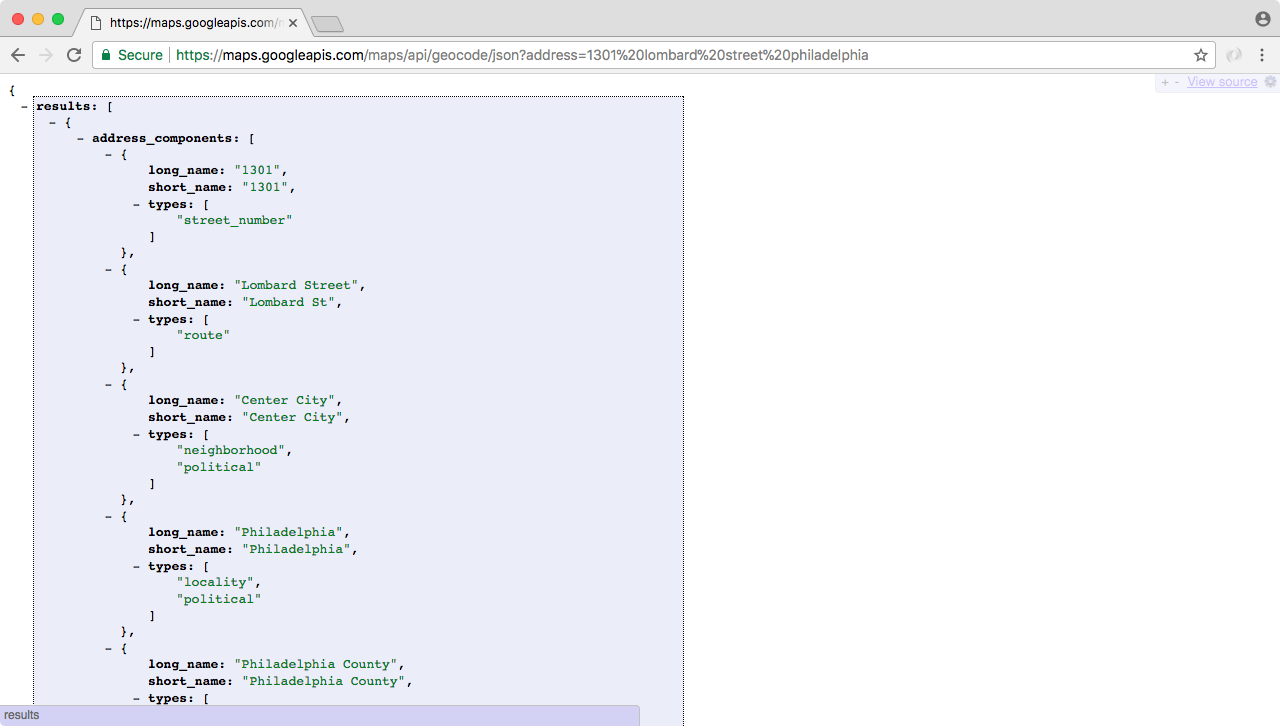
Now we'll use an extension called JSONView, which is available for Chrome and Firefox.
Now as shown in the preceding screenshot, the data on this page has exactly what we need. We have an address_components property, we don't need that. Next, we have a formatted address which is really nice, it includes the state, the zip code, and the country, which we didn't even provide in the address query.
Then, we have what we really came for: in geometry, we have location, and this includes the latitude and longitude data.