
Now we have these six folders and files listed, so let's go ahead and add the four folders and files we want to keep. To get started, we'll use any git add command. The git add command lets us tell the Git we want to keep track of a certain file. Let's type the following command:
git add package.json
After we do this, we can run it git status again, and this time we get something very different:
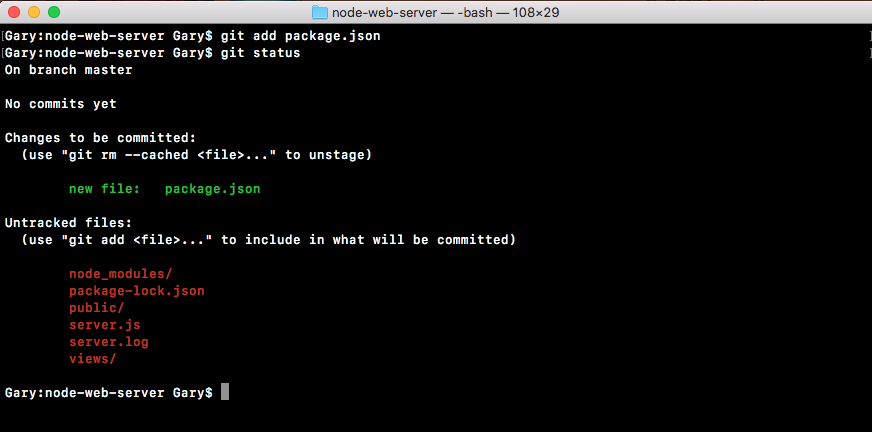
Now we have an Initial commit header. This is new, and we have our old Untracked files header. Notice under Untracked files, we don't have package.json anymore. That is moved up to the Initial commit header. These are all of the files that are going to be saved, also known as committed, when we make our first commit. Now we can move on adding the 3 others. We'll use a git add command again to tell Git we want to track the public directory. We can run a git status command to confirm it was added as expected:
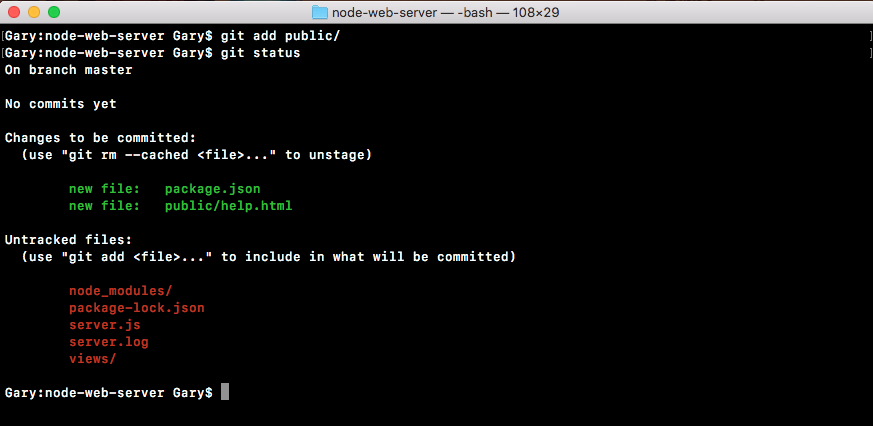
As shown in the preceding screenshot, we can see the public/help.html file is now going to be committed to Git once we run a commit.
Next up we can add server.js with git add server.js, and we can add the views directory using git add views, just like this:
git add server.js

git add views/
We'll run a git status command to confirm:
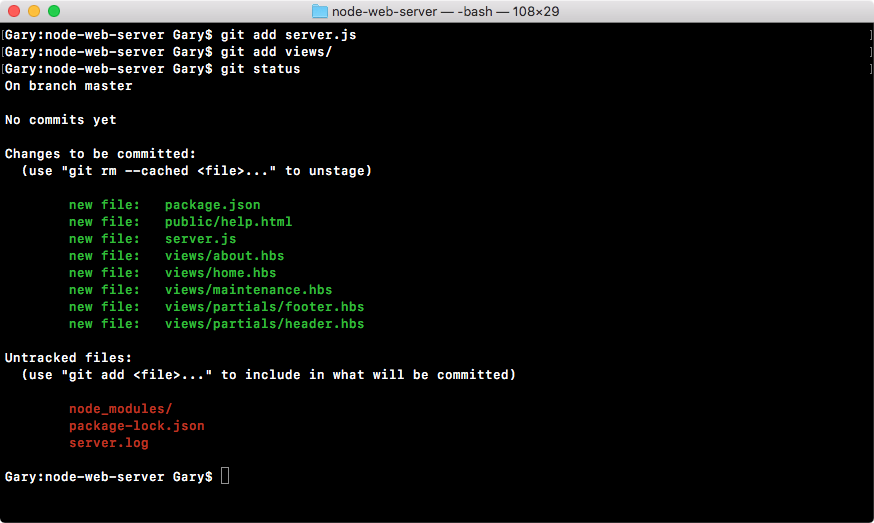
Everything looks good. Now the Untracked files are going to sit around here until we do one of two things—we either add them to the Git repository or ignore them using a custom file that we're going to create inside Atom.
Inside Atom, we'd like to make a new file called .gitignore, in our root of our project. The gitignore file is going to be part of our Git repository and it tells get which folders and files you want to ignore. In this case we can go ahead and ignore node_modules, just like this:
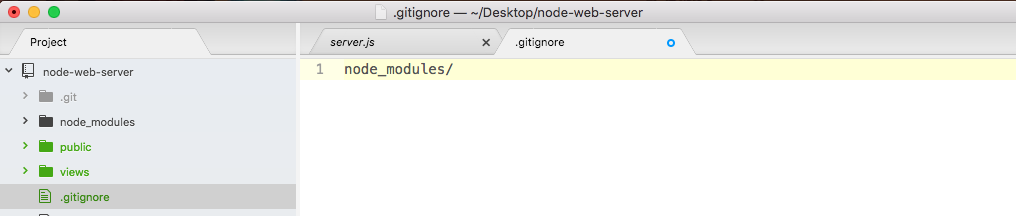
When we save the gitignore file and rerun git status from the Terminal, we'll now get a really different result:
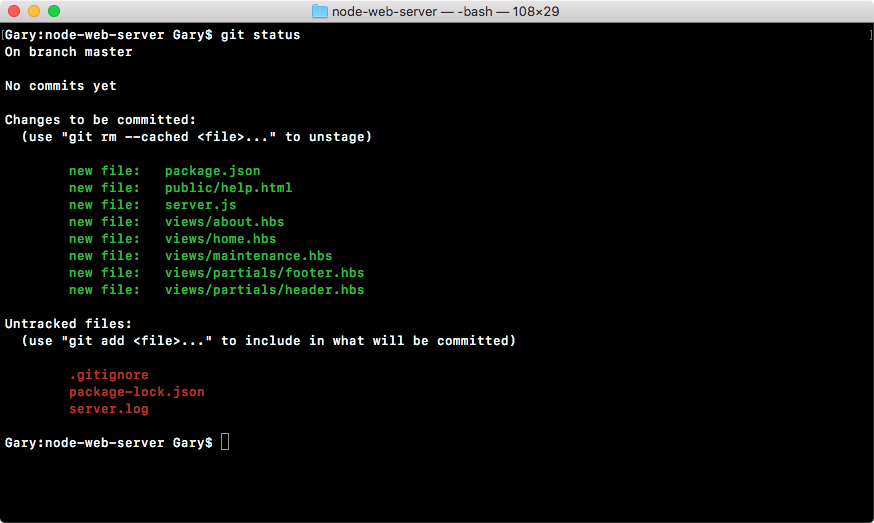
As shown, we can see we have a new untracked file—.gitignore—but the node_modules directory is nowhere in sight, and that's exactly what we want. We want to remove this completely, making sure that it never ever gets added to the Git repo. Next up, we can go ahead and ignore that server.log file by typing its name, server.log:
node modules/
server.log
We'll save gitignore, run git status from the Terminal one more time, and make sure everything looks great:
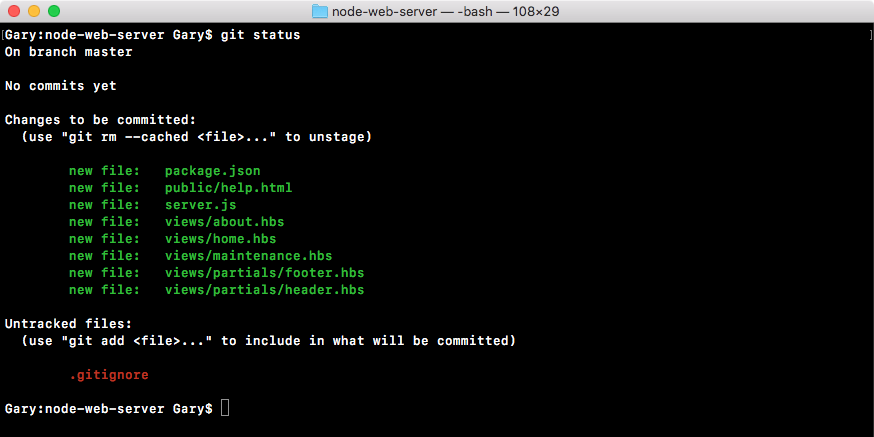
As shown, we have a gitignore file as our only untracked file. The server.log file and node_modules are nowhere in sight.
Now that we have gitignore, we are going to be adding it to Git using git add .gitignore and when we run git status, we should be able to see that all the files that show up are under the initial commit:
git add .gitignore

git status
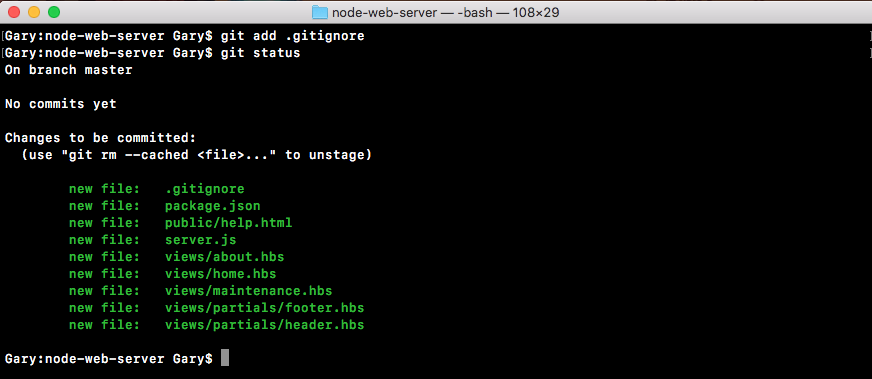
So now it's time to make a commit. A commit really only requires two things. It requires some change in the repository. In this case, we're teaching Git how to track a ton of new files, so we are indeed changing something, and it requires a message. We've already handled the file part of things. We've told Git what we want to save, we just haven't actually saved it yet.