
We'll start with figure out where the formatted address is. For this, we'll go to the browser and use JSONView. At the bottom of the browser page, you can see that little blue bar shows up when we highlight over items, and it changes as we switch items. For formatted address, for example, we access the results property, results is an array. In the case of most addresses, you'll only get one result:
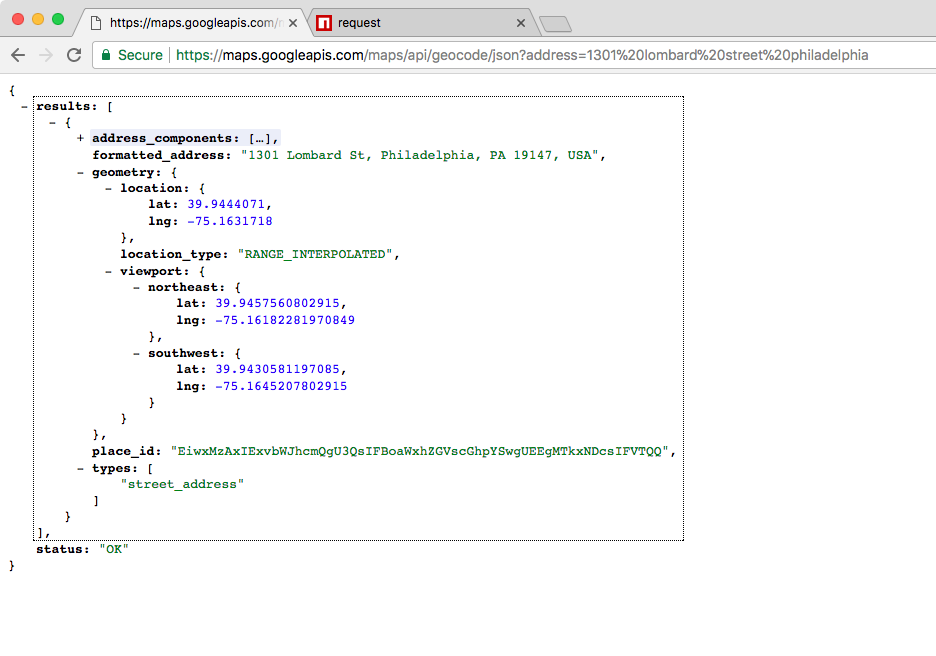
We'll use the first result every time, so we have the index of 0, then it's the .formatted_address property. This bottom line is exactly what we need to type inside of our Node code.
Inside Atom, in our code, we'll delete the console.log statement, and replace it with a new console.log statement. We'll use template strings to add some nice formatting to this. We'll add Address with a colon and a space, then I'll inject the address using the dollar sign and the curly braces. We'll access the body, results, and the first item in the results array followed by formatted address, as shown here:
const request = require('request');

request({
 url: 'https://maps.googleapis.com/maps/api/geocode/json?address=1301%20lombard%20street%20philadelphia',
 json: true
}, (error, response, body) => {
 console.log(`Address: ${body.results[0].formatted_address}`);
});
With this in place, I can now add a semicolon at the end and save the file. Next, we'll rerun the application inside of the Terminal, and this time around we get our address printing to the screen, as shown here:

Now that we have the address printing to the screen, what we would like to print both the latitude and the longitude next.