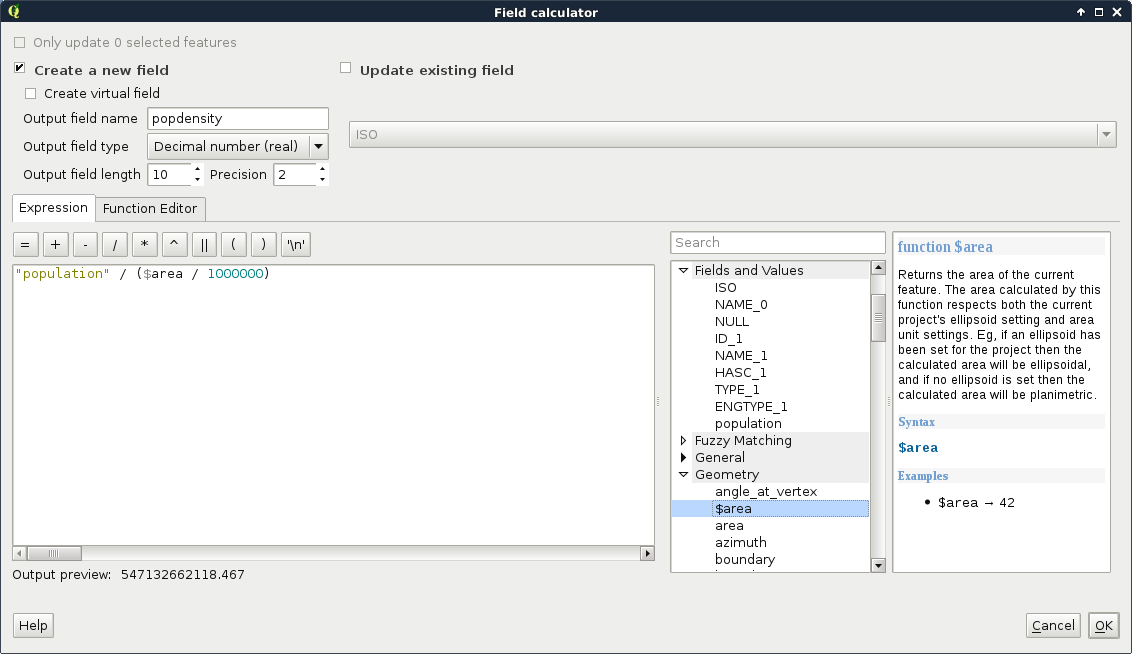
There are other ways to add or modify attribute data than joining tables together. If we start an edit session, we can directly modify attribute values in the layer's attribute table. It comes in handy when we have to modify the attributes a little bit manually. If manual work is not feasible, we have a convenient tool for creating and filling new columns automatically--the field calculator. We can access this tool from the attribute table of a layer, and from the main toolbar of QGIS by clicking on the abacus icon called Open Field Calculator. In the field calculator, we have a dialog similar to the query builder. We have access to every function that QGIS offers and some other options related to field creation. Let's open the field calculator for our new administrative boundaries layer.
In the dialog, we can choose between creating a new field and updating an existing one. In this example, we create a new column and fill it with the population density data. As our layer now contains population data, we can easily normalize it with the area of the polygons. We would like to create a new column; therefore, we can leave the Create a new field option checked. After we provide a name for our new column (in my case it will be popdensity), we have to assign a type to it. As population density is a numeric value, we can choose between two types--integer and floating point number (decimal number). Even though a data value of 1.5 people sounds rather silly, we strive for accuracy and choose the decimal type. We should also set up the format of our floating point numbers. Setting the precision to 2 is enough.
Now we only have to provide the expression of the field. If we leave that part empty, the column still gets added but with just null values. As we can calculate the population density (people per square kilometer) from the total population and the area, which is provided in square meters, we can build the following expression:
"population" / ($area / 1000000)
Or, if we would like to get our results in people per square mile, we can provide the following one:
"population" / ($area / 2589988)