
When it comes to data sources, GeoServer offers a hierarchical structure that consists of workspaces, stores, and layers. GeoServer's architecture is simple enough to understand quickly, still, there are some tricky parts that need to be discussed:
- Workspace: A group that contains different elements, like stores, layers, styles, or workspace-specific configurations. This is similar to a QGIS project file.
- Store: A connection between spatial data stored on the disk and GeoServer. A single store can contain multiple layers if the storage type is capable to do so (for example, PostGIS).
- Layer: A published layer from an existing connection (store). Unlike QGIS Server, GeoServer does not publish every layer from the defined source; we have to explicitly select and publish our layers of interest:
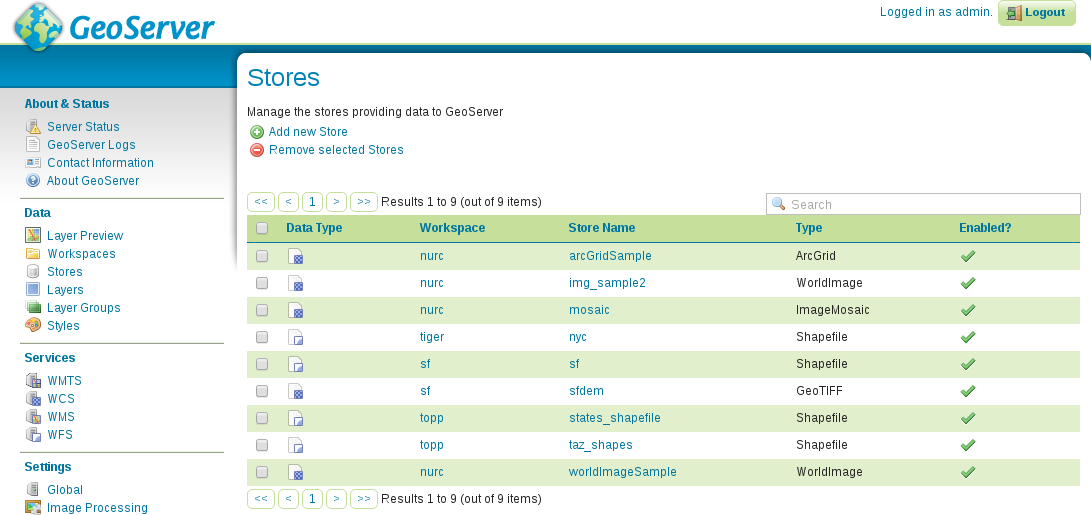
If we go through Data | Workspaces, Data | Stores, and Data | Layers, we can see that every default store is put into a workspace, and layers from that store inherit the name of the workspace. Putting stores into a workspace is mandatory. Using a workspace is only optional for styles. This is because if we put a style into a workspace, it can only be used for layers in the same workspace, otherwise, it can be used globally. Workspaces behave similar to schemas in PostgreSQL. Layers can have the same name in different workspaces, and if we access layers globally, we should refer to them with their fully qualified names in the form of workspace:layer.
GeoServer offers several ways to access its services. The most general way is to use its global endpoint ows in the following format:
http://localhost:8080/geoserver/ows
By using this endpoint, we can supply every OWS parameter required for a valid request. For example, to get the WMS capabilities of GeoServer, we can use the following URL:
    http://localhost:8080/geoserver/ows?
     Service=WMS&Version=1.3.0&Request=GetCapabilities
GeoServer has quite advanced rewrite rules, therefore, we can specify the service name after, or instead of ows. Thus, to get the same result, we can write the request the following ways:
    http://localhost:8080/geoserver/ows/wms?
     Version=1.3.0&Request=GetCapabilities

    http://localhost:8080/geoserver/wms?
     Version=1.3.0&Request=GetCapabilities
Alternatively, if we would like to only access the content of a single workspace, we can use a virtual endpoint by including the name of the workspace in the URL as follows:
    http://localhost:8080/geoserver/topp/ows?
     Service=WMS&Version=1.3.0&Request=GetCapabilities
The tricky part comes while defining custom service behavior to workspaces. As we could see from the capabilities of GeoServer's WMS service, it can provide WMS images in every known CRS. In order to demonstrate this custom behavior, let's restrict the CRSs of the topp workspace to EPSG:4326 and EPSG:3857:
- Go to Data | Workspaces, and select the topp workspace.
- Check the WMS box under Services to enable workspace-specific WMS configuration for this workspace. Click on the Save button to apply the changes.
- Go to Services | WMS, and select the topp workspace in the Workspace menu.
- Find the Limited SRS list field, and supply the EPSG codes of the two projections (4326, 3857). Save the edits by clicking on Submit at the bottom of the page.
Let's connect to the global endpoint of GeoServer, and query its WMS capabilities (http://localhost:8080/geoserver/ows?Service=WMS&Version=1.3.0&Request=GetCapabilities). Next, query its capabilities using the topp virtual endpoint (http://localhost:8080/geoserver/topp/ows?Service=WMS&Version=1.3.0&Request=GetCapabilities). As you can see, the virtual endpoint has now limited CRS capabilities, while the global endpoint can still provide layers from the topp workspace in any projection GeoServer knows. This is the tricky part of managing workspaces. As the global endpoint has to provide every published layer with every service enabled in the global configuration, it cannot use workspace-specific configuration. On the other hand, when using a virtual endpoint, GeoServer will try to use configuration for the corresponding workspace. If it cannot find any, it simply falls back to the global service configuration.