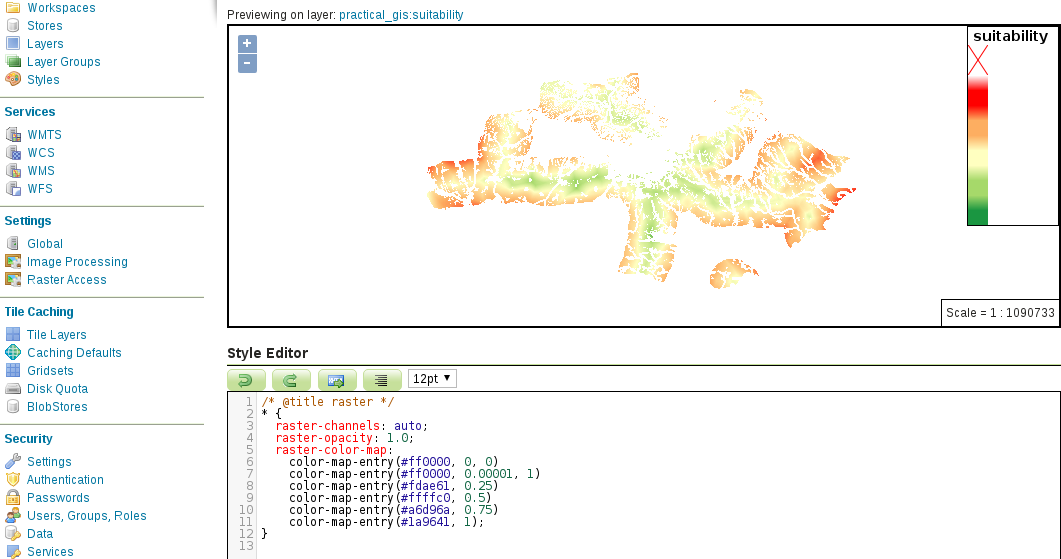
As a final task, let's style our suitability raster layer. We should use the same color ramp that QGIS calculated for us. That is, we have five breakpoints: 0, 0.25, 0.5, 0.75, and 1. The color ramp is red to green, with the colors #ff0000, #fdae61, #ffffc0, #a6d96a, and #1a9641 at the breakpoints:
- Create a new CSS style restricted to our workspace with an automatically generated raster template. Save the style, reopen it, and preview it on our suitability layer.
- Single-band rasters can be styled in CSS just like in SLD--with a color map. The syntax of the color map is a bit unusual, though. The property is raster-color-map, while the value is a set of color-map-entry functions separated by whitespaces. As a one liner would be hardly manageable for this rule, and CSS allows some flexibility in its syntax, we can put our color map entries in separate lines. A single color-map-entry function accepts three arguments: a color, a value, and an optional opacity value. Extend the definition block with a color map as follows:
        raster-color-map:
          color-map-entry(#ff0000, 0)
          color-map-entry(#fdae61, 0.25)
          color-map-entry(#ffffc0, 0.5)
          color-map-entry(#a6d96a, 0.75)
          color-map-entry(#1a9641, 1);
- The result is correct, although we get a lot of red pixels due to the amount of unsuitable areas. To get rid of zero values, we can provide a 0 opacity value in the first color map entry, making red areas fully transparent:
color-map-entry(#ff0000, 0, 0)
The red parts are gone, however, GeoServer not only interpolates colors between breakpoints, but also opacity values. That is, the opacity between 0 and 0.25 is constantly changing, introducing a dull reddish color in that interval. To make things worse, layers beneath the suitability layer will be visible in those areas, distorting the colors even more. The logical solution would be to increase the value of the lowest color map entry by an arbitrarily low value (like 0.00001). The problem is, GeoServer not only interpolates on a color ramp, but also extrapolates. That is, if we do not set zero values to fully transparent, we always get them styled according to the color of the lowest color map entry. The only thing we can do is to introduce another entry, which jumps the opacity of the layer back to normal on values slightly bigger than 0.
- Insert an additional color map entry with a red color (#ff0000), a very low value (like 0.00001), and an opacity value of 1:
color-map-entry(#ff0000, 0.00001, 1)
- Save the style, and assign it to our suitability layer as default: