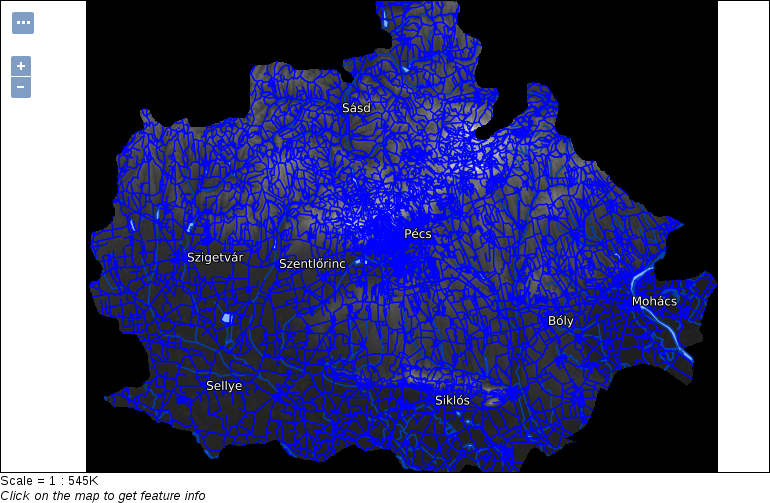
Finally, let's create a style for our GeoNames layer showing only labels for the seats of the administrative divisions:
- Create a new style, and name it appropriately. Restrict it to our workspace.
- Generate a template for point geometries.
- Save the template, open it again, and preview it on the GeoNames layer.
- Optionally, edit the metadata to describe our use case.
- Apply a filter in the <Rule> element filtering seats of administrative divisions. The filter we used in QGIS is "featurecod" LIKE 'PPLA%' or "featurecode" LIKE 'PPLA%' depending on the format we used when we saved the GeoNames extract. Remember: Shapefiles have a limit on the maximum length of a column name, therefore if we exported our GeoNames layer to a Shapefile previously, featurecode got truncated to featurecod. This is the expression we have to translate to an SLD filter. We can use a LIKE expression in SLD by using the <PropertyIsLike> element, although it is a little bit tricky. We have to provide three attributes to the element: wildCard for the wildcard character substituting any number of characters, singleChar for the wildcard substituting a single character, and escape for the character escaping a wildcard character. In the end, the filter should look similar to the following:
        <ogc:Filter>
         <ogc:PropertyIsLike wildCard="%" singleChar="_" escape="\">
          <ogc:PropertyName>featurecod</ogc:PropertyName>
          <ogc:Literal>PPLA%</ogc:Literal>
         </ogc:PropertyIsLike>
        </ogc:Filter>
- Instead of using a point symbolizer, use a text symbolizer to display labels only. To achieve this, first remove the <PointSymbolizer> element with its content.
- Add a <TextSymbolizer> element in the <Rule> element. The text should have a font type (for me, it is DejaVu Sans), a white color, and a black halo around it. For the font size, the default value of 10 pixels is a little bit small, therefore, we should use a somewhat bigger size. Furthermore, it should show labels from the name property of the layer, which we can describe in a <Label> element. In the end, we should get a symbolizer like the following:
        <TextSymbolizer>
         <Label>
          <ogc:PropertyName>name</ogc:PropertyName>
         </Label>
         <Font>
          <CssParameter name="font-family">DejaVu Sans</CssParameter>
          <CssParameter name="font-size">12</CssParameter>
          <CssParameter name="font-style">normal</CssParameter>
         </Font>
         <Halo>
          <Fill>
           <CssParameter name="fill">#000000</CssParameter>
          </Fill>
         </Halo>
         <Fill>
          <CssParameter name="fill">#FFFFFF</CssParameter>
         </Fill>
        </TextSymbolizer>
- Validate the style. If it does not have any errors, save it, and declare it as the default style for the GeoNames layer.
Let's see how our layer group changed due to these SLD styles. First of all, we need to change its styling. As a layer group can have different styling than the components individually, we have to explicitly set the styles applied to the members of the group:
- Go to Data | Layer Groups, and select our composition.
- Check the Default Style box for the items we created a style for.
- Save the changes by clicking on the Save button.
- Go to Data | Layer Preview, and preview our layer group by clicking on OpenLayers next to it: