Table of Contents for
Practical GIS

Version ebook / Retour

Cover image for bash Cookbook, 2nd Edition Practical GIS by Gábor Farkas Published by Packt Publishing, 2017
  1. Practical GIS
  2. Title Page
  3. Copyright
  4. Credits
  5. About the Author
  6. About the Reviewer
  7. www.PacktPub.com
  8. Customer Feedback
  9. Dedication
  10. Table of Contents
  11. Preface
  12. What this book covers
  13. What you need for this book
  14. Who this book is for
  15. Conventions
  16. Reader feedback
  17. Customer support
  18. Downloading the example code
  19. Downloading the color images of this book
  20. Errata
  21. Piracy
  22. Questions
  23. Setting Up Your Environment
  24. Understanding GIS
  25. Setting up the tools
  26. Installing on Linux
  27. Installing on Windows
  28. Installing on macOS
  29. Getting familiar with the software
  30. About the software licenses
  31. Collecting some data
  32. Getting basic data
  33. Licenses
  34. Accessing satellite data
  35. Active remote sensing
  36. Passive remote sensing
  37. Licenses
  38. Using OpenStreetMap
  39. OpenStreetMap license
  40. Summary
  41. Accessing GIS Data With QGIS
  42. Accessing raster data
  43. Raster data model
  44. Rasters are boring
  45. Accessing vector data
  46. Vector data model
  47. Vector topology - the right way
  48. Opening tabular layers
  49. Understanding map scales
  50. Summary
  51. Using Vector Data Effectively
  52. Using the attribute table
  53. SQL in GIS
  54. Selecting features in QGIS
  55. Preparing our data
  56. Writing basic queries
  57. Filtering layers
  58. Spatial querying
  59. Writing advanced queries
  60. Modifying the attribute table
  61. Removing columns
  62. Joining tables
  63. Spatial joins
  64. Adding attribute data
  65. Understanding data providers
  66. Summary
  67. Creating Digital Maps
  68. Styling our data
  69. Styling raster data
  70. Styling vector data
  71. Mapping with categories
  72. Graduated mapping
  73. Understanding projections
  74. Plate Carrée - a simple example
  75. Going local with NAD83 / Conus Albers
  76. Choosing the right projection
  77. Preparing a map
  78. Rule-based styling
  79. Adding labels
  80. Creating additional thematics
  81. Creating a map
  82. Adding cartographic elements
  83. Summary
  84. Exporting Your Data
  85. Creating a printable map
  86. Clipping features
  87. Creating a background
  88. Removing dangling segments
  89. Exporting the map
  90. A good way for post-processing - SVG
  91. Sharing raw data
  92. Vector data exchange formats
  93. Shapefile
  94. WKT and WKB
  95. Markup languages
  96. GeoJSON
  97. Raster data exchange formats
  98. GeoTIFF
  99. Clipping rasters
  100. Other raster formats
  101. Summary
  102. Feeding a PostGIS Database
  103. A brief overview of databases
  104. Relational databases
  105. NoSQL databases
  106. Spatial databases
  107. Importing layers into PostGIS
  108. Importing vector data
  109. Spatial indexing
  110. Importing raster data
  111. Visualizing PostGIS layers in QGIS
  112. Basic PostGIS queries
  113. Summary
  114. A PostGIS Overview
  115. Customizing the database
  116. Securing our database
  117. Constraining tables
  118. Saving queries
  119. Optimizing queries
  120. Backing up our data
  121. Creating static backups
  122. Continuous archiving
  123. Summary
  124. Spatial Analysis in QGIS
  125. Preparing the workspace
  126. Laying down the rules
  127. Vector analysis
  128. Proximity analysis
  129. Understanding the overlay tools
  130. Towards some neighborhood analysis
  131. Building your models
  132. Using digital elevation models
  133. Filtering based on aspect
  134. Calculating walking times
  135. Summary
  136. Spatial Analysis on Steroids - Using PostGIS
  137. Delimiting quiet houses
  138. Proximity analysis in PostGIS
  139. Precision problems of buffering
  140. Querying distances effectively
  141. Saving the results
  142. Matching the rest of the criteria
  143. Counting nearby points
  144. Querying rasters
  145. Summary
  146. A Typical GIS Problem
  147. Outlining the problem
  148. Raster analysis
  149. Multi-criteria evaluation
  150. Creating the constraint mask
  151. Using fuzzy techniques in GIS
  152. Proximity analysis with rasters
  153. Fuzzifying crisp data
  154. Aggregating the results
  155. Calculating statistics
  156. Vectorizing suitable areas
  157. Using zonal statistics
  158. Accessing vector statistics
  159. Creating an atlas
  160. Summary
  161. Showcasing Your Data
  162. Spatial data on the web
  163. Understanding the basics of the web
  164. Spatial servers
  165. Using QGIS for publishing
  166. Using GeoServer
  167. General configuration
  168. GeoServer architecture
  169. Adding spatial data
  170. Tiling your maps
  171. Summary
  172. Styling Your Data in GeoServer
  173. Managing styles
  174. Writing SLD styles
  175. Styling vector layers
  176. Styling waters
  177. Styling polygons
  178. Creating labels
  179. Styling raster layers
  180. Using CSS in GeoServer
  181. Styling layers with CSS
  182. Creating complex styles
  183. Styling raster layers
  184. Summary
  185. Creating a Web Map
  186. Understanding the client side of the Web
  187. Creating a web page
  188. Writing HTML code
  189. Styling the elements
  190. Scripting your web page
  191. Creating web maps with Leaflet
  192. Creating a simple map
  193. Compositing layers
  194. Working with Leaflet plugins
  195. Loading raw vector data
  196. Styling vectors in Leaflet
  197. Annotating attributes with popups
  198. Using other projections
  199. Summary
  200. Appendix

Vectorizing suitable areas

Now that we have an appropriate suitability value, we can vectorize our suitability map. We've already seen how vector-raster conversion works, but we did not encounter raster-vector conversion. As every raster layer consists of cells with fixed width and height values, the simplest approach is to convert every cell to a polygon. GDAL uses this approach, but in a more sophisticated way. It automatically dissolves neighboring cells with the same value. In order to harness this capability, we should provide a binary layer with zeros representing non-suitable cells, and ones representing suitable cells:

  1. Open a raster calculator, and create a binary layer with a conditional expression using the minimum suitability value determined previously. Such an expression is "suitability@1" >= 0.6. Save the result as a GeoTIFF file.
  2. Open Raster | Conversion | Polygonize from the menu bar.
  3. Provide the binary suitability layer as an input, and specify an output for the polygon layer:
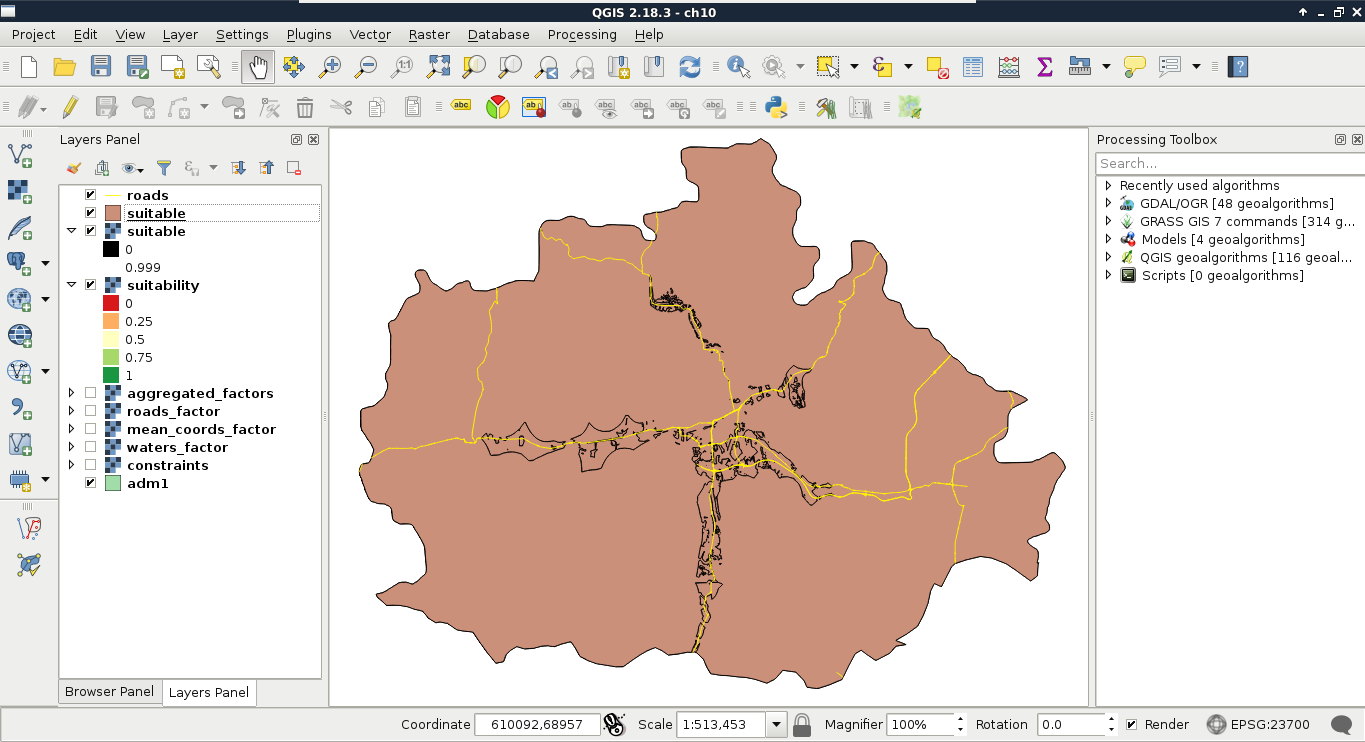
Now we have a nicely dissolved polygon layer with DN (digital number) values representing suitability in a binary format. We can apply a filter on the layer to only show suitable areas:

        "DN" = 1

As the polygons do not respect the main roads, we need to cut them where the roads intersect them. This seems to be a trivial problem, although there are no simple ways to achieve this in QGIS. On the other hand, we can come up with a workaround, and convert our filtered polygons to lines, merge them with the roads, and create polygons from the merged layer.

  1. Convert the filtered suitable areas layer to lines with QGIS geoalgorithms | Vector geometry tools | Polygons to lines. The output should be saved on the disk, as the merge tool does not like memory layers.
  2. Merge the polygon boundaries with the roads layer by using QGIS geoalgorithms | Vector general tools | Merge vector layers. The output can be a memory layer this time.
  3. Create polygons from the merged layer with QGIS geoalgorithms | Vector geometry tools | Polygonize. Leave every parameter with their default values, and save the result as a memory layer.
Be sure to use the Polygonize tool. There is another tool called Lines to polygons, however, it converts linestring features to polygons directly, creating wrong results.
  1. Now we have our polygon layer split by the roads, however, we've also got some excess polygons we don't need. To get rid of them, clip the result to the original suitable areas layer with QGIS geoalgorithms | Vector overlay tools | Clip. Save the result as a memory layer.
  2. Closely inspect the clipped polygons. If they are correctly split at the roads, and do not contain excess areas, we can overwrite our original suitable areas layer with this:
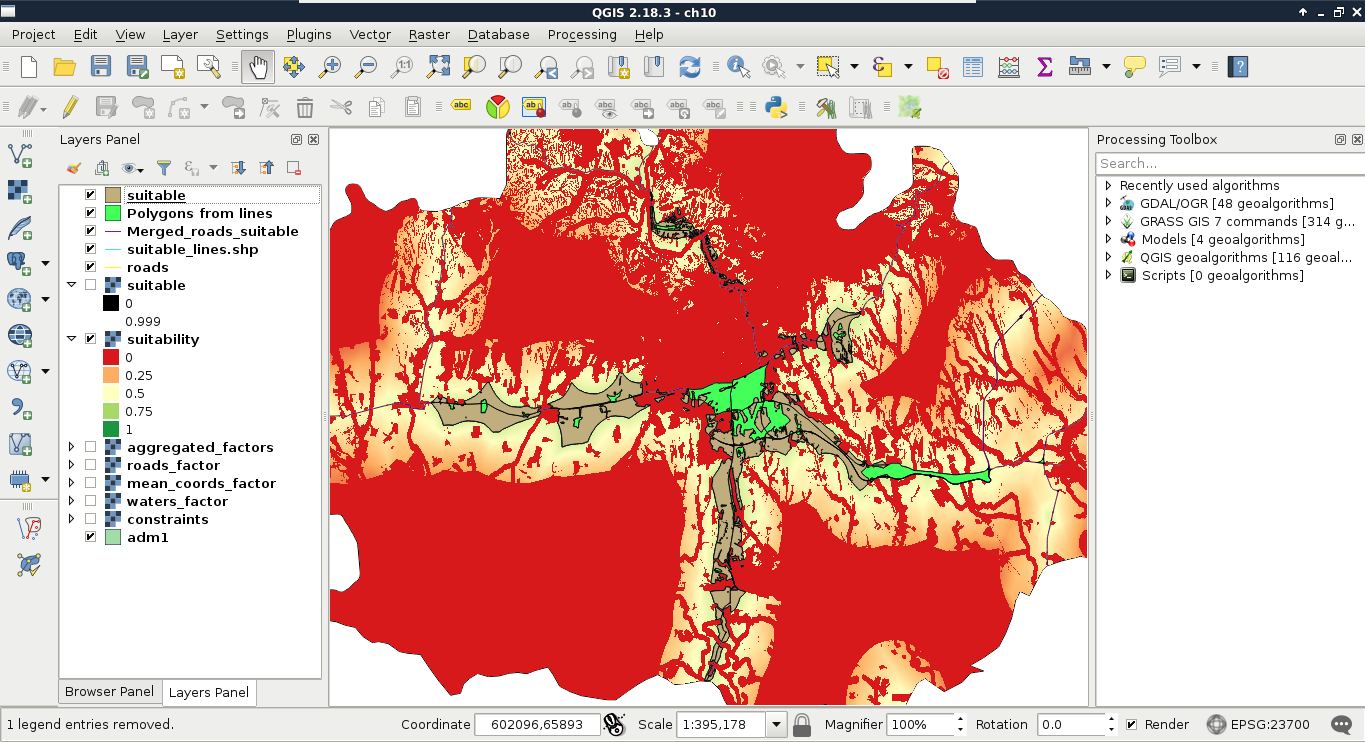
Don't worry if you get an error message saying QGIS couldn't save every feature because of a type mismatch. The clipped areas are stored in a polygon layer, therefore, the output layer's type will automatically be polygon. If QGIS detects that there are also some other types of geometries present in the saved layer, it still saves every matching feature. It just won't load the result automatically.

The last thing to do with our vector layer before calculating statistics is to get its attribute table in shape. If you looked at the attribute table of the polygonized lines, you would see that the algorithm automatically created two columns for the areas and the perimeters of the geometries. While we do not care about the perimeters in the analysis, creating an area column is very convenient, as we need to filter our polygons based on their areas. The only problem is that by clipping the layer, we unintentionally corrupted the area column. The other attribute we should add to our polygons is a unique ID to make them referable later:

  1. Select the saved suitable areas polygon in the Layers Panel, and open a field calculator.
  2. Check in the Update existing field box, and select the area column from the drop-down menu.
  3. Supply the area variable of the geometries as an expression--$area, and recalculate the column.
  4. Open the field calculator again, and add an integer field named id. The expression should return a unique integer for every feature, which is impossible to do in the field calculator. Luckily, we can access a variable storing the row number of every feature in the attribute table, which we can provide as an expression--$rownum.
  5. Save the edits, and exit the edit session.
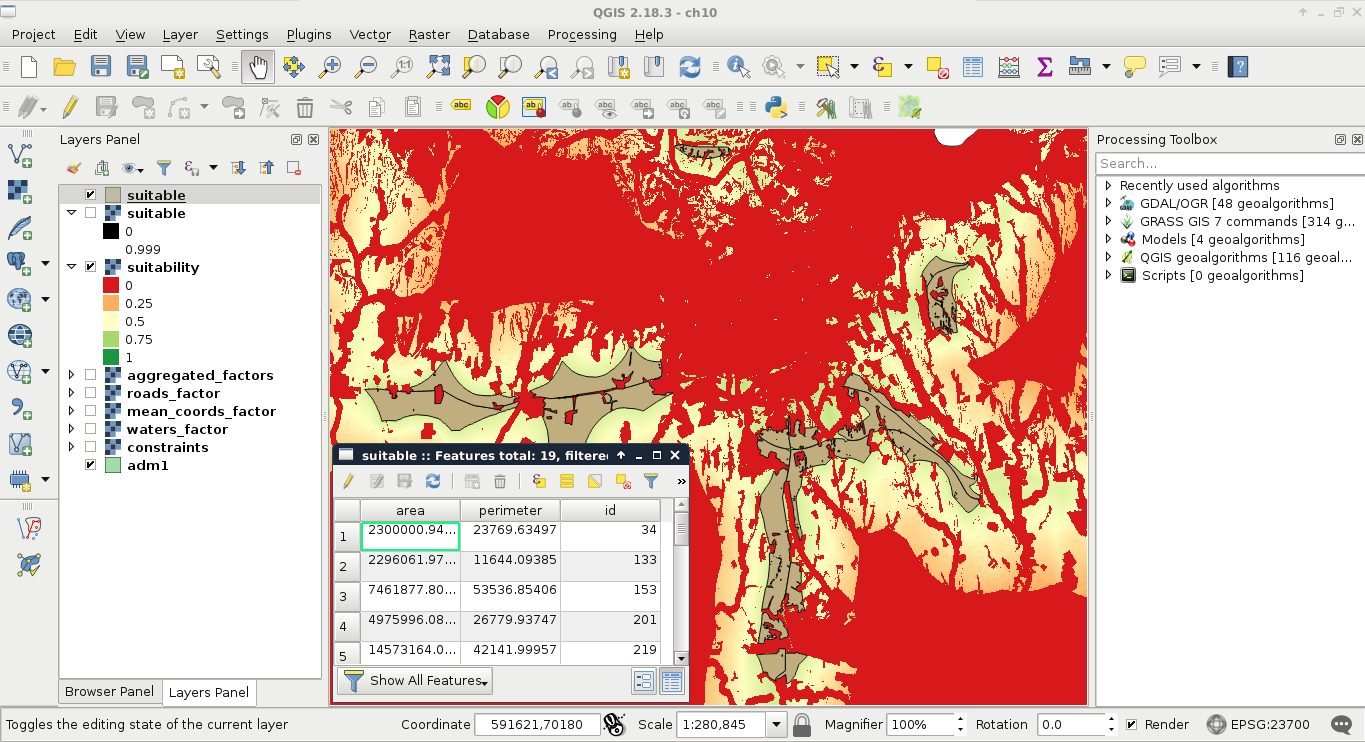
  1. Apply a filter to only show the considerable areas using the expression "area" >= 1500000: