In GeoServer, we can manage style items the way we managed layers. Unlike layers, we can make styles global by not assigning them to a single workspace. This makes them usable with layers in different workspaces. On the other hand, as styles can be very specific (that is, they can use rules based on attribute data), we can also make them local by assigning them to a workspace. The styling scheme of GeoServer is very similar to QGIS and any other GIS software. We can use point, line, polygon, and raster symbolizers to describe visual properties. These symbolizers can be explained as follows:
- Point: A symbol bound to a pair of coordinates. The symbol can be an image, or any other regular shape (for example, a square, triangle, or circle). If the symbol is a shape, it can have a stroke and a fill.
- Line: A linear symbol described with a stroke width and a stroke color.
- Polygon: A symbol applied to an area described by coordinate pairs in the CRS of the map. It has a stroke with a stroke width and a stroke color. Additionally, it has a fill, which can be described by a simple color, a color gradient, or a texture.
- Text: A rendered label that shows an attribute of the underlying feature. It can be described with common font properties usable with WYSIWYG word processors (like LibreOffice Writer).
- Raster: A rule or a set of rules which assigns colors to raster values.
Of course, styles only affect image outputs (like WMS or WMTS). There are numerous styles shipped with GeoServer. When we publish a layer, we have to assign a default style for it. If we skip this step, GeoServer automatically assigns an internal style for the given layer based on its type. Layers can have multiple styles. In a query, we can provide a style parameter, which requests a style name other than the default style of the requested layer. If the requested style exists, and it is assigned to the requested layer in GeoServer, it provides images styled according to the request.
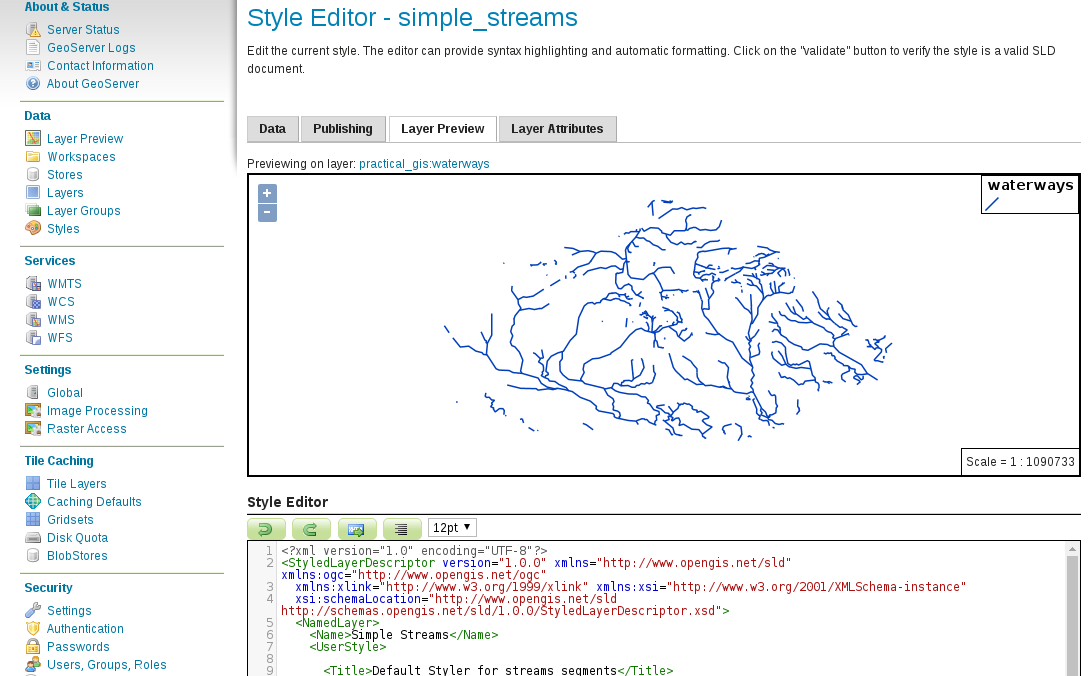
We can see GeoServer's default styles by navigating to Data | Styles. As you can see, the default styles are global, therefore, we can use them with our layers if they fit. Let's open the style named simple_streams by clicking on it. The window we opened is the style editor, where we have access to these four style management tabs:
- Data: We can specify the attributes of the given style here. We can rename the style, or restrict it to a specific workspace. If we create a new style, we can also choose a format and generate some random template.
- Publishing: We can access all of our layers here and assign the style as default, or just associate it with them. Associated styles can be queried by using a style parameter as discussed before.
- Layer Preview: We can preview the style on any layer in this tab. By default, a layer using the given style is shown in the preview. We can change that by clicking on the previewed layer's name. This is a very convenient editing tool, as we can follow our changes visually.
- Layer Attributes: We can inspect the attribute data of the previewed layer here, which is useful if we use some attribute-based rules in our style.
The long and intimidating text in the style editor field is the style definition of the style we opened. As you can see, the style editor is accessible in every tab, making editing very convenient. There are also some of these following useful tools in the form of buttons, which we can use with our modified styles:
- Validate: To validates the style that we create anytime--GeoServer parses the draft, and points out any error it can find
- Apply: To save the modified style in place
- Submit: To save a newly created style first time, making it available to any layer
- Cancel: To go back and discard any change
Let's play around a little with this style to get a hang of the process:
- Navigate to the Layer Preview tab
- Click on the previewed layer's name (sf:streams), and select our waterways layer
- In the style editor, change the stroke width to 1 pixel by modifying the <ogc:Literal>2</ogc:Literal> line. Optionally, change the color of the stroke to the color we used in QGIS (#a5bfdd for me) by modifying the <ogc:Literal>#003EBA</ogc:Literal> line.
- Validate the change by clicking on the Validate button.
- Save the modification by clicking on the Apply button. If the preview does not change immediately, pan or zoom the map a little bit.
- Change to the Publishing tab.
- Specify this style as the default style on the waterways layer by searching it, and checking the Default box in its row: