
Table of Contents for
Practical GIS

Version ebook / Retour

Cover image for bash Cookbook, 2nd Edition Practical GIS by Gábor Farkas Published by Packt Publishing, 2017
  1. Practical GIS
  2. Title Page
  3. Copyright
  4. Credits
  5. About the Author
  6. About the Reviewer
  7. www.PacktPub.com
  8. Customer Feedback
  9. Dedication
  10. Table of Contents
  11. Preface
  12. What this book covers
  13. What you need for this book
  14. Who this book is for
  15. Conventions
  16. Reader feedback
  17. Customer support
  18. Downloading the example code
  19. Downloading the color images of this book
  20. Errata
  21. Piracy
  22. Questions
  23. Setting Up Your Environment
  24. Understanding GIS
  25. Setting up the tools
  26. Installing on Linux
  27. Installing on Windows
  28. Installing on macOS
  29. Getting familiar with the software
  30. About the software licenses
  31. Collecting some data
  32. Getting basic data
  33. Licenses
  34. Accessing satellite data
  35. Active remote sensing
  36. Passive remote sensing
  37. Licenses
  38. Using OpenStreetMap
  39. OpenStreetMap license
  40. Summary
  41. Accessing GIS Data With QGIS
  42. Accessing raster data
  43. Raster data model
  44. Rasters are boring
  45. Accessing vector data
  46. Vector data model
  47. Vector topology - the right way
  48. Opening tabular layers
  49. Understanding map scales
  50. Summary
  51. Using Vector Data Effectively
  52. Using the attribute table
  53. SQL in GIS
  54. Selecting features in QGIS
  55. Preparing our data
  56. Writing basic queries
  57. Filtering layers
  58. Spatial querying
  59. Writing advanced queries
  60. Modifying the attribute table
  61. Removing columns
  62. Joining tables
  63. Spatial joins
  64. Adding attribute data
  65. Understanding data providers
  66. Summary
  67. Creating Digital Maps
  68. Styling our data
  69. Styling raster data
  70. Styling vector data
  71. Mapping with categories
  72. Graduated mapping
  73. Understanding projections
  74. Plate Carrée - a simple example
  75. Going local with NAD83 / Conus Albers
  76. Choosing the right projection
  77. Preparing a map
  78. Rule-based styling
  79. Adding labels
  80. Creating additional thematics
  81. Creating a map
  82. Adding cartographic elements
  83. Summary
  84. Exporting Your Data
  85. Creating a printable map
  86. Clipping features
  87. Creating a background
  88. Removing dangling segments
  89. Exporting the map
  90. A good way for post-processing - SVG
  91. Sharing raw data
  92. Vector data exchange formats
  93. Shapefile
  94. WKT and WKB
  95. Markup languages
  96. GeoJSON
  97. Raster data exchange formats
  98. GeoTIFF
  99. Clipping rasters
  100. Other raster formats
  101. Summary
  102. Feeding a PostGIS Database
  103. A brief overview of databases
  104. Relational databases
  105. NoSQL databases
  106. Spatial databases
  107. Importing layers into PostGIS
  108. Importing vector data
  109. Spatial indexing
  110. Importing raster data
  111. Visualizing PostGIS layers in QGIS
  112. Basic PostGIS queries
  113. Summary
  114. A PostGIS Overview
  115. Customizing the database
  116. Securing our database
  117. Constraining tables
  118. Saving queries
  119. Optimizing queries
  120. Backing up our data
  121. Creating static backups
  122. Continuous archiving
  123. Summary
  124. Spatial Analysis in QGIS
  125. Preparing the workspace
  126. Laying down the rules
  127. Vector analysis
  128. Proximity analysis
  129. Understanding the overlay tools
  130. Towards some neighborhood analysis
  131. Building your models
  132. Using digital elevation models
  133. Filtering based on aspect
  134. Calculating walking times
  135. Summary
  136. Spatial Analysis on Steroids - Using PostGIS
  137. Delimiting quiet houses
  138. Proximity analysis in PostGIS
  139. Precision problems of buffering
  140. Querying distances effectively
  141. Saving the results
  142. Matching the rest of the criteria
  143. Counting nearby points
  144. Querying rasters
  145. Summary
  146. A Typical GIS Problem
  147. Outlining the problem
  148. Raster analysis
  149. Multi-criteria evaluation
  150. Creating the constraint mask
  151. Using fuzzy techniques in GIS
  152. Proximity analysis with rasters
  153. Fuzzifying crisp data
  154. Aggregating the results
  155. Calculating statistics
  156. Vectorizing suitable areas
  157. Using zonal statistics
  158. Accessing vector statistics
  159. Creating an atlas
  160. Summary
  161. Showcasing Your Data
  162. Spatial data on the web
  163. Understanding the basics of the web
  164. Spatial servers
  165. Using QGIS for publishing
  166. Using GeoServer
  167. General configuration
  168. GeoServer architecture
  169. Adding spatial data
  170. Tiling your maps
  171. Summary
  172. Styling Your Data in GeoServer
  173. Managing styles
  174. Writing SLD styles
  175. Styling vector layers
  176. Styling waters
  177. Styling polygons
  178. Creating labels
  179. Styling raster layers
  180. Using CSS in GeoServer
  181. Styling layers with CSS
  182. Creating complex styles
  183. Styling raster layers
  184. Summary
  185. Creating a Web Map
  186. Understanding the client side of the Web
  187. Creating a web page
  188. Writing HTML code
  189. Styling the elements
  190. Scripting your web page
  191. Creating web maps with Leaflet
  192. Creating a simple map
  193. Compositing layers
  194. Working with Leaflet plugins
  195. Loading raw vector data
  196. Styling vectors in Leaflet
  197. Annotating attributes with popups
  198. Using other projections
  199. Summary
  200. Appendix

Writing basic queries

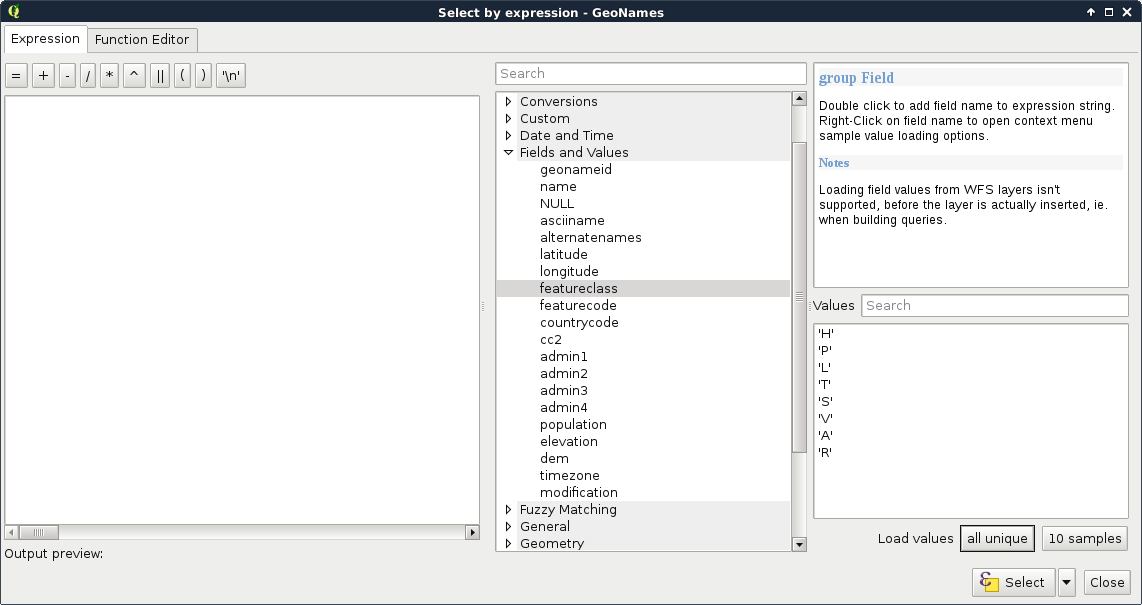
Let's select the modified GeoNames layer and open the Select features using an expression tool. We can see QGIS's expression builder, which offers a very convenient GUI with a lot of functions in the middle panel, and a small and handy description for the selected function in the left panel. We do not even have to type anything to use some of the basic queries as QGIS lists every field we can access under the Fields and Values menu. Furthermore, QGIS can also list all the unique values or just a small sample from a column by selecting it and pressing the appropriate button in the left panel:
If you are familiar with basic SQL syntax, you can run some queries accommodating yourself with QGIS's query dialog and continue with filtering layers.

The basic SQL expressions that we can use are listed under the Operators menu. There, every operator is a valid PostgreSQL operator, most of them are commonly found in various GIS software. Let's start with some numeric comparisons. For that, we have to choose a numeric column. We can use the attribute table for that.

You can check the attribute types by right-clicking on the layer, selecting Properties, and navigating to the Fields tab. However, it is easy to distinguish between numeric and text fields from the attribute table. Numbers are aligned to the right in the attribute table, while strings are aligned to the left.

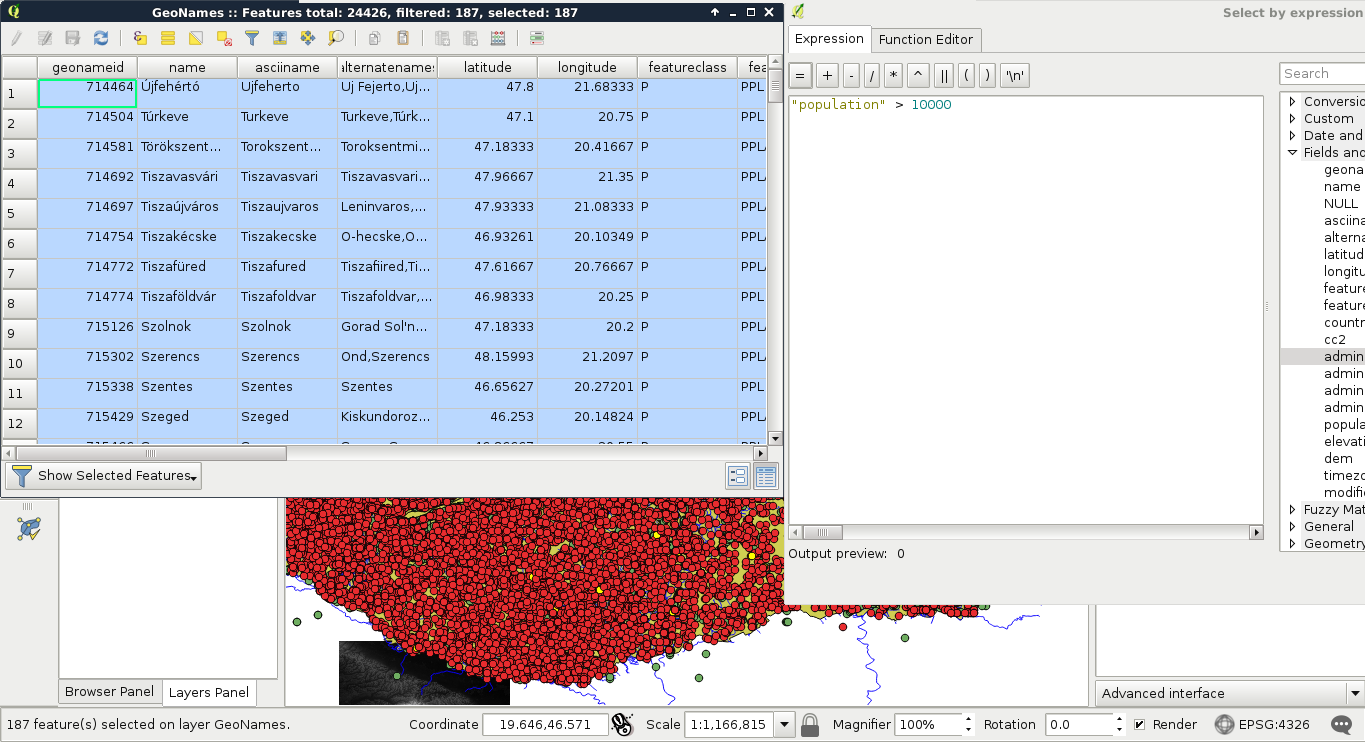
For basic numeric comparisons, let's choose the population column. In this first query, we would like to select every place where the population exceeds 10000 people. To get the result, we have to supply the following query:

    "population" > 10000

We can now see the resulting features as on the following screenshot:
If we would like to invert the query, we have an easy task, which is as follows:

    "population" <= 10000

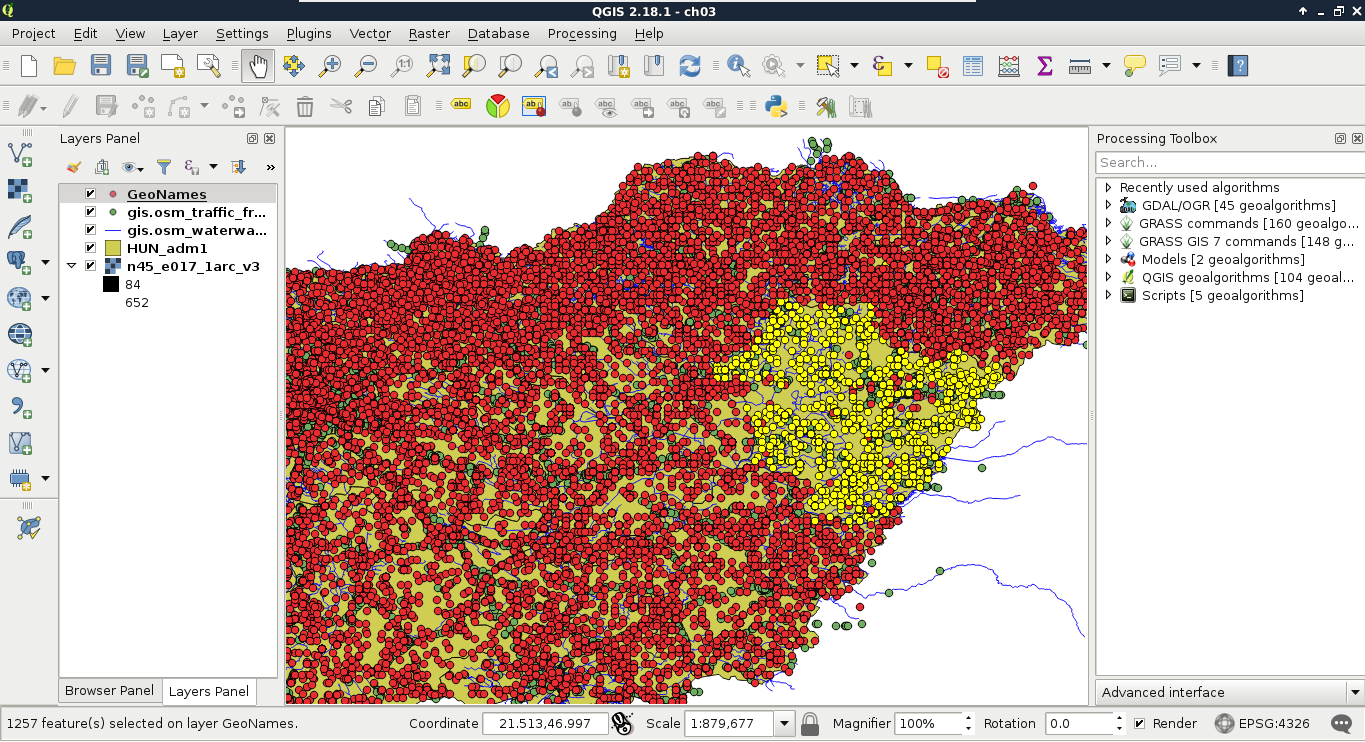
We could do this as population is a graduated value. It changes from place to place. But what happens when we work with categories represented as numbers? In this next query, we select every place belonging to the same administrative area. Let's choose an existing number in the admin1 column, and select them:

    "admin1" = 10

The corresponding features are now selected on the map canvas:
The canvas in the preceding screenshot looks beautiful! But how can we invert this query? If you know about programming, then you must be thinking about linking two queries logically together. It would be a correct solution; however, we can use a specific operator for these kinds of tasks, which is as follows:

    "admin1" <> 10

The <> operator selects everything which is not equal to the supplied value. The next attribute type that we should be able to handle is string. With strings, we usually use two kinds of operations--equality checking and pattern matching. According to the GeoNames readme, the featurecode column contains type categories in the character format. Let's choose every point representing the first administrative division (ADM1), as follows:

    "featurecode" = 'ADM1'

Of course, the inverse of this query is exactly the same like in the previous query (<> operator).

We can also use relational operators on strings. If we do so, QGIS treats strings as tuples of character codes and compares them one by one. For example, if we supply the query "featurecode" < 'AREA', QGIS selects everything starting with ADM, hence, A (character code 6510) = A (character code 6510), but D (character code 6810) < R (character code 8210), therefore, it doesn't have to search further.

As the next task, we would like to select every feature which represents some kind of administrative division. We don't know how many divisions are there in our layer and we wouldn't like to find out manually. What we know from http://www.geonames.org/export/codes.html is that every feature representing a non-historic administrative boundary is coded with ADM followed by a number. In our case, pattern matching comes to the rescue. We can formulate the query as follows:

    "featurecode" LIKE 'ADM_'

In pattern matching, we use the LIKE operator instead of checking for equality, telling the query processor that we supplied a pattern as a value. In the pattern, we used the wildcard _, which represents exactly one character. Inverting this query is also irregular as we can negate LIKE with the NOT operator, as follows:

    "featurecode" NOT LIKE 'ADM_'

Now let's expand this query to historical divisions. As we can see among the GeoNames codes, we could use two underscores. However, there is an even shorter solution--the % wildcard. It represents any number of characters. That is, it returns true for zero, one, two, or two billion characters if they fit into the pattern:

    "featurecode" LIKE 'ADM%'

A better example would be to search among the alternate names column. There are a lot of names for every feature in a lot of languages. In the following query, I'm searching for a city named Pécs, which is called Pecs in English:

    "alternatenames" LIKE '%Pecs%'

The preceding query returns the feature representing this city along with 11 other features, as there are more places containing its name (for example, neighboring settlements). As I know it is called Fünfkirchen in German, I can narrow down the search with the AND logical operator like this:

    "alternatenames" LIKE '%Pecs%' AND "alternatenames" LIKE
'%Fünfkirchen%'

The two substrings can be anywhere in the alternate names column, but only those features get selected whose record contains both of the names. With this query, only one result remains--Pécs. We can use two logical operators to interlink different queries. With the AND operator, we look for the intersection of the two queries, while with the OR operator, we look for their union. If we would like to list counties with a population higher than 500000, we can run the following query:

    "featurecode" = 'ADM1' AND "population" > 500000

On the other hand, if we would like to list every county along with every place with a population higher than 500000, we have to run the following query:

    "featurecode" = 'ADM1' OR "population" > 500000

The last thing we should learn is how to handle null values. Nulls are special values, which are only present in a table if there is a missing value. It is not the same as 0, or an empty string. We can check for null values with the IS operator. If we would like to select every feature with a missing admin1 value, we can run the following query:

    "admin1" IS NULL

Inverting this query is similar to pattern matching; we can negate IS with the NOT operator as follows:

    "admin1" IS NOT NULL