
As GeoServer is a full application with users and authentication, the first and most important thing to change is the master and admin passwords. The master password belongs to the superuser root, which is a fixed administrator user. Unlike the user admin, it cannot be removed, therefore, GeoServer remains manageable no matter if the admin account is accidentally removed:
- Go to Security | Passwords from the navigation panel on the left-hand side.
- Click on Change password next to the password provider.
- Provide geoserver as the original password, and supply a new password for the root account.
- Click on the Change Password button to apply the changes.
- Go to Security | Users, Groups, Roles.
- Select the Users/Groups tab, and click on the admin user.
- Change the password by typing in a new password and confirming it in the corresponding fields.
- Click on the Save button at the bottom of the page to apply the changes:
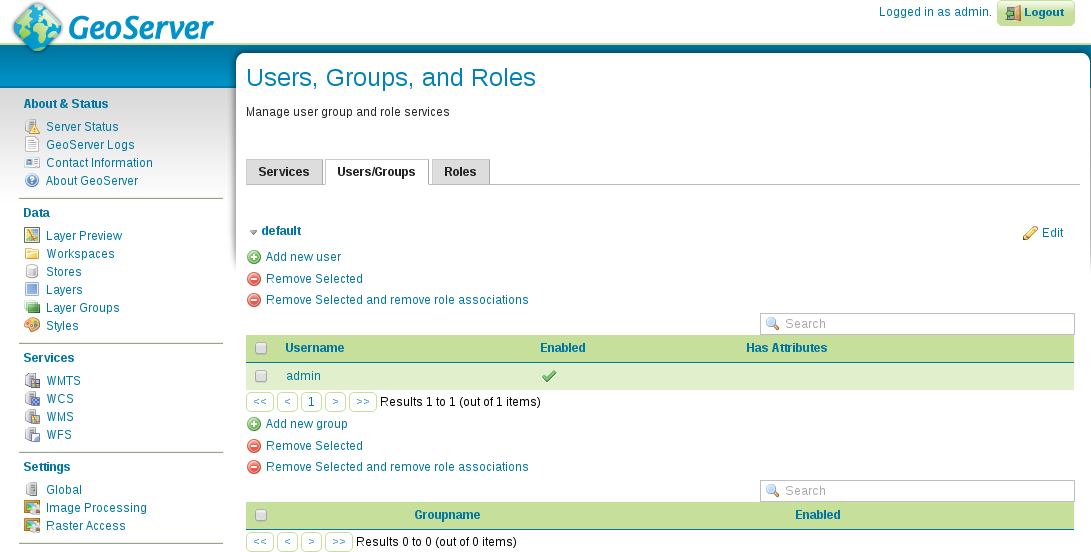
As we can see, there are three categories we can use in user management. There are regular users with user names, passwords, and individual permissions. There are groups, which can ease user management. A single user can be assigned to multiple groups. There is also a special category--roles. Roles are similar to groups, as a single user can use multiple roles. Using roles is significant in several aspects of permission management (for example, restricting access to services). In GeoServer roles are like responsibilities (e.g. admin, editor, user). Groups are grouping users and roles together so that common security combinations can be easily applied.
The second thing we should configure is the metadata of the services. As GeoServer uses an internal data structure to store and provide spatial data added to it, metadata is configured for the entire application, not for individual projects. There are two kinds of metadata in GeoServer--global and service related. We can access global metadata that contains information describing the server's owner or maintainer by opening About & Status | Contact Information. Service-related metadata can be set by accessing the service settings under the Services section. Besides setting metadata, we can modify the behavior of the given service.