Table of Contents for
Practical Malware Analysis
 Practical Malware Analysis
Published by
No Starch Press, 2012
Practical Malware Analysis
Published by
No Starch Press, 2012
- Cover
- Practical Malware Analysis: The Hands-On Guide to Dissecting Malicious Software
- Praise for Practical Malware Analysis
- Warning
- About the Authors
- About the Technical Reviewer
- About the Contributing Authors
- Foreword
- Acknowledgments
- Individual Thanks
- Introduction
- What Is Malware Analysis?
- Prerequisites
- Practical, Hands-On Learning
- What’s in the Book?
- 0. Malware Analysis Primer
- The Goals of Malware Analysis
- Malware Analysis Techniques
- Types of Malware
- General Rules for Malware Analysis
- I. Basic Analysis
- 1. Basic Static Techniques
- Antivirus Scanning: A Useful First Step
- Hashing: A Fingerprint for Malware
- Finding Strings
- Packed and Obfuscated Malware
- Portable Executable File Format
- Linked Libraries and Functions
- Static Analysis in Practice
- The PE File Headers and Sections
- Conclusion
- Labs
- 2. Malware Analysis in Virtual Machines
- The Structure of a Virtual Machine
- Creating Your Malware Analysis Machine
- Using Your Malware Analysis Machine
- The Risks of Using VMware for Malware Analysis
- Record/Replay: Running Your Computer in Reverse
- Conclusion
- 3. Basic Dynamic Analysis
- Sandboxes: The Quick-and-Dirty Approach
- Running Malware
- Monitoring with Process Monitor
- Viewing Processes with Process Explorer
- Comparing Registry Snapshots with Regshot
- Faking a Network
- Packet Sniffing with Wireshark
- Using INetSim
- Basic Dynamic Tools in Practice
- Conclusion
- Labs
- II. Advanced Static Analysis
- 4. A Crash Course in x86 Disassembly
- Levels of Abstraction
- Reverse-Engineering
- The x86 Architecture
- Conclusion
- 5. IDA Pro
- Loading an Executable
- The IDA Pro Interface
- Using Cross-References
- Analyzing Functions
- Using Graphing Options
- Enhancing Disassembly
- Extending IDA with Plug-ins
- Conclusion
- Labs
- 6. Recognizing C Code Constructs in Assembly
- Global vs. Local Variables
- Disassembling Arithmetic Operations
- Recognizing if Statements
- Recognizing Loops
- Understanding Function Call Conventions
- Analyzing switch Statements
- Disassembling Arrays
- Identifying Structs
- Analyzing Linked List Traversal
- Conclusion
- Labs
- 7. Analyzing Malicious Windows Programs
- The Windows API
- The Windows Registry
- Networking APIs
- Following Running Malware
- Kernel vs. User Mode
- The Native API
- Conclusion
- Labs
- III. Advanced Dynamic Analysis
- 8. Debugging
- Source-Level vs. Assembly-Level Debuggers
- Kernel vs. User-Mode Debugging
- Using a Debugger
- Exceptions
- Modifying Execution with a Debugger
- Modifying Program Execution in Practice
- Conclusion
- 9. OllyDbg
- Loading Malware
- The OllyDbg Interface
- Memory Map
- Viewing Threads and Stacks
- Executing Code
- Breakpoints
- Loading DLLs
- Tracing
- Exception Handling
- Patching
- Analyzing Shellcode
- Assistance Features
- Plug-ins
- Scriptable Debugging
- Conclusion
- Labs
- 10. Kernel Debugging with WinDbg
- Drivers and Kernel Code
- Setting Up Kernel Debugging
- Using WinDbg
- Microsoft Symbols
- Kernel Debugging in Practice
- Rootkits
- Loading Drivers
- Kernel Issues for Windows Vista, Windows 7, and x64 Versions
- Conclusion
- Labs
- IV. Malware Functionality
- 11. Malware Behavior
- Downloaders and Launchers
- Backdoors
- Credential Stealers
- Persistence Mechanisms
- Privilege Escalation
- Covering Its Tracks—User-Mode Rootkits
- Conclusion
- Labs
- 12. Covert Malware Launching
- Launchers
- Process Injection
- Process Replacement
- Hook Injection
- Detours
- APC Injection
- Conclusion
- Labs
- 13. Data Encoding
- The Goal of Analyzing Encoding Algorithms
- Simple Ciphers
- Common Cryptographic Algorithms
- Custom Encoding
- Decoding
- Conclusion
- Labs
- 14. Malware-Focused Network Signatures
- Network Countermeasures
- Safely Investigate an Attacker Online
- Content-Based Network Countermeasures
- Combining Dynamic and Static Analysis Techniques
- Understanding the Attacker’s Perspective
- Conclusion
- Labs
- V. Anti-Reverse-Engineering
- 15. Anti-Disassembly
- Understanding Anti-Disassembly
- Defeating Disassembly Algorithms
- Anti-Disassembly Techniques
- Obscuring Flow Control
- Thwarting Stack-Frame Analysis
- Conclusion
- Labs
- 16. Anti-Debugging
- Windows Debugger Detection
- Identifying Debugger Behavior
- Interfering with Debugger Functionality
- Debugger Vulnerabilities
- Conclusion
- Labs
- 17. Anti-Virtual Machine Techniques
- VMware Artifacts
- Vulnerable Instructions
- Tweaking Settings
- Escaping the Virtual Machine
- Conclusion
- Labs
- 18. Packers and Unpacking
- Packer Anatomy
- Identifying Packed Programs
- Unpacking Options
- Automated Unpacking
- Manual Unpacking
- Tips and Tricks for Common Packers
- Analyzing Without Fully Unpacking
- Packed DLLs
- Conclusion
- Labs
- VI. Special Topics
- 19. Shellcode Analysis
- Loading Shellcode for Analysis
- Position-Independent Code
- Identifying Execution Location
- Manual Symbol Resolution
- A Full Hello World Example
- Shellcode Encodings
- NOP Sleds
- Finding Shellcode
- Conclusion
- Labs
- 20. C++ Analysis
- Object-Oriented Programming
- Virtual vs. Nonvirtual Functions
- Creating and Destroying Objects
- Conclusion
- Labs
- 21. 64-Bit Malware
- Why 64-Bit Malware?
- Differences in x64 Architecture
- Windows 32-Bit on Windows 64-Bit
- 64-Bit Hints at Malware Functionality
- Conclusion
- Labs
- A. Important Windows Functions
- B. Tools for Malware Analysis
- C. Solutions to Labs
- Lab 1-1 Solutions
- Lab 1-2 Solutions
- Lab 1-3 Solutions
- Lab 1-4 Solutions
- Lab 3-1 Solutions
- Lab 3-2 Solutions
- Lab 3-3 Solutions
- Lab 3-4 Solutions
- Lab 5-1 Solutions
- Lab 6-1 Solutions
- Lab 6-2 Solutions
- Lab 6-3 Solutions
- Lab 6-4 Solutions
- Lab 7-1 Solutions
- Lab 7-2 Solutions
- Lab 7-3 Solutions
- Lab 9-1 Solutions
- Lab 9-2 Solutions
- Lab 9-3 Solutions
- Lab 10-1 Solutions
- Lab 10-2 Solutions
- Lab 10-3 Solutions
- Lab 11-1 Solutions
- Lab 11-2 Solutions
- Lab 11-3 Solutions
- Lab 12-1 Solutions
- Lab 12-2 Solutions
- Lab 12-3 Solutions
- Lab 12-4 Solutions
- Lab 13-1 Solutions
- Lab 13-2 Solutions
- Lab 13-3 Solutions
- Lab 14-1 Solutions
- Lab 14-2 Solutions
- Lab 14-3 Solutions
- Lab 15-1 Solutions
- Lab 15-2 Solutions
- Lab 15-3 Solutions
- Lab 16-1 Solutions
- Lab 16-2 Solutions
- Lab 16-3 Solutions
- Lab 17-1 Solutions
- Lab 17-2 Solutions
- Lab 17-3 Solutions
- Lab 18-1 Solutions
- Lab 18-2 Solutions
- Lab 18-3 Solutions
- Lab 18-4 Solutions
- Lab 18-5 Solutions
- Lab 19-1 Solutions
- Lab 19-2 Solutions
- Lab 19-3 Solutions
- Lab 20-1 Solutions
- Lab 20-2 Solutions
- Lab 20-3 Solutions
- Lab 21-1 Solutions
- Lab 21-2 Solutions
- Index
- Index
- Index
- Index
- Index
- Index
- Index
- Index
- Index
- Index
- Index
- Index
- Index
- Index
- Index
- Index
- Index
- Index
- Index
- Index
- Index
- Index
- Index
- Index
- Index
- Index
- Index
- Updates
- About the Authors
- Copyright
There are two ways to debug a program. The first is to start the program with the debugger. When you start the program and it is loaded into memory, it stops running immediately prior to the execution of its entry point. At this point, you have complete control of the program.
You can also attach a debugger to a program that is already running. All the program’s threads are paused, and you can debug it. This is a good approach when you want to debug a program after it has been running or if you want to debug a process that is affected by malware.
The simplest thing you can do with a debugger is to single-step through a program, which means that you run a single instruction and then return control to the debugger. Single-stepping allows you to see everything going on within a program.
It is possible to single-step through an entire program, but you should not do it for complex programs because it can take such a long time. Single-stepping is a good tool for understanding the details of a section of code, but you must be selective about which code to analyze. Focus on the big picture, or you’ll get lost in the details.
For example, the disassembly in Example 8-1 shows how you might use a debugger to help understand a section of code.
Example 8-1. Stepping through code
mov     edi, DWORD_00406904
mov     ecx, 0x0d
LOC_040106B2
xor     [edi], 0x9C
inc     edi
loopw   LOC_040106B2
...
DWORD:00406904:   F8FDF3D0❶
The listing shows a data address accessed and modified in a loop. The data value shown at the end ❶ doesn’t appear to be ASCII text or any other recognizable value, but you can use a debugger to step through this loop to reveal what this code is doing.
If we were to single-step through this loop with either WinDbg or OllyDbg, we would see the data being modified. For example, in Example 8-2, you see the 13 bytes modified by this function changing each time through the loop. (This listing shows the bytes at those addresses along with their ASCII representation.)
Example 8-2. Single-stepping through a section of code to see how it changes memory
D0F3FDF8 D0F5FEEE FDEEE5DD 9C (.............) 4CF3FDF8 D0F5FEEE FDEEE5DD 9C (L............) 4C6FFDF8 D0F5FEEE FDEEE5DD 9C (Lo...........) 4C6F61F8 D0F5FEEE FDEEE5DD 9C (Loa..........). . . SNIP . . .4C6F6164 4C696272 61727941 00 (LoadLibraryA.)
With a debugger attached, it is clear that this function is using a single-byte XOR
function to decode the string LoadLibraryA. It would have been
more difficult to identify that string with only static analysis.
When single-stepping through code, the debugger stops after every instruction. However, while
you are generally concerned with what a program is doing, you may not be concerned with the
functionality of each call. For example, if your program calls LoadLibrary, you probably don’t want to step through every instruction of the
LoadLibrary function.
To control the instructions that you see in your debugger, you can step-over or step-into instructions. When you step-over call instructions, you bypass them. For example, if you step-over a call, the next instruction you will see in your debugger will be the instruction after the function call returns. If, on the other hand, you step-into a call instruction, the next instruction you will see in the debugger is the first instruction of the called function.
Stepping-over allows you to significantly decrease the amount of instructions you need to analyze, at the risk of missing important functionality if you step-over the wrong functions. Additionally, certain function calls never return, and if your program calls a function that never returns and you step-over it, the debugger will never regain control. When this happens (and it probably will), restart the program and step to the same location, but this time, step-into the function.
Note
This is a good time to use VMware’s record/replay feature. When you step-over a function that never returns, you can replay the debugging session and correct your mistake. Start a recording when you begin debugging. Then, when you step-over a function that never returns, stop the recording. Replay it to just before you stepped-over the function, and then stop the replay and take control of the machine, but this time, step-into the function.
When stepping-into a function, it is easy to quickly begin single-stepping through instructions that have nothing to with what you are analyzing. When analyzing a function, you can step-into a function that it calls, but then it will call another function, and then another. Before long, you are analyzing code that has little or no relevance to what you are seeking. Fortunately, most debuggers will allow you to return to the calling function, and some debuggers have a step-out function that will run until after the function returns. Other debuggers have a similar feature that executes until a return instruction immediately prior to the end of the function.
Breakpoints are used to pause execution and allow you to examine a program’s state. When a program is paused at a breakpoint, it is referred to as broken. Breakpoints are needed because you can’t access registers or memory addresses while a program is running, since these values are constantly changing.
Example 8-3 demonstrates where a breakpoint would be useful. In this example, there is a call to EAX. While a disassembler couldn’t tell you which function is being called, you could set a breakpoint on that instruction to find out. When the program hits the breakpoint, it will be stopped, and the debugger will show you the value of EAX, which is the destination of the function being called.
Another example in Example 8-4 shows the
beginning of a function with a call to CreateFile to open a
handle to a file. In the assembly, it is difficult to determine the name of the file, although part
of the name is passed in as a parameter to the function. To find the file in disassembly, you could
use IDA Pro to search for all the times that this function is called in order to see which arguments
are passed, but those values could in turn be passed in as parameters or derived from other function
calls. It could very quickly become difficult to determine the filename. Using a debugger makes this
task very easy.
Example 8-4. Using a debugger to determine a filename
0040100B  xor     eax, esp
0040100D  mov     [esp+0D0h+var_4], eax
00401014  mov     eax, edx
00401016  mov     [esp+0D0h+NumberOfBytesWritten], 0
0040101D  add     eax, 0FFFFFFFEh
00401020  mov     cx, [eax+2]
00401024  add     eax, 2
00401027  test    cx, cx
0040102A  jnz     short loc_401020
0040102C  mov     ecx, dword ptr ds:a_txt ; ".txt"
00401032  push    0               ; hTemplateFile
00401034  push    0               ; dwFlagsAndAttributes
00401036  push    2               ; dwCreationDisposition
00401038  mov     [eax], ecx
0040103A  mov     ecx, dword ptr ds:a_txt+4
00401040  push    0               ; lpSecurityAttributes
00401042  push    0               ; dwShareMode
00401044  mov     [eax+4], ecx
00401047  mov     cx, word ptr ds:a_txt+8
0040104E  push    0               ; dwDesiredAccess
00401050  push    edx             ; lpFileName
00401051  mov     [eax+8], cx
00401055 ❶call    CreateFileW ; CreateFileW(x,x,x,x,x,x,x)
We set a breakpoint on the call to CreateFileW at ❶, and then look at the values on the stack when the breakpoint is
triggered. Figure 8-1 shows a screenshot of the same
instruction at a breakpoint within the WinDbg debugger. After the breakpoint, we display the first
parameter to the function as an ASCII string using WinDbg. (You’ll learn how to do this in
Chapter 10, which covers WinDbg.)
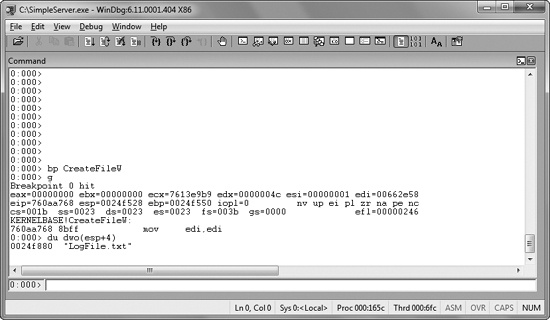
Figure 8-1. Using a breakpoint to see the parameters to a function call. We set a breakpoint on CreateFileW and then examine the first parameter of the stack.
In this case, it is clear that the file being created is called LogFile.txt. While we could have figured this out with IDA Pro, it was faster and easier to get the information with a debugger.
Now imagine that we have a piece of malware and a packet capture. In the packet capture, we see encrypted data. We can find the call to send, and we discover the encryption code, but it is difficult to decrypt the data ourselves, because we don’t know the encryption routine or key. Luckily, we can use a debugger to simplify this task because encryption routines are often separate functions that transform the data.
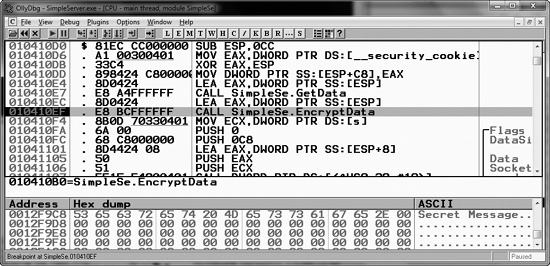
If we can find where the encryption routine is called, we can set a breakpoint before the data is encrypted and view the data being sent, as shown in the disassembly for this function at ❶ in Example 8-5.
Example 8-5. Using a breakpoint to view data before the program encrypts it
004010D0  sub     esp, 0CCh
004010D6  mov     eax, dword_403000
004010DB  xor     eax, esp
004010DD  mov     [esp+0CCh+var_4], eax
004010E4  lea     eax, [esp+0CCh+buf]
004010E7  call    GetData
004010EC  lea     eax, [esp+0CCh+buf]
004010EF ❶call    EncryptData
004010F4  mov     ecx, s
004010FA  push    0               ; flags
004010FC  push    0C8h            ; len
00401101  lea     eax, [esp+0D4h+buf]
00401105  push    eax             ; buf
00401106  push    ecx             ; s
00401107  call    ds:Send
Figure 8-2 shows a debug window from
OllyDbg that displays the buffer in memory prior to being sent to the encryption routine. The top
window shows the instruction with the breakpoint, and the bottom window displays the message. In
this case, the data being sent is Secret Message, as shown in the
ASCII column at the bottom right.
You can use several different types of breakpoints, including software execution, hardware execution, and conditional breakpoints. Although all breakpoints serve the same general purpose, depending on the situation, certain breakpoints will not work where others will. Let’s look at how each one works.
So far, we have been talking about software execution breakpoints, which cause a program to stop when a particular instruction is executed. When you set a breakpoint without any options, most popular debuggers set a software execution breakpoint by default.
The debugger implements a software breakpoint by overwriting the first byte of an instruction
with 0xCC, the instruction for INT
3, the breakpoint interrupt designed for use with debuggers. When the 0xCC instruction is executed, the OS generates an exception and transfers
control to the debugger.
Table 8-1 shows a memory dump and disassembly of a function with a breakpoint set, side by side.
The function starts with push ebp at ❶, which corresponds to the opcode 0x55, but the function in the memory dump starts with the bytes 0xCC at ❷, which represents the
breakpoint.
In the disassembly window, the debugger shows the original instruction, but in a memory dump
produced by a program other than the debugger, it shows actual bytes stored at that location. The
debugger’s memory dump will show the original 0x55 byte,
but if a program is reading its own code or an external program is reading those bytes, the 0xCC value will be shown.
If these bytes change during the execution of the program, the breakpoint will not occur. For
example, if you set a breakpoint on a section of code, and that code is self-modifying or modified
by another section of code, your breakpoint will be erased. If any other code is reading the memory
of the function with a breakpoint, it will read the 0xCC bytes
instead of the original byte. Also, any code that verifies the integrity of that function will
notice the discrepancy.
You can set an unlimited number of software breakpoints in user mode, although there may be limits in kernel mode. The code change is small and requires only a small amount of memory for recordkeeping in the debugger.
The x86 architecture supports hardware execution breakpoints through dedicated hardware registers. Every time the processor executes an instruction, there is hardware to detect if the instruction pointer is equal to the breakpoint address. Unlike software breakpoints, with hardware breakpoints, it doesn’t matter which bytes are stored at that location. For example, if you set a breakpoint at address 0x00401234, the processor will break at that location, regardless of what is stored there. This can be a significant benefit when debugging code that modifies itself.
Hardware breakpoints have another advantage over software breakpoints in that they can be set to break on access rather than on execution. For example, you can set a hardware breakpoint to break whenever a certain memory location is read or written. If you’re trying to determine what the value stored at a memory location signifies, you could set a hardware breakpoint on the memory location. Then, when there is a write to that location, the debugger will break, regardless of the address of the instruction being executed. (You can set access breakpoints to trigger on reads, writes, or both.)
Unfortunately, hardware execution breakpoints have one major drawback: only four hardware registers store breakpoint addresses.
One further drawback of hardware breakpoints is that they are easy to modify by the running
program. There are eight debug registers in the chipset, but only six are used. The first four, DR0
through DR3, store the address of a breakpoint. The debug control register (DR7) stores information
on whether the values in DR0 through DR3 are enabled and whether they represent read, write, or
execution breakpoints. Malicious programs can modify these registers, often to interfere with
debuggers. Thankfully, x86 chips have a feature to protect against this. By setting the General
Detect flag in the DR7 register, you will trigger a breakpoint to occur prior to executing any
mov instruction that is accessing a debug register. This will
allow you to detect when a debug register is changed. Although this method is not perfect (it
detects only mov instructions that access the debug registers),
it’s valuable nonetheless.
Conditional breakpoints are software breakpoints that will break only if
a certain condition is true. For example, suppose you have a breakpoint on the function GetProcAddress. This will break every time that GetProcAddress is called. But suppose that you want to break only if the parameter being
passed to GetProcAddress is RegSetValue. This can be done with a conditional breakpoint. In this case, the condition
would be the value on the stack that corresponds to the first parameter.
Conditional breakpoints are implemented as software breakpoints that the debugger always receives. The debugger evaluates the condition, and if the condition is not met, it automatically continues execution without alerting the user. Different debuggers support different conditions.
Breakpoints take much longer to run than ordinary instructions, and your program will slow down considerably if you set a conditional breakpoint on an instruction that is accessed often. In fact, the program may slow down so much that it will never finish. This is not a concern for unconditional breakpoints, because the extent to which the program slows down is irrelevant when compared to the amount of time it takes to examine the program state. Despite this drawback, conditional breakpoints can prove really useful when you are dissecting a narrow segment of code.