Table of Contents for
Practical Malware Analysis
 Practical Malware Analysis
Published by
No Starch Press, 2012
Practical Malware Analysis
Published by
No Starch Press, 2012
- Cover
- Practical Malware Analysis: The Hands-On Guide to Dissecting Malicious Software
- Praise for Practical Malware Analysis
- Warning
- About the Authors
- About the Technical Reviewer
- About the Contributing Authors
- Foreword
- Acknowledgments
- Individual Thanks
- Introduction
- What Is Malware Analysis?
- Prerequisites
- Practical, Hands-On Learning
- What’s in the Book?
- 0. Malware Analysis Primer
- The Goals of Malware Analysis
- Malware Analysis Techniques
- Types of Malware
- General Rules for Malware Analysis
- I. Basic Analysis
- 1. Basic Static Techniques
- Antivirus Scanning: A Useful First Step
- Hashing: A Fingerprint for Malware
- Finding Strings
- Packed and Obfuscated Malware
- Portable Executable File Format
- Linked Libraries and Functions
- Static Analysis in Practice
- The PE File Headers and Sections
- Conclusion
- Labs
- 2. Malware Analysis in Virtual Machines
- The Structure of a Virtual Machine
- Creating Your Malware Analysis Machine
- Using Your Malware Analysis Machine
- The Risks of Using VMware for Malware Analysis
- Record/Replay: Running Your Computer in Reverse
- Conclusion
- 3. Basic Dynamic Analysis
- Sandboxes: The Quick-and-Dirty Approach
- Running Malware
- Monitoring with Process Monitor
- Viewing Processes with Process Explorer
- Comparing Registry Snapshots with Regshot
- Faking a Network
- Packet Sniffing with Wireshark
- Using INetSim
- Basic Dynamic Tools in Practice
- Conclusion
- Labs
- II. Advanced Static Analysis
- 4. A Crash Course in x86 Disassembly
- Levels of Abstraction
- Reverse-Engineering
- The x86 Architecture
- Conclusion
- 5. IDA Pro
- Loading an Executable
- The IDA Pro Interface
- Using Cross-References
- Analyzing Functions
- Using Graphing Options
- Enhancing Disassembly
- Extending IDA with Plug-ins
- Conclusion
- Labs
- 6. Recognizing C Code Constructs in Assembly
- Global vs. Local Variables
- Disassembling Arithmetic Operations
- Recognizing if Statements
- Recognizing Loops
- Understanding Function Call Conventions
- Analyzing switch Statements
- Disassembling Arrays
- Identifying Structs
- Analyzing Linked List Traversal
- Conclusion
- Labs
- 7. Analyzing Malicious Windows Programs
- The Windows API
- The Windows Registry
- Networking APIs
- Following Running Malware
- Kernel vs. User Mode
- The Native API
- Conclusion
- Labs
- III. Advanced Dynamic Analysis
- 8. Debugging
- Source-Level vs. Assembly-Level Debuggers
- Kernel vs. User-Mode Debugging
- Using a Debugger
- Exceptions
- Modifying Execution with a Debugger
- Modifying Program Execution in Practice
- Conclusion
- 9. OllyDbg
- Loading Malware
- The OllyDbg Interface
- Memory Map
- Viewing Threads and Stacks
- Executing Code
- Breakpoints
- Loading DLLs
- Tracing
- Exception Handling
- Patching
- Analyzing Shellcode
- Assistance Features
- Plug-ins
- Scriptable Debugging
- Conclusion
- Labs
- 10. Kernel Debugging with WinDbg
- Drivers and Kernel Code
- Setting Up Kernel Debugging
- Using WinDbg
- Microsoft Symbols
- Kernel Debugging in Practice
- Rootkits
- Loading Drivers
- Kernel Issues for Windows Vista, Windows 7, and x64 Versions
- Conclusion
- Labs
- IV. Malware Functionality
- 11. Malware Behavior
- Downloaders and Launchers
- Backdoors
- Credential Stealers
- Persistence Mechanisms
- Privilege Escalation
- Covering Its Tracks—User-Mode Rootkits
- Conclusion
- Labs
- 12. Covert Malware Launching
- Launchers
- Process Injection
- Process Replacement
- Hook Injection
- Detours
- APC Injection
- Conclusion
- Labs
- 13. Data Encoding
- The Goal of Analyzing Encoding Algorithms
- Simple Ciphers
- Common Cryptographic Algorithms
- Custom Encoding
- Decoding
- Conclusion
- Labs
- 14. Malware-Focused Network Signatures
- Network Countermeasures
- Safely Investigate an Attacker Online
- Content-Based Network Countermeasures
- Combining Dynamic and Static Analysis Techniques
- Understanding the Attacker’s Perspective
- Conclusion
- Labs
- V. Anti-Reverse-Engineering
- 15. Anti-Disassembly
- Understanding Anti-Disassembly
- Defeating Disassembly Algorithms
- Anti-Disassembly Techniques
- Obscuring Flow Control
- Thwarting Stack-Frame Analysis
- Conclusion
- Labs
- 16. Anti-Debugging
- Windows Debugger Detection
- Identifying Debugger Behavior
- Interfering with Debugger Functionality
- Debugger Vulnerabilities
- Conclusion
- Labs
- 17. Anti-Virtual Machine Techniques
- VMware Artifacts
- Vulnerable Instructions
- Tweaking Settings
- Escaping the Virtual Machine
- Conclusion
- Labs
- 18. Packers and Unpacking
- Packer Anatomy
- Identifying Packed Programs
- Unpacking Options
- Automated Unpacking
- Manual Unpacking
- Tips and Tricks for Common Packers
- Analyzing Without Fully Unpacking
- Packed DLLs
- Conclusion
- Labs
- VI. Special Topics
- 19. Shellcode Analysis
- Loading Shellcode for Analysis
- Position-Independent Code
- Identifying Execution Location
- Manual Symbol Resolution
- A Full Hello World Example
- Shellcode Encodings
- NOP Sleds
- Finding Shellcode
- Conclusion
- Labs
- 20. C++ Analysis
- Object-Oriented Programming
- Virtual vs. Nonvirtual Functions
- Creating and Destroying Objects
- Conclusion
- Labs
- 21. 64-Bit Malware
- Why 64-Bit Malware?
- Differences in x64 Architecture
- Windows 32-Bit on Windows 64-Bit
- 64-Bit Hints at Malware Functionality
- Conclusion
- Labs
- A. Important Windows Functions
- B. Tools for Malware Analysis
- C. Solutions to Labs
- Lab 1-1 Solutions
- Lab 1-2 Solutions
- Lab 1-3 Solutions
- Lab 1-4 Solutions
- Lab 3-1 Solutions
- Lab 3-2 Solutions
- Lab 3-3 Solutions
- Lab 3-4 Solutions
- Lab 5-1 Solutions
- Lab 6-1 Solutions
- Lab 6-2 Solutions
- Lab 6-3 Solutions
- Lab 6-4 Solutions
- Lab 7-1 Solutions
- Lab 7-2 Solutions
- Lab 7-3 Solutions
- Lab 9-1 Solutions
- Lab 9-2 Solutions
- Lab 9-3 Solutions
- Lab 10-1 Solutions
- Lab 10-2 Solutions
- Lab 10-3 Solutions
- Lab 11-1 Solutions
- Lab 11-2 Solutions
- Lab 11-3 Solutions
- Lab 12-1 Solutions
- Lab 12-2 Solutions
- Lab 12-3 Solutions
- Lab 12-4 Solutions
- Lab 13-1 Solutions
- Lab 13-2 Solutions
- Lab 13-3 Solutions
- Lab 14-1 Solutions
- Lab 14-2 Solutions
- Lab 14-3 Solutions
- Lab 15-1 Solutions
- Lab 15-2 Solutions
- Lab 15-3 Solutions
- Lab 16-1 Solutions
- Lab 16-2 Solutions
- Lab 16-3 Solutions
- Lab 17-1 Solutions
- Lab 17-2 Solutions
- Lab 17-3 Solutions
- Lab 18-1 Solutions
- Lab 18-2 Solutions
- Lab 18-3 Solutions
- Lab 18-4 Solutions
- Lab 18-5 Solutions
- Lab 19-1 Solutions
- Lab 19-2 Solutions
- Lab 19-3 Solutions
- Lab 20-1 Solutions
- Lab 20-2 Solutions
- Lab 20-3 Solutions
- Lab 21-1 Solutions
- Lab 21-2 Solutions
- Index
- Index
- Index
- Index
- Index
- Index
- Index
- Index
- Index
- Index
- Index
- Index
- Index
- Index
- Index
- Index
- Index
- Index
- Index
- Index
- Index
- Index
- Index
- Index
- Index
- Index
- Index
- Updates
- About the Authors
- Copyright
The first subroutine at 0x401000 is the same as in Lab 6-1 Solutions. It’s an
ifstatement that checks for an active Internet connection.printfis the subroutine located at 0x40117F.The second function called from
mainis located at 0x401040. It downloads the web page located at: http://www.practicalmalwareanalysis.com/cc.htm and parses an HTML comment from the beginning of the page.This subroutine uses a character array filled with data from the call to
InternetReadFile. This array is compared one byte at a time to parse an HTML comment.There are two network-based indicators. The program uses the HTTP User-Agent
Internet Explorer 7.5/pmaand downloads the web page located at: http://www.practicalmalwareanalysis.com/cc.htm.First, the program checks for an active Internet connection. If none is found, the program terminates. Otherwise, the program attempts to download a web page using a unique User-Agent. This web page contains an embedded HTML comment starting with
<!--. The next character is parsed from this comment and printed to the screen in the format “Success: Parsed command is X,” where X is the character parsed from the HTML comment. If successful, the program will sleep for 1 minute and then terminate.
We begin by performing basic static analysis on the binary. We see several new strings of interest, as shown in Example C-1.
Example C-1. Interesting new strings contained in Lab 6-2 Solutions
Error 2.3: Fail to get command
Error 2.2: Fail to ReadFile
Error 2.1: Fail to OpenUrl
http://www.practicalmalwareanalysis.com/cc.htm
Internet Explorer 7.5/pma
Success: Parsed command is %c
The three error message strings that we see suggest that the program may open a web page and parse a command. We also notice a URL for an HTML web page, http://www.practicalmalwareanalysis.com/cc.htm. This domain can be used immediately as a network-based indicator.
These imports contain several new Windows API functions used for networking, as shown in Example C-2.
Example C-2. Interesting new import functions contained in Lab 6-2 Solutions
InternetReadFile
InternetCloseHandle
InternetOpenUrlA
InternetOpenA
All of these functions are part of WinINet, a simple API for using HTTP over a network. They work as follows:
InternetOpenAis used to initialize the use of the WinINet library, and it sets the User-Agent used for HTTP communication.InternetOpenUrlAis used to open a handle to a location specified by a complete FTP or HTTP URL. (Programs use handles to access something that has been opened. We discuss handles in Chapter 7.)InternetReadFileis used to read data from the handle opened byInternetOpenUrlA.InternetCloseHandleis used to close the handles opened by these files.
Next, we perform dynamic analysis. We choose to listen on port 80 because WinINet often uses HTTP and we saw a URL in the strings. If we set up Netcat to listen on port 80 and redirect the DNS accordingly, we will see a DNS query for www.practicalmalwareanalysis.com, after which the program requests a web page from the URL, as shown in Example C-3. This tells us that this web page has some significance to the malware, but we won’t know what that is until we analyze the disassembly.
Example C-3. Netcat output when listening on port 80
C:\>nc -l -p 80

GET /cc.htm HTTP/1.1
User-Agent: Internet Explorer 7.5/pma
Host: www.practicalmalwareanalysis.com
Finally, we load the executable into IDA Pro. We begin our analysis with the main method since much of the other code is generated by the compiler.
Looking at the disassembly for main, we notice that it calls the
same method at 0x401000 that we saw in Lab 6-1 Solutions. However, two new calls
(401040 and 40117F) in the
main method were not in Lab 6-1 Solutions.
In the new call to 0x40117F, we notice that two parameters are pushed on the stack
before the call. One parameter is the format string Success: Parsed command
is %c, and the other is the byte returned from the previous call at 0x401148. Format
characters such as %c and %d
tell us that we’re looking at a format string. Therefore, we can deduce that printf is the subroutine located at 0x40117F, and we should rename it as
such, so that it’s renamed everywhere it is referenced. The printf subroutine will print the string with the %c
replaced by the other parameter pushed on the stack.
Next, we examine the new call to 0x401040. This function
contains all of the WinINet API calls we discovered during the basic static analysis process. It
first calls InternetOpen, which initializes the use of the
WinINet library. Notice that Internet Explorer 7.5/pma is pushed
on the stack, matching the User-Agent we noticed during dynamic analysis. The next call is to
InternetOpenUrl, which opens the static web page pushed onto the
stack as a parameter. This function caused the DNS request we saw during dynamic analysis.
Example C-4 shows the InternetOpenUrlA and the InternetReadFile
calls.
Example C-4. InternetOpenUrlA and InternetReadFile calls
00401070 call ds:InternetOpenUrlA00401076 mov [ebp+hFile], eax 00401079 cmp [ebp+hFile], 0 ❶ ... 0040109D lea edx, [ebp+dwNumberOfBytesRead] 004010A0 push edx ; lpdwNumberOfBytesRead 004010A1 push 200h ❸; dwNumberOfBytesToRead 004010A6 lea eax, [ebp+Buffer ❷] 004010AC push eax ; lpBuffer 004010AD mov ecx, [ebp+hFile] 004010B0 push ecx ; hFile 004010B1 call ds:InternetReadFile004010B7 mov [ebp+var_4], eax 004010BA cmp [ebp+var_4], 0 ❹ 004010BE jnz short loc_4010E5
We can see that the return value from InternetOpenUrlA is
moved into the local variable hFile and compared to 0 at
❶. If it is 0, this function will be terminated;
otherwise, the hFile variable will be passed to the next
function, InternetReadFile. The hFile variable is a handle—a way to access something that has been opened. This
handle is accessing a URL.
InternetReadFile is used to read the web page opened by
InternetOpenUrlA. If we read the MSDN page on this API function,
we can learn about the other parameters. The most important of these parameters is the second one,
which IDA Pro has labels Buffer, as shown at ❷. Buffer is an array of data,
and in this case, we will be reading up to 0x200 bytes worth of data, as shown by the NumberOfBytesToRead parameter at ❸. Since we know that this function is reading an HTML web page, we can think of
Buffer as an array of characters.
Following the call to InternetReadFile, code at
❹ checks to see if the return value (EAX) is 0. If it is
0, the function closes the handles and terminates; if not, the code immediately following this line
compares Buffer one character at a time, as shown in Example C-5. Notice that each time, the index into Buffer goes up by 1 before it is moved into a
register, and then compared.
Example C-5. Buffer handling
004010E5     movsx   ecx, byte ptr [ebp+Buffer]
004010EC     cmp     ecx, 3Ch ❺
004010EF     jnz     short loc_40111D
004010F1     movsx   edx, byte ptr [ebp+Buffer+1] ❻
004010F8     cmp     edx, 21h
004010FB     jnz     short loc_40111D
004010FD     movsx   eax, byte ptr [ebp+Buffer+2]
00401104     cmp     eax, 2Dh
00401107     jnz     short loc_40111D
00401109     movsx   ecx, byte ptr [ebp+Buffer+3]
00401110     cmp     ecx, 2Dh
00401113     jnz     short loc_40111D
00401115     mov     al, [ebp+var_20C] ❼
0040111B     jmp     short loc_40112C
At ❺, the cmp
instruction checks to see if the first character is equal to 0x3C, which corresponds to the <
symbol in ASCII. We can right-click on 3Ch, and IDA Pro will
offer to change it to display <. In the same way, we can do this throughout the listing for
21h, 2Dh, and 2Dh. If we combine the characters, we will have the string <!--, which happens to be the start of a comment in HTML. (HTML
comments are not displayed when viewing web pages in a browser, but you can see them by viewing the
web page source.)
Notice at ❻ that Buffer+1 is moved into EDX before it is compared to 0x21 (! in ASCII). Therefore, we can
assume that Buffer is an array of characters from the web page
downloaded by InternetReadFile. Since Buffer points to the start of the web page, the four cmp instructions are used to check for an HTML comment immediately at the start of the
web page. If all comparisons are successful, the web page starts with the embedded HTML comment, and
the code at ❼ is executed. (Unfortunately, IDA Pro fails
to realize that the local variable Buffer is of size 512 and has
displayed a local variable named var_20C instead.)
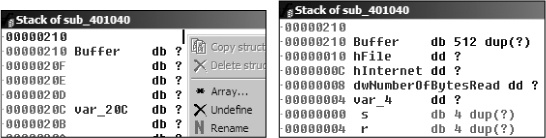
We need to fix the stack of this function to display a 512-byte array in order for the
Buffer array to be labeled properly throughout the function. We
can do this by pressing CTRL-K anywhere within the function. For
example, the left side of Figure C-19 shows the initial
stack view. To fix the stack, we right-click on the first byte of Buffer and define an array 1 byte wide and 512 bytes large. The right side of the figure
shows what the corrected stack should look like.
Manually adjusting the stack like this will cause the instruction numbered ❼ in Example C-5 to be displayed as [ebp+Buffer+4]. Therefore, if the first four characters (Buffer[0]-Buffer[3]) match <!--, the
fifth character will be moved into AL and returned from this function.
Returning to the main method, let’s analyze
what happens after the 0x401040 function returns. If this function returns a nonzero value, the
main method will print as “Success: Parsed command is
X,” where X is the character parsed from the HTML
comment, followed by a call to the Sleep function at 0x401173.
Using MSDN, we learn that the Sleep function takes a single
parameter containing the number of milliseconds to sleep. It pushes 0xEA60 on the stack, which corresponds to sleeping for one minute (60,000
milliseconds).
To summarize, this program checks for an active Internet connection, and then downloads a web
page containing the string <!--, the start of a comment in
HTML. An HTML comment will not be displayed in a web browser, but you can view it by looking at the
HTML page source. This technique of hiding commands in HTML comments is used frequently by attackers
to send commands to malware while having the malware appear as if it were going to a normal web
page.