- Visit the Google reCAPTCHA administrator website (https://www.google.com/recaptcha/admin) and log in if you are not already connected to Google services.
- Register a new website by specifying a Label (for example, Development website) and setting the type of reCAPTCHA to reCAPTCHA V2 using the radio selector.
- Enter the domain name of the web server you will be using to test your code in the Domains field. If you are running a local development server, it is likely to be localhost.
- Check the box to accept the terms of service, then click on Register to complete the new website creation process.
- In the resulting page, take note of the website and secret keys that the service assigned to your test website.
- Navigate to the ch6-book-review-user-submission directory of your plugin folder and open the file named ch6-book-review-user-submission.php in a code editor.
- Insert the following line of code at the end of the file to register a function that will be called when WordPress prepares the list of scripts to be loaded on the website:
add_action( 'wp_enqueue_scripts', 'ch6_brus_recaptcha_script' );
- Add the following block of code to provide an implementation for the ch6_brus_recaptcha_script function:
function ch6_brus_recaptcha_script() {
    wp_enqueue_script( 'google_recaptcha',
                       'https://www.google.com/recaptcha/api.js',
                       array(), false, true );
}
- Locate the ch6_brus_book_review_form function in your code and add an extra row to the form table to display the CAPTCHA, replacing [my-website-key] with the website key obtained earlier from the reCAPTCHA service:
<tr>
    <td colspan="2">
        <div class="g-recaptcha"
             data-sitekey="[my-website-key]"></div>
    </td>
</tr>
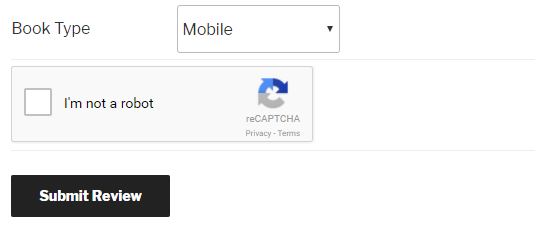
- Save your plugin and visit your book review submission page. You should now see the Google reCAPTCHA box appear in the form.
- Visit the Google reCAPTCHA GitHub page (https://github.com/google/recaptcha) and download the latest version of the repository to your computer.
- Extract the repository contents and copy the resulting src folder to the ch6-book-review-user-submission directory.
- Rename the src folder to recaptcha.
- Locate the ch6_brus_process_user_book_reviews function in your code and add the following lines of code at the top of the function implementation, replacing [my-secret-key] with the secret key obtained earlier from the reCAPTCHA service:
require_once plugin_dir_path( __FILE__ ) .
             '/recaptcha/autoload.php';

$recaptcha = new \ReCaptcha\ReCaptcha( '[my-secret-key]' );
$resp = $recaptcha->verify( $_POST['g-recaptcha-response'],
                            $_SERVER['REMOTE_ADDR'] );

if ( ! $resp->isSuccess() ) {
    // Display message if any required fields are missing
    $abort_message = 'Missing or incorrect captcha.<br />';
    $abort_message .= 'Please go back and try again.';
    wp_die( $abort_message );
    exit;
} else {
- Add an extra closing bracket (}) just before the end of the ch6_brus_process_user_book_reviews function to close out the else section of the code inserted in the previous step.
- Save and close the code file.
- Submit a new book review without checking the reCAPTCHA checkbox to see that it will not be accepted by the processing function.