- Navigate to the WordPress plugin directory of your development installation.
- Create a new directory called ch5-custom-file-uploader.
- Navigate to this directory and create a new text file called ch5-custom-file-uploader.php.
- Open the new file in a code editor and add an appropriate header at the top of the plugin file, naming the plugin Chapter 5 - Custom File Uploader.
- Add the following line of code to register a function that will be executed when WordPress is rendering the HTML code at the beginning of the post editor form:
add_action( 'post_edit_form_tag', 'ch5_cfu_form_add_enctype' );
- Add the following code section to provide an implementation for the ch5_cfu_form_add_enctype function:
function ch5_cfu_form_add_enctype() {
    echo ' enctype="multipart/form-data"';
}
- Insert the following line of code to register a function to be called when WordPress is preparing the meta boxes for all the administration sections:
add_action( 'add_meta_boxes', 'ch5_cfu_register_meta_box' );
- Add the following block of code to implement the ch5_cfu_register_meta_box function:
function ch5_cfu_register_meta_box() {
    add_meta_box( 'ch5_cfu_upload_file', 'Upload File',
                  'ch5_cfu_upload_meta_box', 'post', 'normal' );
    add_meta_box( 'ch5_cfu_upload_file', 'Upload File',
                  'ch5_cfu_upload_meta_box', 'page', 'normal' );
}
- Implement the function responsible for rendering the meta box contents, ch5_cfu_upload_meta_box, with the following code:
function ch5_cfu_upload_meta_box( $post ) { ?>
    <table>
        <tr>
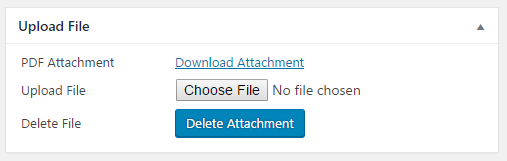
            <td style="width: 150px">PDF Attachment</td>
            <td>
            <?php
            // Retrieve attachment data for post
            $attachment_data = get_post_meta( $post->ID,
                                              'attach_data',
                                              true );

            // Display post link if data is present
            if ( empty ( $attachment_data ) ) {
                echo 'No Attachment Present';
            } else {
                echo '<a target="_blank" href="';
                echo esc_url( $attachment_data['url'] );
                echo '">' . 'Download Attachment</a>';
            }
            ?>
            </td>
        </tr>
        <tr>
            <td>Upload File</td>
            <td><input name="upload_pdf" type="file" /></td>
        </tr>
        <tr>
            <td>Delete File</td>
            <td><input type="submit" name="delete_attachment"
                       class="button-primary"
                       id="delete_attachment"
                       value="Delete Attachment" /></td>
        </tr>
    </table>
<?php }
- Add the following line of code, which calls the add_action function to register a callback that will be executed when post data is processed to be saved:
add_action( 'save_post', 'ch5_cfu_save_uploaded_file', 10, 2 );
- Implement ch5_cfu_save_uploaded_file with the following code:
function ch5_cfu_save_uploaded_file( $post_id = false,
                                     $post = false ) {
    if ( isset($_POST['delete_attachment'] ) ) {
        $attach_data = get_post_meta( $post_id, 'attach_data',
                                      true );

        if ( !empty( $attach_data ) ) {
            unlink( $attach_data['file'] );
            delete_post_meta( $post_id, 'attach_data' );
        }
    } elseif ( 'post' == $post->post_type ||
               'page' == $post->post_type ) {

        // Look to see if file has been uploaded by user
        if( array_key_exists( 'upload_pdf', $_FILES ) &&
            !$_FILES['upload_pdf']['error'] ) {

            // Retrieve file type and store lower-case version
            $file_type_array = wp_check_filetype( basename(
                 $_FILES['upload_pdf']['name'] ) );
            $file_ext = strtolower( $file_type_array['ext'] );

            // Display error message if file is not a PDF
            if ( 'pdf' != $file_ext ) {
                wp_die( 'Only files of PDF type are allowed.' );
                exit;
            } else {
                // Send uploaded file data to upload directory
                $upload_return = wp_upload_bits(
                    $_FILES['upload_pdf']['name'], null,
                    file_get_contents(
                    $_FILES['upload_pdf']['tmp_name'] ) );

                // Replace backslashes with slashes for Windows
                // web servers
                $upload_return['file'] =
                    str_replace( '\\', '/',
                                 $upload_return['file'] );

                // Set upload path data if successful.
                if ( isset( $upload_return['error'] ) &&
                            $upload_return['error'] != 0 ) {
                    $errormsg = 'There was an error uploading';
                    $errormsg .= 'your file. The error is: ';
                    $errormsg .= $upload_return['error'];
                    wp_die( $errormsg );
                    exit;
                } else {
                    $attach_data = get_post_meta( $post_id,
                                                  'attach_data',
                                                  true );

                    if ( !empty( $attach_data ) ) {
                        unlink( $attach_data['file'] );
                    }
                    update_post_meta( $post_id, 'attach_data',
                                      $upload_return );
                }
            }
        }
    }
}
- Add the following line of code to register a filter function to be called when the post and page content is prepared for display:
add_filter( 'the_content', 'ch5_cfu_display_pdf_link' );
- Insert the following code to provide an implementation for the ch5_cfu_display_pdf_link function:
function ch5_cfu_display_pdf_link ( $content ) {
    $post_id = get_the_ID();

    if ( !empty( $post_id ) ) {
        if ( 'post' == get_post_type( $post_id ) ||
             'page' == get_post_type( $post_id ) ) {

            $attachment_data =
                get_post_meta( $post_id, 'attach_data', true );

            if ( !empty( $attachment_data ) ) {
                $content .= '<div class="file_attachment">';
                $content .= '<a target="_blank" href="';
                $content .= esc_url( $attachment_data['url'] );
                $content .= '">' . 'Download additional ';
                $content .= 'information</a></div>';
            }
        }
    }
    return $content;
}
- Save and close the plugin file.
- Navigate to the Plugins management page and Activate the Chapter 5 - Custom File Uploader plugin.
- Edit any post on your site to see the new Upload File meta box and click on Update to save the post and upload the selected PDF file to be associated with the item:
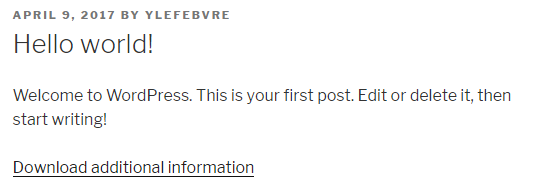
- View the post to see the link to download the attached file: