- Right-click on a file explorer and select the TortoiseSVN | Repo-browser menu.
- Enter the address of your new repository, as indicated in your hosting approval email. For example, for a plugin named Book Reviews, the address would be http://plugins.svn.wordpress.org/book-reviews:
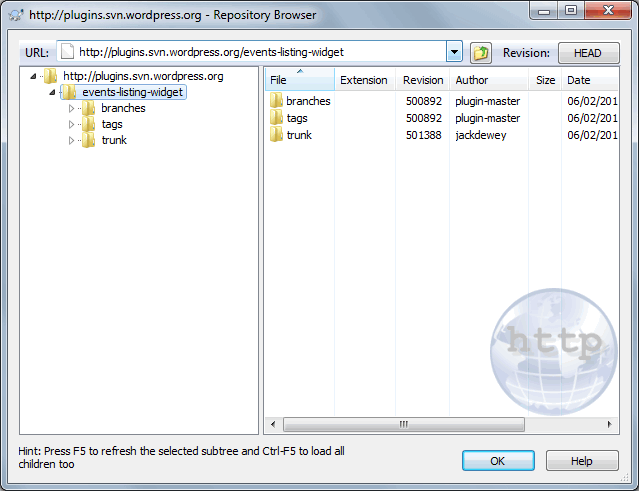
- Right-click on the plugin's name on the left-hand side tree view and select the Checkout option.
- Select a local folder on your computer as the Checkout directory.
- Click on OK to create a local copy of the server structure with the accompanying version control data.
- Copy your plugin's files to the trunk folder of the resulting directory structure if it is empty, or update existing files with newer versions if you continued working on them after submission.
- If you added any new files, right-click on them, and select the TortoiseSVN | Add... menu.
- Right-click on the trunk folder and select the SVN Commit... menu option.
- Enter a message indicating that you are uploading new files to the plugin repository and what changes have been made.
- Click on OK to upload your files to the official repository.
- When prompted for authentication, use your https://wordpress.org Username and Password. Click on the Save authentication checkbox to avoid providing these credentials each time.
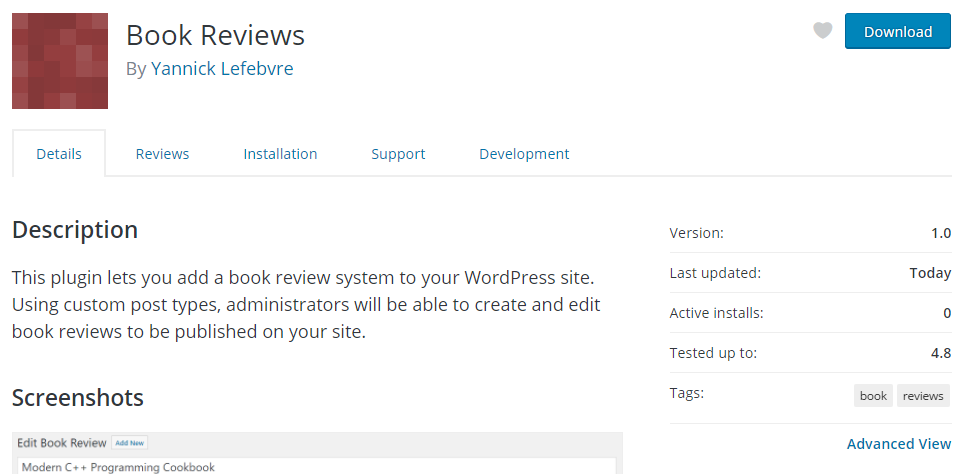
- After committing files, you will receive an email confirming that they have been uploaded to the repository, along with information on any changes that were made to each file. You will then be able to visit your plugin's page and download it. For our example, the Book Reviews plugin, the address of the page would be https://wordpress.org/plugins/book-reviews: