- Navigate to the ch2-page-header-output folder of the WordPress plugin directory of your development installation.
- Open the ch2-page-header-output.php file in a text editor.
- Modify the call to wp_redirect at the end of the process_ch2pho_options function, as follows, with modifications shown in bold:
wp_redirect( add_query_arg(
                 array( 'page' => 'ch2pho-my-google-analytics',
                        'message' => '1' ),
                 admin_url( 'options-general.php' ) ) );
- Add the following code (in bold) after the configuration page title within the ch2pho_config_page function:
<h2>My Google Analytics</h2><br />

<?php if ( isset( $_GET['message'] ) &&
           $_GET['message'] == '1' ) { ?>
    <div id='message' class='updated fade'>
    <p><strong>Settings Saved</strong></p></div>
<?php } ?>
- Save and close the plugin file.
- Click on the Settings section of the administration menu.
- Click on the My Google Analytics menu item.
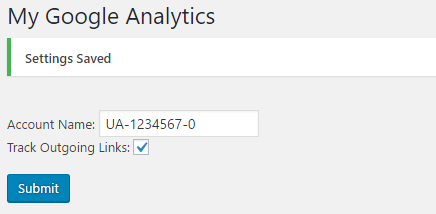
- Change the value of one of the fields and click on the Submit button to see the newly created message indicating that the settings have been saved.