
- Navigate to the WordPress plugin directory of your development installation.
- Create a new directory called ch4-book-reviews.
- Navigate to this directory and create a new text file called ch4-book-reviews.php.
- Open the new file in a code editor and add an appropriate header at the top of the plugin file, naming the plugin Chapter 4 - Book Reviews.
- Add the following line of code to register a function that will be executed during the initialization phase every time WordPress generates a page:
add_action( 'init', 'ch4_br_create_book_post_type' );
- Add the following code block to provide an implementation for the ch4_br_create_book_post_type function:
function ch4_br_create_book_post_type() {
    register_post_type( 'book_reviews',
        array(
            'labels' => array(
                'name' => 'Book Reviews',
                'singular_name' => 'Book Review',
                'add_new' => 'Add New',
                'add_new_item' => 'Add New Book Review',
                'edit' => 'Edit',
                'edit_item' => 'Edit Book Review',
                'new_item' => 'New Book Review',
                'view' => 'View',
                'view_item' => 'View Book Review',
                'search_items' => 'Search Book Reviews',
                'not_found' => 'No Book Reviews found',
                'not_found_in_trash' =>
                    'No Book Reviews found in Trash',
                'parent' => 'Parent Book Review'
            ),
            'public' => true,
            'menu_position' => 20,
            'supports' =>
                array( 'title', 'editor', 'comments',
                       'thumbnail', 'custom-fields' ),
            'taxonomies' => array( '' ),
            'menu_icon' =>
                plugins_url( 'book-reviews.png', __FILE__ ),
            'has_archive' => true,
            'exclude_from_search' => true
        )
    );
}
- Save and close the plugin file.
- Find and download a PNG format book icon measuring 24 x 24 pixels from a site, such as IconArchive (http://www.iconarchive.com), resize it to 20 x 20 pixels, and save it as book-reviews.png in the plugin directory.
- Navigate to the Plugins management page and Activate the Chapter 4 - Book Reviews plugin.
- Click on the newly available Book Reviews menu item, located under the Pages section, to see the Book Review creation and management interface.
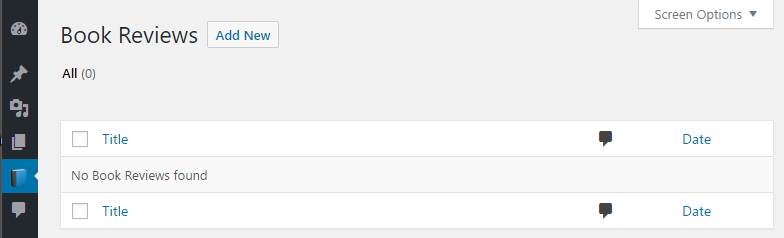
- Click on the Add New button, next to the section title, to display the Book Review editor featuring the complete WordPress text editor, the custom fields editor, comments control, publishing controls, and the featured image section.
- Fill in the new entry by specifying the Book Review title (for example, WordPress Plugin Development Cookbook) and a short description.
- Scroll to the Custom Fields section and type book_author as the Name of the field and Yannick Lefebvre as the Value. Click Add Custom Field to create a second field.
If some custom fields already exist in your WordPress installation (from other plugin data entry), you will need to click on Enter new before being able to set the Name to book_author.
- Set the Name of the second field to book_rating and its Value to 5.
- Find and download a book cover image from a website such as Google Images (https://images.google.com) or Packt (https://www.packtpub.com).
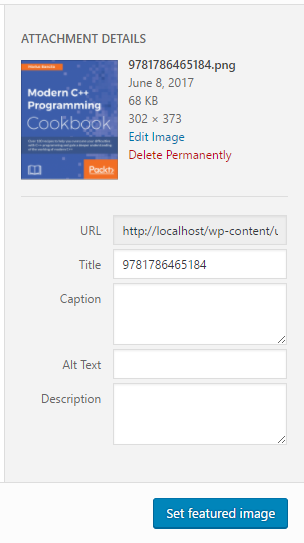
- Click on the Set featured image link located in the right-hand sidebar of the editing interface.
- Click on Select Files to pick the image that you downloaded to your computer and have WordPress upload it to the wp-content/uploads folder of your site.
- Once the file is uploaded and WordPress displays information about it, look at the bottom of the media upload dialog and click on the Set featured image link to associate it with the Book Review that you are creating.
- Click on the Publish button to save this first Book Review.
- Visit the Permalinks section of the Settings menu and click on the Save Changes button (without changing your Permalinks settings).
- Go back to the Book Review you created and click on the View Book Review button to see the newly created content in your web browser.