- Navigate to the WordPress plugin directory of your development installation.
- Navigate to the ch10-book-review-widget directory and edit ch10-book-review-widget.php.
- Find the Book_Reviews class and add the following block of code within the class to define the widget method:
function widget( $args, $instance ) {
    if ( 'true' == $instance['render_widget'] ) {
        // Extract members of args array as individual variables
        extract( $args );

        // Retrieve widget configuration options
        $nb_book_reviews =
             ( !empty( $instance['nb_book_reviews'] ) ?
                       $instance['nb_book_reviews'] : 5 );

        $widget_title = ( !empty( $instance['widget_title'] ) ?
                          esc_attr( $instance['widget_title'] ) :
                          'Book Reviews' );

        // Preparation of query string to retrieve book reviews
        $query_array = array( 'post_type' => 'book_reviews',
                              'post_status' => 'publish',
                              'posts_per_page' =>
                                  $nb_book_reviews );

        // Execution of post query
        $book_review_query = new WP_Query();
        $book_review_query->query( $query_array );

        // Display widget title
        echo $before_widget . $before_title;
        echo apply_filters( 'widget_title', $widget_title );
        echo $after_title;

        // Check if any posts were returned by query
        if ( $book_review_query->have_posts() ) {
            // Display posts in unordered list layout
            echo '<ul>';

            // Cycle through all items retrieved
            while ( $book_review_query->have_posts() ) {
                $book_review_query->the_post();
                echo '<li><a href="' . get_permalink() . '">';
                echo get_the_title( get_the_ID() ) . '</a></li>';
            }
            echo '</ul>';
        }
        wp_reset_query();
        echo $after_widget;
    }
}
- Save and close the plugin file.
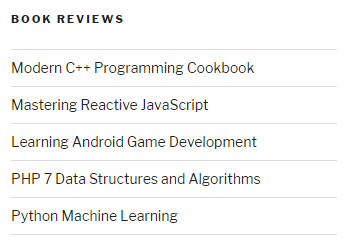
- Visit the website's front page to see the newly added widget contents displayed in the sidebar: