- Navigate to the WordPress plugin directory of your development installation.
- Create a new directory called ch3-hide-menu-item.
- Navigate to this directory and create a new text file called ch3-hide-menu-item.php.
- Open the new file in a code editor and add an appropriate header at the top of the plugin file, naming the plugin Chapter 3 - Hide Menu Item.
- Add the following line of code to register a function that will be called when WordPress is preparing data to display the site's navigation menu:
add_action( 'admin_menu', 'ch3hmi_hide_menu_item' );
- Add the following code section to provide an implementation for the ch3hmi_hide_menu_item function, hiding the Comments menu item:
function ch3hmi_hide_menu_item() {
    remove_menu_page( 'edit-comments.php' );
}
- Add an extra function call to the ch3hmi_hide_menu_item function to hide the Permalinks submenu item found under the Settings menu:
remove_submenu_page( 'options-general.php',
                     'options-permalink.php' );
- Save and close the plugin file.
- Navigate to the Plugins section of the administration interface.
- Activate your new plugin.
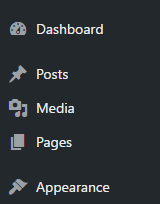
- Look at the administration menu to see that the Comments menu is no longer visible:
- Expand the Settings menu to see that the Permalinks submenu item is not visible either.