- Navigate to the ch2-private-item-text folder of the WordPress plugin directory of your development installation.
- Open the ch2-private-item-text.php file in a text editor.
- Add the following line of code to register a function to be called when WordPress is preparing the list of columns to be displayed in the user listing page:
add_filter( 'manage_users_columns', 'ch2pit_add_user_columns' );
- Add an implementation for the ch2pit_add_user_columns function with the following block of code:
function ch2pit_add_user_columns( $columns ) {
    $new_columns = array_slice( $columns, 0, 2, true ) +
                   array( 'level' => 'User Level' ) +
                   array_slice( $columns, 2, NULL, true );
    return $new_columns;
}
- Add the following line of code to assign a function to be called when WordPress prepares the content of each column as it displays a list of all the users:
add_filter( 'manage_users_custom_column',
            'ch2pit_display_user_columns_data', 10, 3 );
- Provide an implementation for the ch2pit_display_user_columns_data function by inserting the following code section:
function ch2pit_display_user_columns_data( $val, $column_name,
                                           $user_id ) {
    global $user_levels;
    if ( 'level' == $column_name ) {
        $current_user_level = get_user_meta( $user_id,
                                             'user_level', true );
        if ( !empty( $current_user_level ) ) {
            $val = $user_levels[$current_user_level];
        }
    }
    return $val;
}
- Add the following code snippet to register a function to be called when WordPress prepares the list of quick actions that can be performed by administrators on the user listing page:
add_action( 'restrict_manage_users', 'ch2pit_add_user_filter' );
- Add this code section to provide a body for the ch2pit_add_user_filter function:
function ch2pit_add_user_filter() {
    global $user_levels;
    $filter_value = '';
    if ( isset( $_GET['user_level'] ) ) {
        $filter_value = $_GET['user_level'];
    } ?>

    <select name="user_level" class="user_level"
            style="float:none;">
    <option value="">No filter</option>
    <?php foreach( $user_levels as
                       $user_level_index => $user_level ) { ?>
        <option value="<?php echo $user_level_index; ?>"
        <?php selected( $filter_value, $user_level_index ); ?>>
        <?php echo $user_level; ?></option>
    <?php } ?>
    <input type="submit" class="button" value="Filter">
<?php }
- Add the following line of code to register a function to be called when WordPress is rendering the footer of the administration pages:
add_action( 'admin_footer', 'ch2pit_user_filter_js' );
- Provide an implementation for the ch2pit_user_filter_js function by adding the following code section:
function ch2pit_user_filter_js() {
    global $current_screen;
    if ( 'users' != $current_screen->id ) {
        return;
    } ?>

    <script type="text/javascript">
        jQuery( document ).ready( function() {
            jQuery( '.user_level' ).first().change( function() {
                jQuery( '.user_level' ).
                    last().val( jQuery( this ).val() );
            });

            jQuery( '.user_level' ).last().change( function() {
                jQuery( '.user_level' ).
                    first().val( jQuery( this ).val() );
            });
        });
    </script>
<?php }
- Add this line of code to register a function that will be executed when WordPress is preparing the query to retrieve the list of users from the database:
add_filter( 'pre_get_users', 'ch2pit_filter_users' );
- Insert the following block of code to define the ch2pit_filter_users function:
function ch2pit_filter_users( $query ) {
    global $pagenow;
    global $user_levels;

    if ( is_admin() && 'users.php' == $pagenow &&
         isset( $_GET['user_level'] ) ) {
        $filter_value = $_GET['user_level'];
        if ( !empty( $filter_value ) &&
             array_key_exists( $_GET['user_level'],
                               $user_levels ) ) {
            $query->set( 'meta_key', 'user_level' );
            $query->set( 'meta_query', array(
                         array( 'key' => 'user_level',
                                'value' => $filter_value ) ) );
        }
    }
}
- Save and close the plugin file.
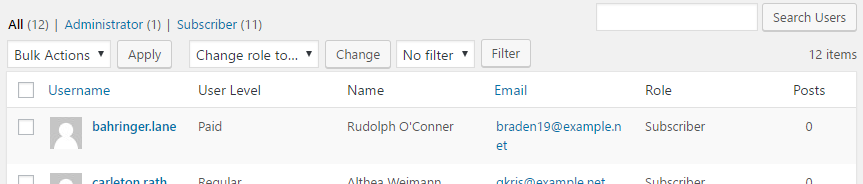
- Visit the Users section of the administration interface to see the new User Level column.
- Use the filter drop-down list and click on Filter to limit the number of records displayed.