- Navigate to the WordPress plugin directory of your development installation.
- Create a new directory called ch10-book-review-dashboard-widget.
- Navigate to the directory and create a text file called ch10-book-review-dashboard-widget.php.
- Open the new file in a code editor and add an appropriate header at the top of the plugin file, naming the plugin Chapter 10 - Book Review Dashboard Widget.
- Add the following line of code to register a function to be called when the dashboard contents are being prepared:
add_action( 'wp_dashboard_setup',
            'ch10brdw_add_dashboard_widget' );
- Add the following code segment to provide an implementation for the ch10brdw_add_dashboard_widget function:
function ch10brdw_add_dashboard_widget() {
    wp_add_dashboard_widget( 'book_reviews_dashboard_widget',
                             'Book Reviews',
                             'ch10brdw_dashboard_widget' );
}
- Insert the following block of code to implement the ch10brdw_dashboard_widget function declared in the previous step:
function ch10brdw_dashboard_widget() {
    $book_review_count = wp_count_posts( 'book_reviews' );
    if ( !empty( (array) $book_review_count ) ) {
    ?>
    <a href="<?php echo add_query_arg( array(
                                  'post_status' => 'publish',
                                  'post_type' => 'book_reviews' ),
                                  admin_url( 'edit.php' ) ); ?>">
    <strong>
          <?php echo $book_review_count->publish; ?>
    </strong> Published
    </a>
    <br />
    <a href="<?php echo add_query_arg( array(
                                  'post_status' => 'draft',
                                  'post_type' => 'book_reviews' ),
                                  admin_url( 'edit.php' ) ); ?>">
    <strong>
        <?php echo $book_review_count->draft; ?>
    </strong> Draft
    </a>
<?php }
}
- Save and close the plugin file.
- Navigate to the Plugins management page and Activate the Chapter 10 - Book Review Dashboard Widget plugin.
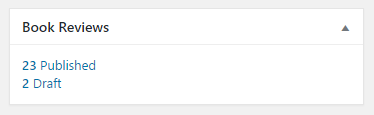
- Navigate to the website's Dashboard to see the new Book Reviews widget at the bottom of the page, as shown in the following screenshot: