- Navigate to the ch2-private-item-text folder of the WordPress plugin directory of your development installation.
- Open the ch2-private-item-text.php file in a text editor.
- Add the following code snippet at the end of the file to declare a global variable and initialize the variable's content:
global $user_levels;
$user_levels = array( 'regular' => 'Regular', 'paid' => 'Paid' );
- Add the following lines of code to register a function to be called when new users are added to the site through the administration interface or when users are edited:
add_action( 'user_new_form', 'ch2pit_show_user_profile' );
add_action( 'edit_user_profile', 'ch2pit_show_user_profile' );
- Add the following block of code to provide an implementation for the ch2pit_show_user_profile function:
function ch2pit_show_user_profile( $user ) {
    global $user_levels;
    if ( 'add-new-user' == $user ) {
        $current_user_level = '';
    } elseif ( !empty( $user ) && isset( $user->data->ID ) ) {
        $user_id = $user->data->ID;
        $current_user_level =
            get_user_meta( $user_id, 'user_level', true );
    } ?>

    <h3>Site membership level</h3>
    <table class="form-table">
        <tr>
            <th>Level</th>
            <td><select name="user_level" id="user_level">
            <?php foreach( $user_levels as
                           $user_level_index => $user_level ) { ?>
            <option value="<?php echo $user_level_index; ?>"
            <?php selected( $current_user_level,
                            $user_level_index ); ?>>
            <?php echo $user_level; ?></option>
            <?php } ?>
            </select></td>
        </tr>
    </table>
<?php }
- Save and close the plugin file.
- Go to the Plugins section of the administration interface and make sure that the Chapter 2 - Private Item Text plugin is activated.
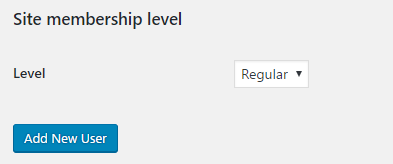
- Select the Add New User menu item under the Users section to view the user creation page and see the new Site membership level section at the bottom of the form:
- Edit one of the existing users on the site to see that the additional section is also displayed. If you try to save the user in either situation, the newly added field will not be saved until you perform the steps in the next recipe.