- Navigate to the WordPress plugin directory of your development installation.
- Create a new directory called ch10-book-review-dashboard-widget and edit ch10-book-review-dashboard-widget.php.
- Locate the add_action call that was first added at the top of the plugin and add the following highlighted lines of code around the existing function call:
if ( is_multisite() ) {
    add_action( 'wp_network_dashboard_setup',
                'ch10brdw_add_dashboard_widget' );
} else {
    add_action( 'wp_dashboard_setup',
                'ch10brdw_add_dashboard_widget' );
}
- Locate the ch10brdw_dashboard_widget function and add the following code to the function around the existing implementation of the function. The new lines of code are shown in bold:
function ch10brdw_dashboard_widget() {
    if ( is_multisite() ) {
        $sites_list = get_sites();
    } else {
        $sites_list = array( 'blog_id' => 1 );
    }

    foreach( $sites_list as $site ) {
        if ( is_multisite() ) {
            switch_to_blog( $site->blog_id );
        }
        $site_name = get_bloginfo( 'name' );
        echo '<div>' . $site_name . '</div>';
        $book_review_count = wp_count_posts( 'book_reviews' );
        ?>
        // REST OF PREVIOUS CODE GOES HERE
        <?php }
    }
    if ( is_multisite() ) {
        restore_current_blog();
    }
}
- Save and close the plugin file.
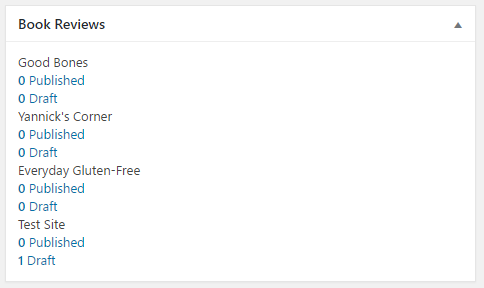
- Navigate to the website Dashboard (on a single site installation) or to the Network-level Dashboard (in a network installation) to see the same widget as before or to see the network-level dashboard, respectively: