- Navigate to the WordPress plugin directory of your development installation.
- Create a new directory called ch2-email-page-link.
- Navigate to this directory and create a new text file called ch2-email-page-link.php.
- Open the new file in a code editor and add an appropriate header at the top of the plugin file, naming the plugin Chapter 2 - Email Page Link.
- Visit an icon download website, such as http://iconarchive.com, and download an email icon in a small size (32 x 32 pixels) in PNG format to the new plugin's directory, giving it the name mailicon.png.
- Add the following line of code to register a function that will be called when WordPress is preparing data to display the content of a post or page:
add_filter( 'the_content', 'ch2epl_email_page_filter' );
- Add the following code section to provide an implementation for the ch2epl_email_page_filter function:
function ch2epl_email_page_filter ( $the_content ) {

    // build url to mail message icon downloaded from
    // iconarchive.com
    $mail_icon_url = plugins_url( 'mailicon.png', __FILE__ );

    // Set initial value of $new_content variable to previous
    // content
    $new_content = $the_content;

    // Append image with mailto link after content, including
    // the item title and permanent URL
    $new_content .= '<div class="email_link">';
    $new_content .= '<a href="mailto:someone@somewhere.com?';
    $new_content .= 'subject=Check out this interesting article ';
    $new_content .= 'entitled ' . get_the_title();
    $new_content .= '&body=Hi!%0A%0AI thought you would enjoy ';
    $new_content .= 'this article entitled ';
    $new_content .= get_the_title() . '.%0A%0A' . get_permalink();
    $new_content .= '%0A%0AEnjoy!">';

    if ( !empty( $mail_icon_url ) ) {
        $new_content .= '<img alt="Email icon" ';
        $new_content .= ' src="';
        $new_content .= $mail_icon_url. '" /></a>';
    } else {
        $new_content .= 'Email link to this article';
    }
    $new_content .= '</div>';

    // Return filtered content for display on the site
    return $new_content;
}
- Save and close the plugin file.
- Log in to the administration page of your development WordPress installation.
- Click on Plugins in the left-hand navigation menu.
- Activate your new plugin.
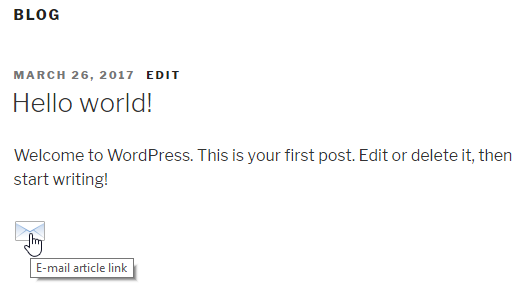
- Visit your website to see the new mail icon at the end of each post and page.
- Click on one of the mail links. Your default mail client will come up with information about the item you were reading. The only information that needs to be updated is the recipient address, and visitors can quickly send an email: