- Visit the Securimage website (https://www.phpcaptcha.org/download/) to download the latest version of their CAPTCHA library.
- Open the resulting archive and extract the entire securimage directory to the ch6-book-review-user-submission folder of your plugin directory.
- In the plugin directory, open the file named ch6-book-review-user-submission.php in a code editor.
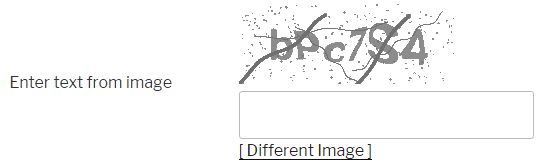
- Locate the ch6_brus_book_review_form function in your code and add an extra row to the form table to display the CAPTCHA:
<tr>
    <td>Enter text from image</td>
    <td>
        <img id="captcha"
             src="<?php echo plugins_url(
                            'securimage/securimage_show.php',
                            __FILE__ ); ?>"
             alt="CAPTCHA Image" />
        <input type="text" name="captcha_code"
               size="10" maxlength="6" />
        <a href="#"
           onclick="document.getElementById( 'captcha' ).src =
           '<?php echo plugins_url(
                       '/securimage/securimage_show.php',
                       __FILE__ ); ?>?'
           + Math.random(); return false">[ Different Image ]</a>
    </td>
</tr>
- Save your plugin and visit your book review submission page. You should now see the CAPTCHA image appear in the form:
- Locate the ch6_brus_process_user_book_reviews function in your code and add the following lines of code at the top of the function implementation:
if ( PHP_SESSION_NONE == session_status() ) {
    session_start();
}

include_once plugin_dir_path( __FILE__ ) .
             '/securimage/securimage.php';
$securimage = new Securimage();

if ( false == $securimage->check( $_POST['captcha_code'] ) ) {
    // Display message if any required fields are missing
    $abort_message = 'Missing or incorrect captcha.<br />';
    $abort_message .= 'Please go back and try again.';
    wp_die( $abort_message );
    exit;
} else {
- Add an extra closing bracket (}) just before the end of the ch6_brus_process_user_book_reviews function to close out the else section of the code inserted in the previous step.
- Save and close the code file.
- Submit a new book review without entering the CAPTCHA code to see that it will not be accepted by the processing function.