
- Navigate to the ch11-hello-world folder of the WordPress plugin directory of your development installation.
- Create a new subdirectory named languages.
- Navigate to the Poedit download page and download the appropriate version of the tool for your computer (https://www.poedit.net/download).
- Install and start the Poedit application.
- Select the New menu item under the application's File menu.
While Poedit offers an automated way to create translations for WordPress themes or plugins, we will focus on the free version of Poedit and highlight all steps required to create a translation in this mode.
- Select French (Canada) as Language of the translation.
- Click on the Save button from the toolbar, navigate to the languages folder created earlier in this recipe, and set the filename to ch11hw_hello_world-fr_CA.po.
- Click on the Extract from sources button in the main interface window to open the Catalog Properties window, which will default to the Sources paths tab.
If the Poedit window is too small, it will not display the main interface section. Simply make the window larger to see the Extract from sources button.
- Create a new entry in the Paths list by pressing the New item button.
- Set the value of the new path entry to .. (two period characters).
- Switch to the Sources keywords tab and add two new items to the list of Additional keywords and set their values to __ and _e.
- Switch to the Translation properties tab and set the Project name and version field to Hello World.
- Click on the OK button to close the Catalog properties dialog, then click on Save from the toolbar to be able to start editing entries in the file.
- Select the items one by one in order to display them in the lower section of the window.
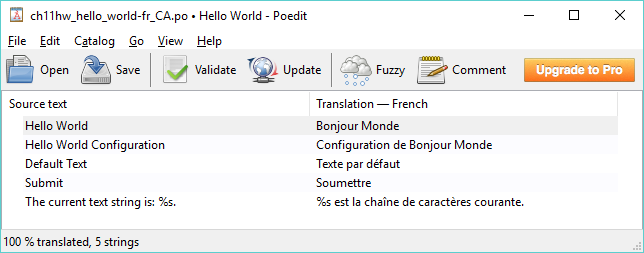
- Enter a translation for each text element in the lower dialog box. The following screenshot shows the translations of each item to French:
- Save the translation file once completed.