- Navigate to the ch2-page-header-output folder of the WordPress plugin directory of your development installation.
- Open the ch2-page-header-output.php file in a text editor.
- Add the following lines of code to implement the rendering code for the plugin options page:
function ch2pho_config_page() {
    // Retrieve plugin configuration options from database
    $options = ch2pho_get_options();
    ?>

    <div id="ch2pho-general" class="wrap">
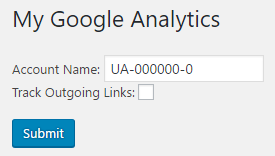
    <h2>My Google Analytics</h2><br />

    <form method="post" action="admin-post.php">
    <input type="hidden" name="action"
           value="save_ch2pho_options" />

    <!-- Adding security through hidden referrer field -->
    <?php wp_nonce_field( 'ch2pho' ); ?>
    Account Name: <input type="text" name="ga_account_name"
     value="<?php echo esc_html( $options['ga_account_name'] );
     ?>"/><br />
    Track Outgoing Links: <input type="checkbox"
     name="track_outgoing_links"
     <?php checked( $options['track_outgoing_links'] ); ?>/>
    <br /><br />
    <input type="submit" value="Submit" class="button-primary"/>
    </form>
    </div>
<?php }
- Save and close the plugin file.
- Click on the Settings section in the administration pages.
- Click on the My Google Analytics menu item to display the plugin configuration page.