
The steps you need to follow to complete this recipe are as follows:
- Download an .osm file from the OpenStreetMap website (https://www.openstreetmap.org/#map=5/21.843/82.795).
-
- Go to the OpenStreetMap website.
- Select the area of interest for which you want to export data. You should not select a large area, as the live export from the website is limited to 50,000 nodes.
If you want to export larger areas, you should consider downloading the whole database, built daily at planet.osm (250 GB uncompressed and 16 GB compressed). At planet.osm, you may also download extracts that contain OpenstreetMap data for individual continents, countries, and metropolitan areas.
-
- If you want to get the same dataset used for this recipe, just copy and paste the following URL in your browser: http://www.openstreetmap.org/export?lat=41.88745&lon=12.4899&zoom=15&layers=M; or, get it from the book datasets (chp01/map.osm file).
- Click on the Export link.
- Select OpenStreetMap XML Data as the output format.
- Download the map.osm file to your working directory.
- Run osm2pgsql to import the OSM data in the PostGIS database. Use the -hstore option, as you wish to add tags with an additional hstore (key/value) column in the PostgreSQL tables:
      $ osm2pgsql -d rome -U me --hstore map.osm
      osm2pgsql SVN version 0.80.0 (32bit id space)Using projection
      SRS 900913 (Spherical Mercator)Setting up table:
      planet_osm_point...All indexes on planet_osm_polygon created
      in 1sCompleted planet_osm_polygonOsm2pgsql took 3s overall
- At this point, you should have the following geometry tables in your database:
      rome=# SELECT f_table_name, f_geometry_column,
      coord_dimension, srid, type FROM geometry_columns;
The output of the preceding command is shown here:

- Note that the osm2pgsql command imports everything in the public schema. If you did not deal differently with the command's input parameter, your data will be imported in the Mercator Projection (3857).
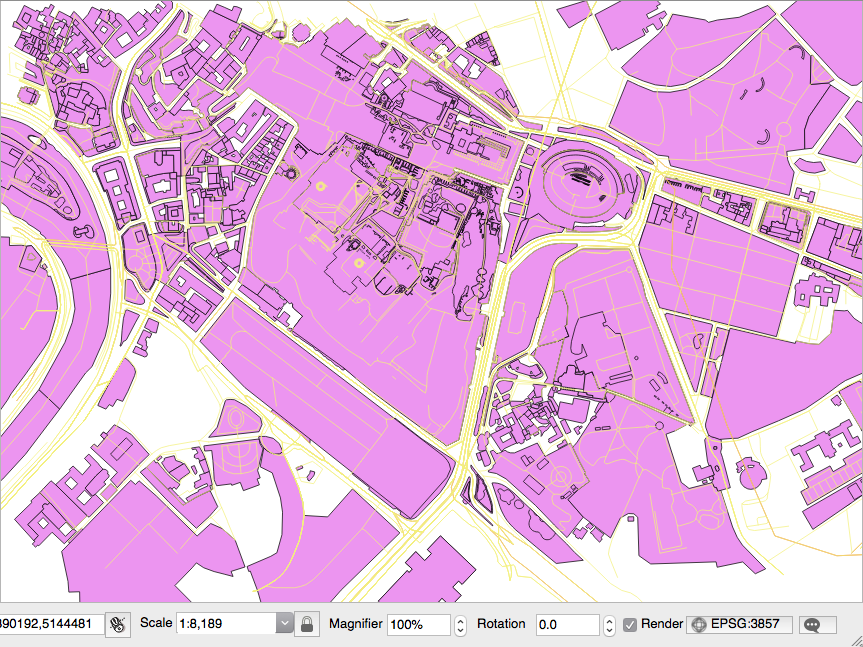
- Open the PostGIS tables and inspect them with your favorite desktop GIS. The following screenshot shows how it looks in QGIS. All the different thematic features are mixed at this time, so it looks a bit confusing:
- Generate a PostGIS view that extracts all the polygons tagged with trees as land cover. For this purpose, create the following view:
      rome=# CREATE VIEW rome_trees AS SELECT way, tags
      FROM planet_osm_polygon WHERE (tags -> 'landcover') = 'trees';
- Open the view with a desktop GIS that supports PostGIS views, such as QGIS, and add your rome_trees view. The previous screenshot shows you how it looks.