Carry out the following steps to run the data store query:
- Navigate to File | Run Datastore Query. Choose the PostGIS connection from the Connection drop-down menu or use the Connection Manager utility if you are not linked to the database.
- We'll create and name a polygon layer of the main streams in the region by executing the following query:
      SELECT gid, ST_BUFFER("chp11".lines.geom_sp, 75)
      AS the_geom, fullname
      FROM "chp11".lines WHERE fullname <> '' AND hydroflg = 'Y'
The preceding query is shown in the following screenshot:
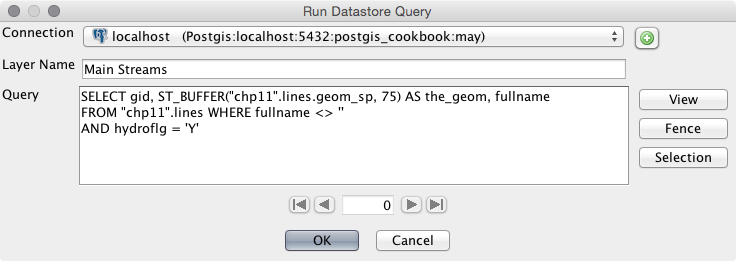
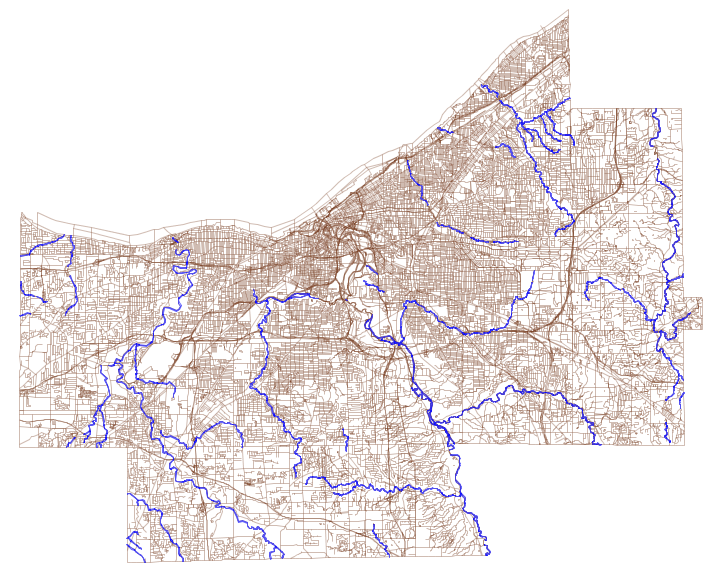
The preceding query selects the lines on the map that represent hydrology units such as "hydroflg" = 'Y' and streams. The selected stream lines (which use the State Plane geometry) are buffered by 75 feet, which should yield a result like that shown in the following screenshot:
- The ST_Buffer function uses the units of the data projection for buffering. So, if your data still has the original spatial reference EPSG: 4269, you will be buffering the lines by 75 degrees, and this will lead to very strange results indeed! Modify the following SQL query to transform your geometry:
      SELECT AddGeometryColumn('chp11', 'lines','geom_sp',3734,
                               'MULTILINESTRING', 2);
      UPDATE "chp11".lines SET geom_sp = ST_Transform(geom,3734);
- You'll then want to go back to step 2 in order to create the buffer measured in feet.
- Next, pan and zoom on the map and find two, separate polygons that are near each other.
- Select the Fence icon on the main menu, as shown in the following screenshot:

- Draw a connection (overlapping a connection is fine) between the two unconnected polygons using the Fence tool. Click once on the Fence button to create a vertex and double-click on it once your polygon is complete.
- Switch over to the Select Features Tool, as shown in the following screenshot, and select the polygons that you drew on either side of the Fence bridge; select multiple features by holding down the Shift key:

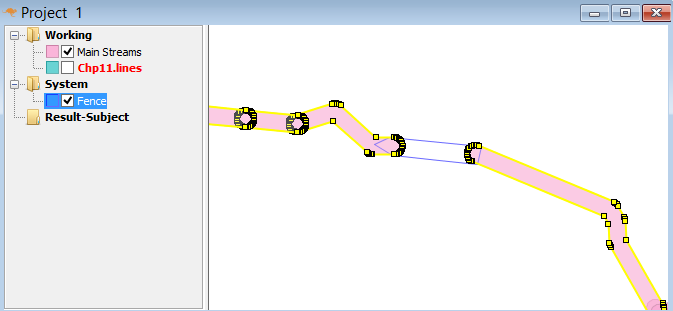
You should now have a fence junction between the selected polygons. You should see something similar to the following screenshot:
- Navigate to File | Run Datastore Query again.
- This time, we will utilize the buttons to the right-hand side of the window to connect.
Run ST_UNION on the selection and fence together so that the gap is filled. We do this with the following query:
SELECT ST_UNION(geom1, geom2) AS geom
Use the Selection and Fence buttons in place of geom1 and geom2 so that your query looks as shown in the following screenshot:
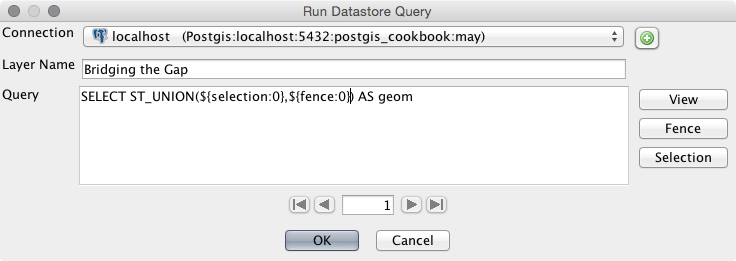
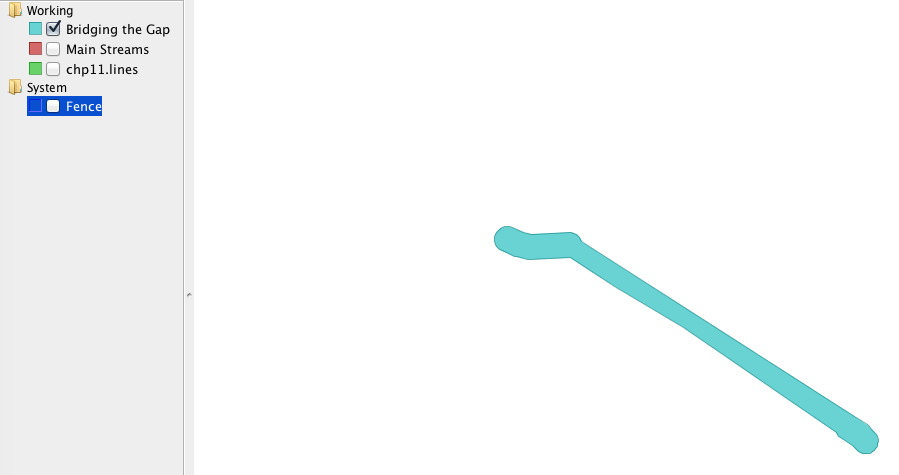
- Click on OK and view the query result by turning off the Main Streams and Fence layers, as shown in the following screenshot: