Table of Contents for
PostGIS Cookbook - Second Edition

Version ebook / Retour

Cover image for bash Cookbook, 2nd Edition PostGIS Cookbook - Second Edition by Thomas J Kraft Published by Packt Publishing, 2018
  1. PostGIS Cookbook, Second Edition
  2. Title Page
  3. Copyright and Credits
  4. PostGIS Cookbook Second Edition
  5. Packt Upsell
  6. Why subscribe?
  7. PacktPub.com
  8. Contributors
  9. About the authors
  10. Packt is searching for authors like you
  11. Table of Contents
  12. Preface
  13. Who this book is for
  14. What this book covers
  15. To get the most out of this book
  16. Download the example code files
  17. Download the color images
  18. Conventions used
  19. Sections
  20. Getting ready
  21. How to do it…
  22. How it works…
  23. There's more…
  24. See also
  25. Get in touch
  26. Reviews
  27. Moving Data In and Out of PostGIS
  28. Introduction
  29. Importing nonspatial tabular data (CSV) using PostGIS functions
  30. Getting ready
  31. How to do it...
  32. How it works...
  33. Importing nonspatial tabular data (CSV) using GDAL
  34. Getting ready
  35. How to do it...
  36. How it works...
  37. Importing shapefiles with shp2pgsql
  38. How to do it...
  39. How it works...
  40. There's more...
  41. Importing and exporting data with the ogr2ogr GDAL command
  42. How to do it...
  43. How it works...
  44. See also
  45. Handling batch importing and exporting of datasets
  46. Getting ready
  47. How to do it...
  48. How it works...
  49. Exporting data to a shapefile with the pgsql2shp PostGIS command
  50. How to do it...
  51. How it works...
  52. Importing OpenStreetMap data with the osm2pgsql command
  53. Getting ready
  54. How to do it...
  55. How it works...
  56. Importing raster data with the raster2pgsql PostGIS command
  57. Getting ready
  58. How to do it...
  59. How it works...
  60. Importing multiple rasters at a time
  61. Getting ready
  62. How to do it...
  63. How it works...
  64. Exporting rasters with the gdal_translate and gdalwarp GDAL commands
  65. Getting ready
  66. How to do it...
  67. How it works...
  68. See also
  69. Structures That Work
  70. Introduction
  71. Using geospatial views
  72. Getting ready
  73. How to do it...
  74. How it works...
  75. There's more...
  76. See also
  77. Using triggers to populate the geometry column
  78. Getting ready
  79. How to do it...
  80. There's more...
  81. Extending further...
  82. See also
  83. Structuring spatial data with table inheritance
  84. Getting ready
  85. How to do it...
  86. How it works...
  87. See also
  88. Extending inheritance – table partitioning
  89. Getting ready
  90. How to do it...
  91. How it works...
  92. See also
  93. Normalizing imports
  94. Getting ready
  95. How to do it...
  96. How it works...
  97. There's more...
  98. Normalizing internal overlays
  99. Getting ready
  100. How to do it...
  101. How it works...
  102. There's more...
  103. Using polygon overlays for proportional census estimates
  104. Getting ready
  105. How to do it...
  106. How it works...
  107. Working with Vector Data – The Basics
  108. Introduction
  109. Working with GPS data
  110. Getting ready
  111. How to do it...
  112. How it works...
  113. Fixing invalid geometries
  114. Getting ready
  115. How to do it...
  116. How it works...
  117. GIS analysis with spatial joins
  118. Getting ready
  119. How to do it...
  120. How it works...
  121. Simplifying geometries
  122. How to do it...
  123. How it works...
  124. Measuring distances
  125. Getting ready
  126. How to do it...
  127. How it works...
  128. Merging polygons using a common attribute
  129. Getting ready
  130. How to do it...
  131. How it works...
  132. Computing intersections
  133. Getting ready
  134. How to do it...
  135. How it works...
  136. Clipping geometries to deploy data
  137. Getting ready
  138. How to do it...
  139. How it works...
  140. Simplifying geometries with PostGIS topology
  141. Getting ready
  142. How to do it...
  143. How it works...
  144. Working with Vector Data – Advanced Recipes
  145. Introduction
  146. Improving proximity filtering with KNN
  147. Getting ready
  148. How to do it...
  149. How it works...
  150. See also
  151. Improving proximity filtering with KNN – advanced
  152. Getting ready
  153. How to do it...
  154. How it works...
  155. See also
  156. Rotating geometries
  157. Getting ready
  158. How to do it...
  159. How it works...
  160. See also
  161. Improving ST_Polygonize
  162. Getting ready
  163. How to do it...
  164. See also
  165. Translating, scaling, and rotating geometries – advanced
  166. Getting ready
  167. How to do it...
  168. How it works...
  169. See also
  170. Detailed building footprints from LiDAR
  171. Getting ready
  172. How to do it...
  173. How it works...
  174. Creating a fixed number of clusters from a set of points
  175. Getting ready
  176. How to do it...
  177. Calculating Voronoi diagrams
  178. Getting ready
  179. How to do it...
  180. Working with Raster Data
  181. Introduction
  182. Getting and loading rasters
  183. Getting ready
  184. How to do it...
  185. How it works...
  186. Working with basic raster information and analysis
  187. Getting ready
  188. How to do it...
  189. How it works...
  190. Performing simple map-algebra operations
  191. Getting ready
  192. How to do it...
  193. How it works...
  194. Combining geometries with rasters for analysis
  195. Getting ready
  196. How to do it...
  197. How it works...
  198. Converting between rasters and geometries
  199. Getting ready
  200. How to do it...
  201. How it works...
  202. Processing and loading rasters with GDAL VRT
  203. Getting ready
  204. How to do it...
  205. How it works...
  206. Warping and resampling rasters
  207. Getting ready
  208. How to do it...
  209. How it works...
  210. Performing advanced map-algebra operations
  211. Getting ready
  212. How to do it...
  213. How it works...
  214. Executing DEM operations
  215. Getting ready
  216. How to do it...
  217. How it works...
  218. Sharing and visualizing rasters through SQL
  219. Getting ready
  220. How to do it...
  221. How it works...
  222. Working with pgRouting
  223. Introduction
  224. Startup – Dijkstra routing
  225. Getting ready
  226. How to do it...
  227. Loading data from OpenStreetMap and finding the shortest path using A*
  228. Getting ready
  229. How to do it...
  230. How it works...
  231. Calculating the driving distance/service area
  232. Getting ready
  233. How to do it...
  234. See also
  235. Calculating the driving distance with demographics
  236. Getting ready
  237. How to do it...
  238. Extracting the centerlines of polygons
  239. Getting ready
  240. How to do it...
  241. There's more...
  242. Into the Nth Dimension
  243. Introduction
  244. Importing LiDAR data
  245. Getting ready
  246. How to do it...
  247. See also
  248. Performing 3D queries on a LiDAR point cloud
  249. How to do it...
  250. Constructing and serving buildings 2.5D
  251. Getting ready
  252. How to do it...
  253. Using ST_Extrude to extrude building footprints
  254. How to do it...
  255. Creating arbitrary 3D objects for PostGIS
  256. Getting ready
  257. How to do it...
  258. Exporting models as X3D for the web
  259. Getting ready
  260. How to do it...
  261. There's more...
  262. Reconstructing Unmanned Aerial Vehicle (UAV) image footprints with PostGIS 3D
  263. Getting started
  264. How to do it...
  265. UAV photogrammetry in PostGIS – point cloud
  266. Getting ready
  267. How to do it...
  268. UAV photogrammetry in PostGIS – DSM creation
  269. Getting ready
  270. How to do it...
  271. PostGIS Programming
  272. Introduction
  273. Writing PostGIS vector data with Psycopg
  274. Getting ready
  275. How to do it...
  276. How it works...
  277. Writing PostGIS vector data with OGR Python bindings
  278. Getting ready
  279. How to do it...
  280. How it works...
  281. Writing PostGIS functions with PL/Python
  282. Getting ready
  283. How to do it...
  284. How it works...
  285. Geocoding and reverse geocoding using the GeoNames datasets
  286. Getting ready
  287. How to do it...
  288. How it works...
  289. Geocoding using the OSM datasets with trigrams
  290. Getting ready
  291. How to do it...
  292. How it works...
  293. Geocoding with geopy and PL/Python
  294. Getting ready
  295. How to do it...
  296. How it works...
  297. Importing NetCDF datasets with Python and GDAL
  298. Getting ready
  299. How to do it...
  300. How it works...
  301. PostGIS and the Web
  302. Introduction
  303. Creating WMS and WFS services with MapServer
  304. Getting ready
  305. How to do it...
  306. How it works...
  307. See also
  308. Creating WMS and WFS services with GeoServer
  309. Getting ready
  310. How to do it...
  311. How it works...
  312. See also
  313. Creating a WMS Time service with MapServer
  314. Getting ready
  315. How to do it...
  316. How it works...
  317. Consuming WMS services with OpenLayers
  318. Getting ready
  319. How to do it...
  320. How it works..
  321. Consuming WMS services with Leaflet
  322. How to do it...
  323. How it works...
  324. Consuming WFS-T services with OpenLayers
  325. Getting ready
  326. How to do it...
  327. How it works...
  328. Developing web applications with GeoDjango – part 1
  329. Getting ready
  330. How to do it...
  331. How it works...
  332. Developing web applications with GeoDjango – part 2
  333. Getting ready
  334. How to do it...
  335. How it works...
  336. Developing a web GPX viewer with Mapbox
  337. How to do it...
  338. How it works...
  339. Maintenance, Optimization, and Performance Tuning
  340. Introduction
  341. Organizing the database
  342. Getting ready
  343. How to do it...
  344. How it works...
  345. Setting up the correct data privilege mechanism
  346. Getting ready
  347. How to do it...
  348. How it works...
  349. Backing up the database
  350. Getting ready
  351. How to do it...
  352. How it works...
  353. Using indexes
  354. Getting ready
  355. How to do it...
  356. How it works...
  357. Clustering for efficiency
  358. Getting ready
  359. How to do it...
  360. How it works...
  361. Optimizing SQL queries
  362. Getting ready
  363. How to do it...
  364. How it works...
  365. Migrating a PostGIS database to a different server
  366. Getting ready
  367. How to do it...
  368. How it works...
  369. Replicating a PostGIS database with streaming replication
  370. Getting ready
  371. How to do it...
  372. How it works...
  373. Geospatial sharding
  374. Getting ready
  375. How to do it...
  376. How it works...
  377. Paralellizing in PosgtreSQL
  378. Getting ready
  379. How to do it...
  380. How it works...
  381. Using Desktop Clients
  382. Introduction
  383. Adding PostGIS layers – QGIS
  384. Getting ready
  385. How to do it...
  386. How it works...
  387. Using the Database Manager plugin – QGIS
  388. Getting ready
  389. How to do it...
  390. How it works...
  391. Adding PostGIS layers – OpenJUMP GIS
  392. Getting ready
  393. How to do it...
  394. How it works...
  395. Running database queries – OpenJUMP GIS
  396. Getting ready
  397. How to do it...
  398. How it works...
  399. Adding PostGIS layers – gvSIG
  400. Getting ready
  401. How to do it...
  402. How it works...
  403. Adding PostGIS layers – uDig
  404. How to do it...
  405. How it works...
  406. Introduction to Location Privacy Protection Mechanisms
  407. Introduction
  408. Definition of Location Privacy Protection Mechanisms – LPPMs
  409. Classifying LPPMs
  410. Adding noise to protect location data
  411. Getting ready
  412. How to do it...
  413. How it works...
  414. Creating redundancy in geographical query results
  415. Getting ready
  416. How to do it...
  417. How it works...
  418. References
  419. Other Books You May Enjoy
  420. Leave a review - let other readers know what you think

How to do it...

The steps you need to do to complete this recipe are as follows:

  1. Set the PostgreSQL search_path variable such that all your newly created database objects will be stored in the chp03 schema, using the following code:
      postgis_cookbook=# SET search_path TO chp03,public; 


  1. Suppose you need a less-detailed version of the states layer for your mapping website or to deploy to a client; you could consider using the ST_SimplifyPreserveTopology function as follows:
      postgis_cookbook=# CREATE TABLE states_simplify_topology AS 
        SELECT ST_SimplifyPreserveTopology(ST_Transform(
the_geom, 2163), 500) FROM states;
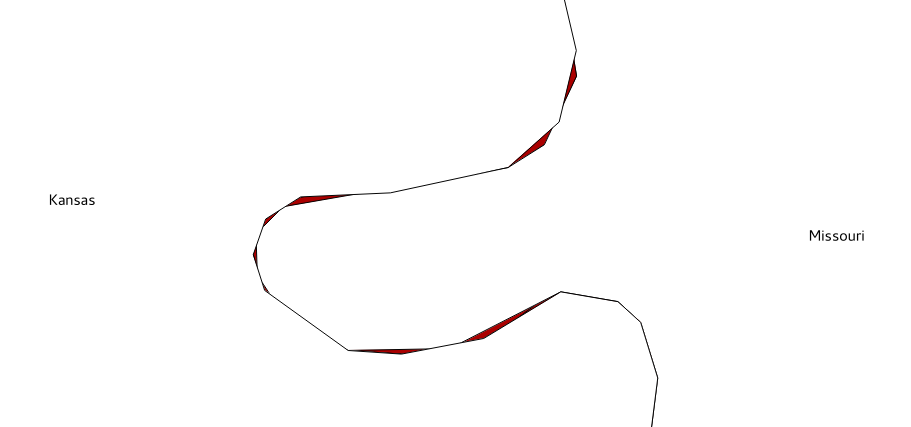
  1. The previous command works quickly, using a variant of the Douglas-Peucker algorithm, and effectively reduces the vertex number. But the resulting polygons, in some cases, are not adjacent any more. If you zoom in at any polygon border, you should notice something shown in the following screenshot: there are holes and overlaps along the shared border between two polygons. This is because PostGIS is using the OGC Simple Feature model, which doesn't implement topology, so the function just removes the redundant vertex without taking the adjacent polygons into consideration:
  1. It looks like the ST_SimplifyPreserveTopology function, while working well with linear features, produces topological anomalies with polygons. In case you want topological simplification, another approach is the following code suggested by Paul Ramsey (http://gis.stackexchange.com/questions/178/simplifying-adjacent-polygons) and improved in a Webspaces blog post (http://webspaces.net.nz/page.php?view=polygon-dissolve-and-generalise):
      SET search_path TO chp03, public; 
      -- first project the spatial table to a planar system 
(recommended for simplification operations) CREATE TABLE states_2163 AS SELECT ST_Transform
(the_geom, 2163)::geometry(MultiPolygon, 2163)
AS the_geom, state FROM states; -- now decompose the geometries from multipolygons to polygons (2895)
using the ST_Dump function CREATE TABLE polygons AS SELECT (ST_Dump(the_geom)).geom AS the_geom
FROM states_2163; -- now decompose from polygons (2895) to rings (3150)
using the ST_DumpRings function CREATE TABLE rings AS SELECT (ST_DumpRings(the_geom)).geom
AS the_geom FROM polygons; -- now decompose from rings (3150) to linestrings (3150)
using the ST_Boundary function CREATE TABLE ringlines AS SELECT(ST_boundary(the_geom))
AS the_geom FROM rings; -- now merge all linestrings (3150) in a single merged linestring
(this way duplicate linestrings at polygon borders disappear) CREATE TABLE mergedringlines AS SELECT ST_Union(the_geom)
AS the_geom FROM ringlines; -- finally simplify the linestring with a tolerance of 150 meters CREATE TABLE simplified_ringlines AS SELECT
ST_SimplifyPreserveTopology(the_geom, 150)
AS the_geom FROM mergedringlines; -- now compose a polygons collection from the linestring
using the ST_Polygonize function CREATE TABLE simplified_polycollection AS SELECT
ST_Polygonize(the_geom) AS the_geom FROM simplified_ringlines; -- here you generate polygons (2895) from the polygons collection
using ST_Dumps CREATE TABLE simplified_polygons AS SELECT
ST_Transform((ST_Dump(the_geom)).geom,
4326)::geometry(Polygon,4326)
AS the_geom FROM simplified_polycollection; -- time to create an index, to make next operations faster
CREATE INDEX simplified_polygons_gist ON simplified_polygons
USING GIST (the_geom); -- now copy the state name attribute from old layer with a spatial
join using the ST_Intersects and ST_PointOnSurface function CREATE TABLE simplified_polygonsattr AS SELECT new.the_geom,
old.state FROM simplified_polygons new, states old
WHERE ST_Intersects(new.the_geom, old.the_geom)
AND ST_Intersects(ST_PointOnSurface(new.the_geom), old.the_geom); -- now make the union of all polygons with a common name CREATE TABLE states_simplified AS SELECT ST_Union(the_geom)
AS the_geom, state FROM simplified_polygonsattr GROUP BY state;
  1. This approach seems to work smoothly, but if you try to increment the simplifying tolerance from 150 to, let's say, 500 meters, you will again end up with topological anomalies (test this yourself). A better approach would be to use the PostGIS topology (you will do this in the Simplifying geometries with PostGIS topology recipe) or an external GIS tool that is able to manage topological operations the way GRASS can. For this recipe, you will use the GRASS approach.
    1. Install GRASS on your system if you don't have it. Then, create a directory to contain the GRASS database (in GRASS jargon, a GISDBASE), as follows:
          $ mkdir grass_db
    1. Now, start GRASS by typing grass in the Linux command prompt or by double-clicking on the GRASS GUI icon in Windows (Start | All Programs | OSGeo4W | GRASS GIS 6.4.3 | GRASS 6.4.3 GUI) or on Applications in macOS. You will be prompted to select the grass_db database as the GIS data directory but should instead select the one you created in the previous step.
      1. Using the Location Wizard button, create a location named postgis_cookbook with the title PostGIS Cookbook (GRASS uses subdirectories named locations, where all of the data is kept in the same coordinate system, map projection, and geographical boundaries).
      2. When creating the new location, select the EPSG with SRID 2163 as the spatial reference system (you need to select the Select EPSG code of spatial reference system option under Choose method for creating a new location).
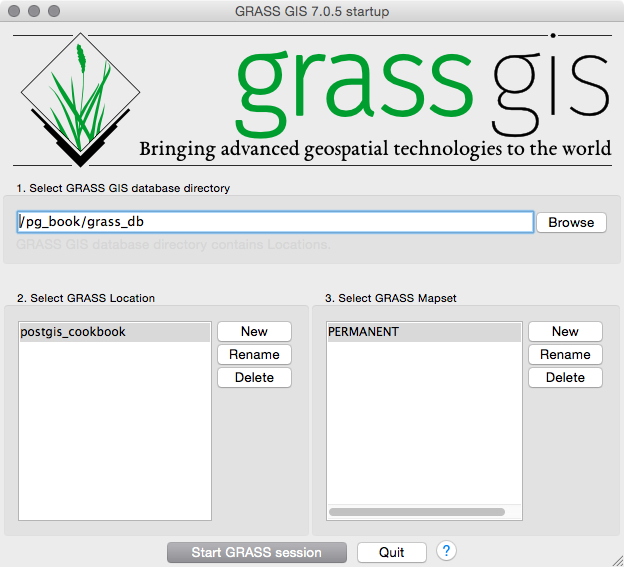
      1. Now start GRASS by clicking on the Start GRASS button. The program's command line will start as shown in the following screenshot:
      1. Import the states PostGIS spatial table to the GRASS location. To do so, use the v.in.ogr GRASS command, which will then use the OGR PostgreSQL driver (in fact, the PostGIS connection string syntax is the same):
            GRASS 6.4.1 (postgis_cookbook):~ > v.in.ogr 
      input=PG:"dbname='postgis_cookbook' user='me'
      password='mypassword'" layer=chp03.states_2163 out=states
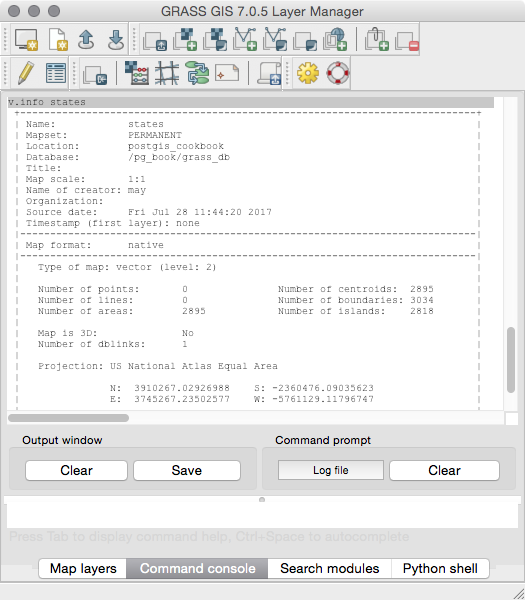
      1. GRASS will import the OGR PostGIS table and simultaneously build the topology for this layer, which is composed of points, lines, areas, and so on. The v.info command can be used in combination with the -c option to check the attributes table and get more information on the imported layer, as follows:
            GRASS 6.4.1 (postgis_cookbook):~ > v.info states
      1. Now, you can simplify the polygon geometries using the v.generalizeGRASS command with a tolerance (threshold) of 500 meters. If you are using the same dataset used in this recipe, you will end up with 47,191 vertices from the original 346,914 vertices, composing 1,919 polygons (areas) from the original 2,895 polygons:
            GRASS 6.4.1 (postgis_cookbook):~ > v.generalize input=states 
      output=states_generalized_from_grass method=douglas threshold=500
      1. Export the results back to PostGIS using the v.out.ogr command (the v.in.ogr counterpart) as follows:
            GRASS 6.4.1 (postgis_cookbook):~ > v.out.ogr 
      input=states_generalized_from_grass
      type=area dsn=PG:"dbname='postgis_cookbook' user='me'
      password='mypassword'" olayer=chp03.states_simplified_from_grass
      format=PostgreSQL
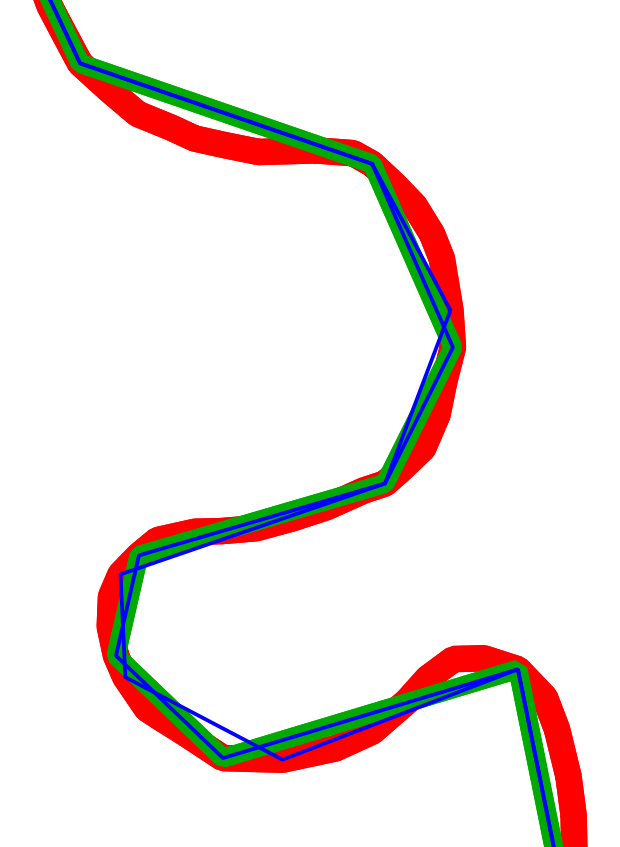
      1. Now, open a desktop GIS and check for differences between the geometry simplification performed by the ST_SimplifyPreserveTopology PostGIS function and GRASS. There should be no holes or overlaps at shared polygon borders. In the following screenshot, the original layer boundaries are in red, the boundaries built by ST_SimplifyPreserveTopology are in blue, and those built by GRASS are in green: