
Follow these steps before getting ready:
- Create a schema for this chapter within the postgis_cookbook database using the following command:
postgis_cookbook=# create schema chp09;
- Be sure to have Apache HTTP installed (MapServer will run on it as a CGI) and check whether it is working by visiting its home page at http://localhost (typically, an It works! message will be displayed if you still have not customized any features).
- Install MapServer as per its installation guide (http://mapserver.org/installation/index.html).
A handy way to have MapServer up and running in Apache for Windows is to install the OSGeo4W (http://trac.osgeo.org/osgeo4w/) or MS4W (http://www.maptools.org/ms4w/) packages.
For Linux, there are packages for almost any kind of distribution.
For macOS, you can use again the CMake app to build the installation or use Homebrew with the following command (note the flags needed to compile it with Postgres support):
brew install mapserver --with-postgresql --with-geos
For Linux, there are packages for almost any kind of distribution.
For macOS, you can use again the CMake app to build the installation or use Homebrew with the following command (note the flags needed to compile it with Postgres support):
brew install mapserver --with-postgresql --with-geos
- Check whether MapServer has been installed correctly and has POSTGIS, WMS_SERVER, and WFS_SERVER support enabled, by running it as a command-line tool with the -v option.
On Linux, run the $ /usr/lib/cgi-bin/mapserv -v command and check for the following output:
    MapServer version 7.0.7 OUTPUT=GIF OUTPUT=PNG OUTPUT=JPEG SUPPORTS=PROJ
    SUPPORTS=GD SUPPORTS=AGG SUPPORTS=FREETYPE SUPPORTS=CAIRO
    SUPPORTS=SVG_SYMBOLS
    SUPPORTS=ICONV SUPPORTS=FRIBIDI SUPPORTS=WMS_SERVER SUPPORTS=WMS_CLIENT
    SUPPORTS=WFS_SERVER SUPPORTS=WFS_CLIENT SUPPORTS=WCS_SERVER
    SUPPORTS=SOS_SERVER SUPPORTS=FASTCGI SUPPORTS=THREADS SUPPORTS=GEOS
    INPUT=JPEG INPUT=POSTGIS INPUT=OGR INPUT=GDAL INPUT=SHAPEFILE
On Windows, run the following command:
c:\ms4w\Apache\cgi-bin\mapserv.exe -v
On macOS, use the $ mapserv -v command:
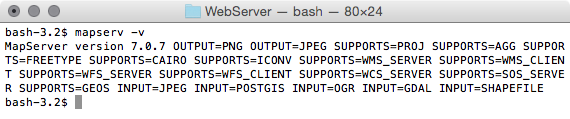
- Now check whether MapServer is working from within HTTPD, using http://localhost/cgi-bin/mapserv (http://localhost/cgi-bin/mapserv.exe for Windows). If you get a No query information to decode. QUERY_STRING is set, but empty response message, MapServer is correctly working as a CGI script in Apache and is ready to accept HTTP requests.
- Download the world countries shapefile from http://thematicmapping.org/downloads/TM_WORLD_BORDERS-0.3.zip. A copy of this shapefile is included in the book dataset for Chapter 1, Moving Data In and Out of PostGIS. Extract the shapefile to the working/chp09 directory and import it in PostGIS using the shp2pgsql tool (be sure to specify the spatial reference system, EPSG:4326, with the -s option), as follows:
      $ shp2pgsql -s 4326 -W LATIN1 -g the_geom -I TM_WORLD_BORDERS-0.3.shp
      chp09.countries > countries.sql
      Shapefile type: Polygon
      Postgis type: MULTIPOLYGON[2]
      $ psql -U me -d postgis_cookbook -f countries.sql