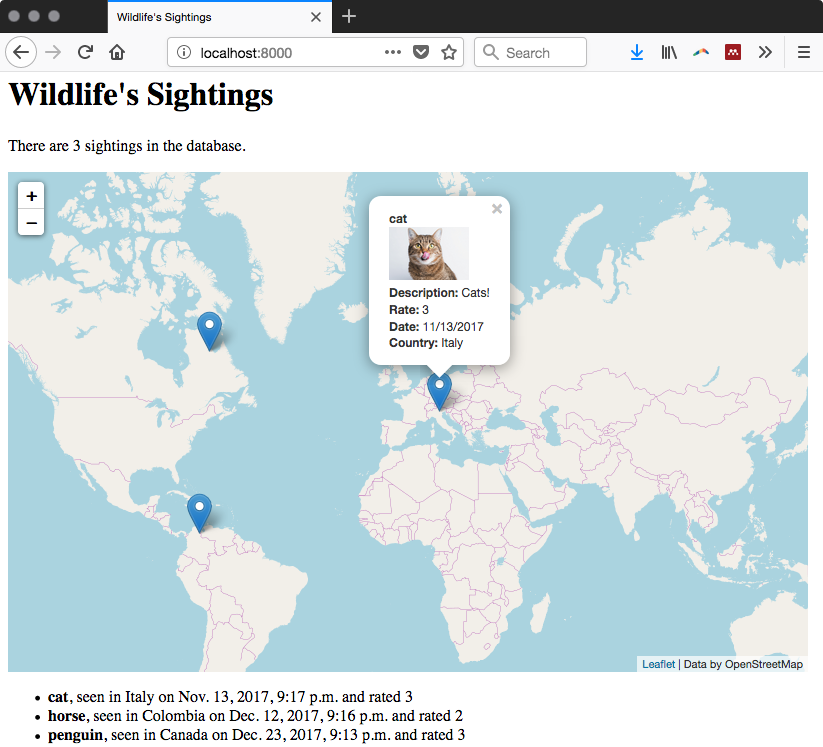
You will now create the front page of your web application, as follows:
- Go to the directory containing the Django wildlife web application and add the following lines to the urls.py file under chp09/wildlife/wildlife:
        from django.conf.urls import patterns, include, url
        from django.conf import settings
        from sightings.views import get_geojson, home
        from django.contrib import admin
        admin.autodiscover()
        urlpatterns = [
          url(r'^admin/', admin.site.urls),
          url(r'^geojson/', get_geojson),
          url(r'^$', home),
        ] + static(settings.MEDIA_URL, document_root=settings.MEDIA_ROOT)
          # media files
- Open the views.py file under chp09/wildlife/sightings and add the following code. The home view will return the home page of your application, with the list of sightings and the Leaflet map. The sighting layer in the map will display the GeoJSON response given by the get_geojson view:
        from django.shortcuts import render
        from django.http import HttpResponse
        from  vectorformats.Formats import Django, GeoJSON
        from models import Sighting

        def home(request):
          """
            Display the home page with the list and a map of the sightings.
          """
          sightings = Sighting.objects.all()
          return render("sightings/home.html", {'sightings' : sightings})

        def get_geojson(request):
          """
            Get geojson (needed by the map) for all of the sightings.
          """
          sightings = Sighting.objects.all()
          djf = Django.Django(geodjango='geometry',
            properties=['animal_name', 'animal_image_url', 'description',
                        'rate', 'date_formatted', 'country_name'])
          geoj = GeoJSON.GeoJSON()
          s = geoj.encode(djf.decode(sightings))
          return HttpResponse(s)
- Add the following @property definitions to the Sighting class in the models.py file under chp09/wildlife/sightings. The get_geojson view will need to use these properties to compose the GeoJSON view needed from the Leaflet map and the information popup. Note how in the country_name property, you are using GeoDjango, which contains a spatial lookup QuerySet operator to detect the country where the sighting happened:
        @property
        def date_formatted(self):
          return self.date.strftime('%m/%d/%Y')

        @property
        def animal_name(self):
          return self.animal.name

        @property
        def animal_image_url(self):
          return self.animal.image_url()

        @property
        def country_name(self):
          country = Country.objects.filter
            (geometry__contains=self.geometry)[0]
          return country.name
- Add a home.html file, containing the following code, under sightings/templates/sightings. Using the Django template language, you will display the number of sightings in the system, a list of these sightings with the main information for each of them, and the Leaflet map. Using the Leaflet JavaScript API, you add a base OpenStreetMap layer to the map. Then, you make an asynchronous call, using jQuery, to the get_geojson view (accessed by adding /geojson to the request URL). If the query is successful, it will feed a Leaflet GeoJSON layer with the features from the sighting PostGIS layer and associate with each feature an informative popup. This popup will open any time the user clicks on a point on the map representing a sighting, displaying the main information for that entity:
        <!DOCTYPE html>
        <html>
          <head>
            <title>Wildlife's Sightings</title>
            <link rel="stylesheet"
             href="https://unpkg.com/leaflet@1.2.0/dist/leaflet.css"
             integrity="sha512-M2wvCLH6DSRazYeZRIm1JnYyh
             22purTM+FDB5CsyxtQJYeKq83arPe5wgbNmcFXGqiSH2XR8dT
             /fJISVA1r/zQ==" crossorigin=""/>
            <script src="https://unpkg.com/leaflet@1.2.0/dist/leaflet.js"
             integrity="sha512-lInM/apFSqyy1o6s89K4iQUKg6ppXEgsVxT35HbzUup
             EVRh2Eu9Wdl4tHj7dZO0s1uvplcYGmt3498TtHq+log==" crossorigin="">
            </script>
            <script src="http://ajax.googleapis.com/ajax/libs
             /jquery/1.9.1/jquery.min.js">
            </script>
          </head>
          <body>
            <h1>Wildlife's Sightings</h1>
            <p>There are {{ sightings.count }} sightings
               in the database.</p>
            <div id="map" style="width:800px; height:500px"></div>
            <ul>
              {% for s in sightings %}
              <li><strong>{{ s.animal }}</strong>,
                seen in {{ s.country_name }} on {{ s.date }}
                and rated {{ s.rate }}
              </li> {% endfor %}
            </ul>
            <script type="text/javascript">
              // OSM layer
              var osm = L.tileLayer('http://{s}.tile.osm.org/{z}/{x}/{y}
                                               .png', {
                maxZoom: 18,
               attribution: "Data by OpenStreetMap"
              });
              // map creation
              var map = new L.Map('map', {
                center: new L.LatLng(15, 0),
                zoom: 2,
                layers: [osm],
                zoomControl: true
              });
              // add GeoJSON layer
              $.ajax({
                type: "GET",
                url: "geojson",
                dataType: 'json',
                success: function (response) {
                  geojsonLayer = L.geoJson(response, {
                    style: function (feature) {
                      return {color: feature.properties.color};
                    },
                    onEachFeature: function (feature, layer) {
                      var html = "<strong>" +
                                 feature.properties.animal_name +
                                 "</strong><br />" +
                                 feature.properties.animal_image_url +
                                 "<br /><strong>Description:</strong> " +
                                 feature.properties.description +
                                 "<br /><strong>Rate:</strong> " +
                                 feature.properties.rate +
                                 "<br /><strong>Date:</strong> " +
                                 feature.properties.date_formatted +
                                 "<br /><strong>Country:</strong> " +
                                 feature.properties.country_name
                                 layer.bindPopup(html);
                    }
                  }).addTo(map);
                }
              });
            </script>
          </body>
        </html>
- Now that your frontend page is completed, you can finally access it at http://localhost:8000/. Navigate the map and try to identify some of the displayed sightings to check whether the popup opens, as shown in the following screenshot: