
Let's go ahead and do just that over inside server.js, registering a new event listener. I'm going to remove the old commented out broadcast call that's no longer needed in createMessage. Just below createMessage, we're going to call socket.on again, specifying a listener for this event, createLocationMessage, just as we defined it over inside index.js. Now we are using ES6 since we're in Node, which means we can go ahead and set up our arrow function. We're going to have one argument, this is going to be the coords, and we can go ahead and finish off the arrow function.
  socket.on('createMessage', (message, callback) => {
    console.log('createMessage', message);
    io.emit('newMessage', generateMessage(message.from, message.text));
    callback('This is from the server.');

});

  socket.on('createLocationMessage', (coords) => {

});
In here we're going to be able to run whatever code we like. For the moment all we're going to do is emit a newMessage event passing along the coordinates, although later in the chapter, we'll be making this a lot nicer, setting up that URL for Google Maps. Right now, though, we're going to call io.emit, emit a newMessage event, and provide the necessary data by calling generateMessage:
socket.on('createLocationMessage', (coords) => {
  io.emit('newMessage', generateMessage)
});
For the moment generateMessage is going to take some bogus username, I'm going to go ahead and type in Admin, and we are going to set the text, for now we're simply going to set it equal to the coordinates. Let's go ahead and use a template string to set that up. We're going to first inject the latitude, which is available on coords.latitude, then we're going to go ahead and add a comma, a space, and we'll inject the longitude, coords.longitude:
socket.on('createLocationMessage', (coords) => {
  io.emit('newMessage', generateMessage('Admin', `${coords.latitude}, ${coords.longitude}`));
});
Now that we have this call in place the location information is going to get passed back and forth between the users, and we can go ahead and actually prove this.
Over inside the browser I'm going to give this page a refresh, and I'm also going to open up a second tab. In this second tab I'm going to click on Send Location. It's not going to prompt me if I want to share my location since I've already told it I do want to share my location with this tab. You can see we have our Admin message and we have our latitude, and the longitude:
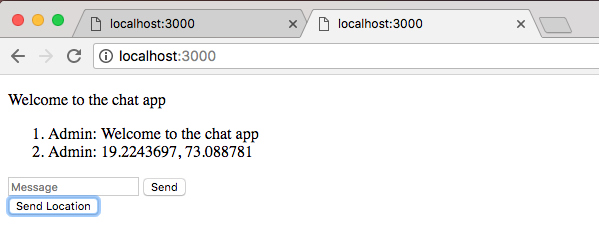
We also have it over inside the second tab. If I take this information we can actually Google it and prove that it is working as expected. Later in the chapter, we're going to be setting up a nice link so this information isn't visible; it'll be there but the user doesn't really need to know the coordinates, what they really want is a link to a map. That's what we're going to set up, but for now we can put this in Google, Google is going to show us exactly where it is and the coordinates are indeed correct. I am in Philadelphia, which means the location was correctly fetched for these localhost tabs.